
What is a segment and how to create one? Video
A segment is a specific group of contacts found with specific search conditions, saved under a unique name.
Segments allow you to set up a specific group of search conditions to define a group of contacts without keeping them in a separate list. They are dynamic — you don’t need to manually add new contacts to a segment. As soon as they meet the conditions, they’re added to the segment automatically.
How to create a segment
As of January 2026, a new segmentation version is available. It is being gradually rolled out to existing accounts and is already set as the default for all newly created accounts.
The new version can be identified by the BETA label.
The steps outlined in this section apply exclusively to accounts with access to the new segmentation. If your account does not yet have access to the new segmentation, you can find the instructions below in the section titled How to create a segment in legacy segmentation.
To create a segment:
- Go to Contacts > Segments (BETA).
- Click Create segment.
- Choose how you want to create your segment:
- To create a segment from scratch, click Create next to Create segment by yourself.
- To create a segment with AI, enter your prompt in the text field under the Create segment with AI section and follow the instructions described in How to create segments with AI.
- To use a pre-built segment, select one of the available pre-built segments. For more details, see What are pre-built segments and how to use them.
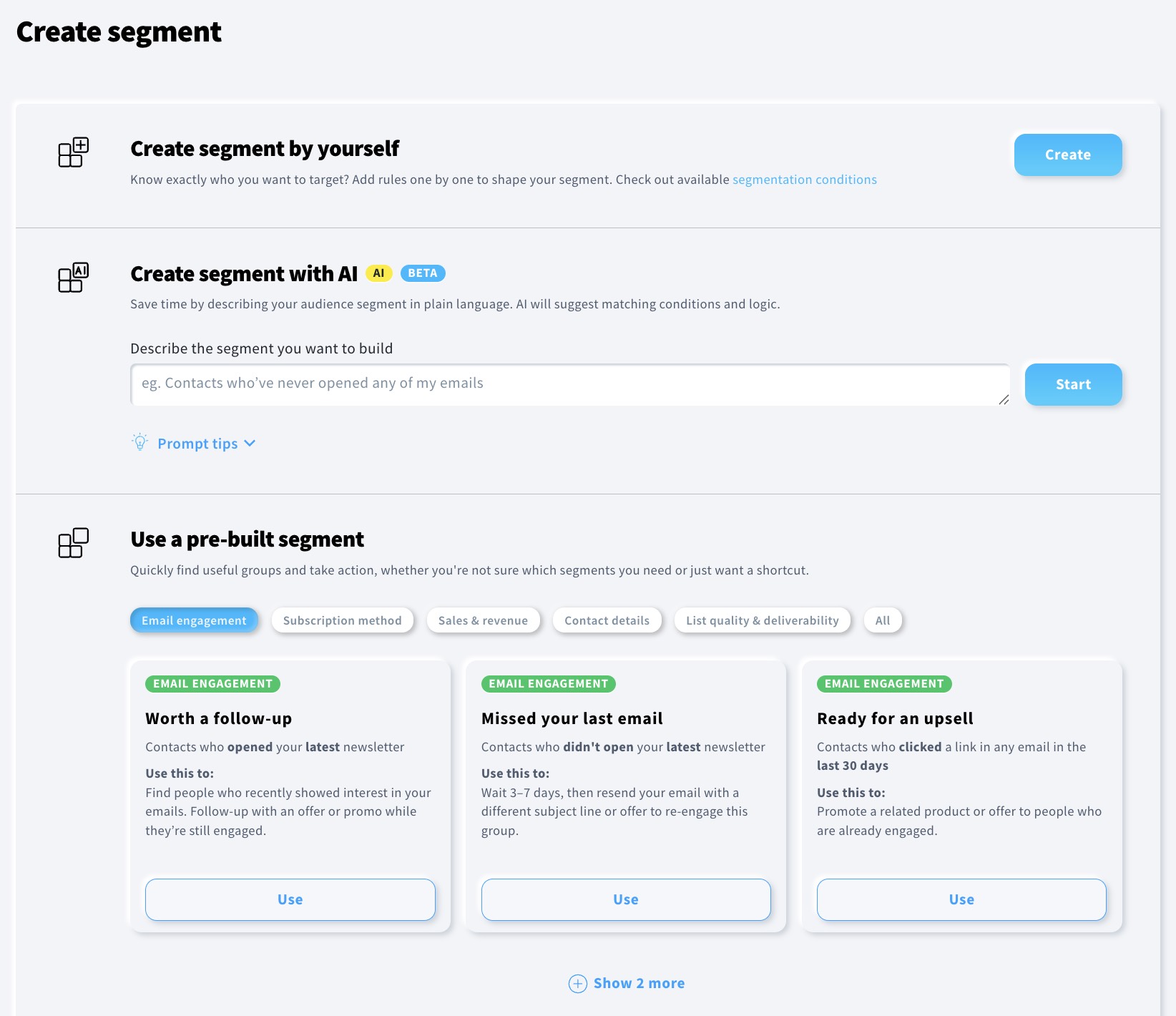
- If you chose to create a segment from scratch, enter the name of your segment.
- Start adding conditions or condition groups.
- Once you’re done, click Save.
How to create a segment in legacy segmentation
To create a segment, you’ll first need to choose search conditions.
- Go to Contacts>>Search.
- Click Advanced search and start adding conditions or condition groups.
- Once you’re done, click Save as segment. A pop-up modal will open.
- Enter a name for the filter and click Save.
Where to find saved segments
If you’d like to view or edit your segments, click Segments from the top of the Search page. Click the Actions icon to edit or delete custom filters.
How to export segments
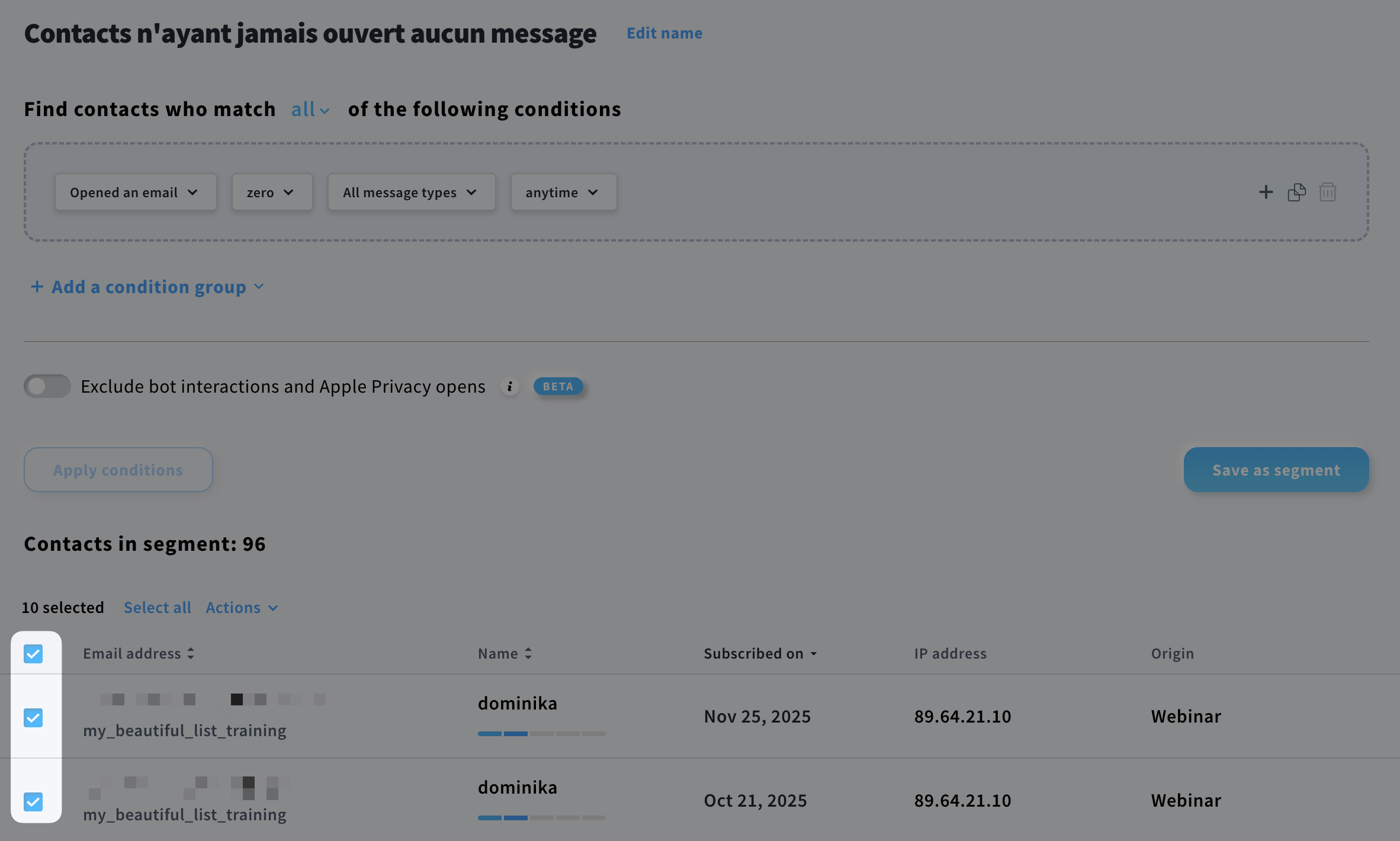
You can export a segment either at the time of its creation or later by navigating to Contacts > Segments (BETA) and clicking the name of the segment you want to export.
Once the list of contacts in the segment is displayed:
- Select the checkboxes on the left side of the list.
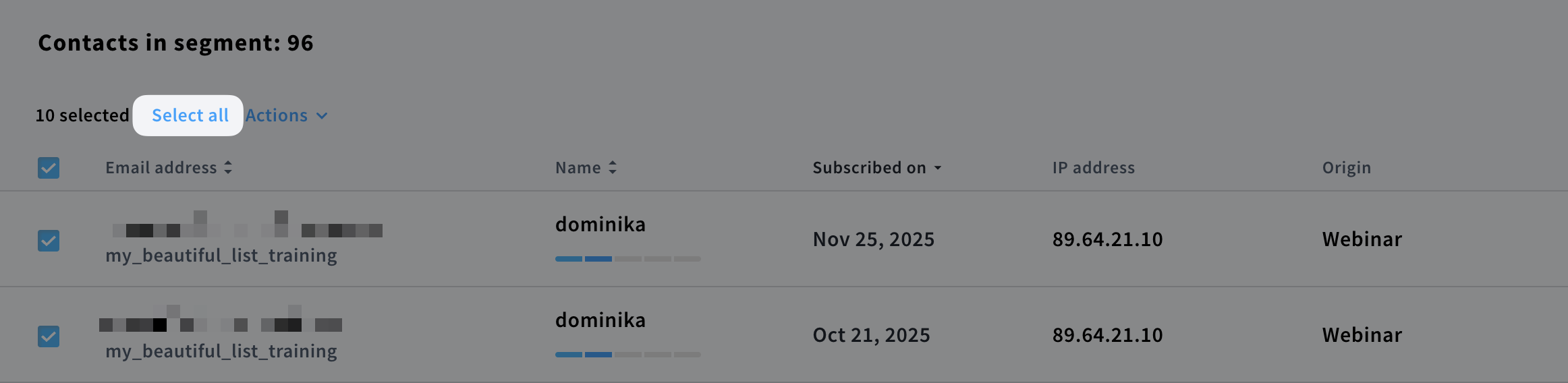
- Click Select all.
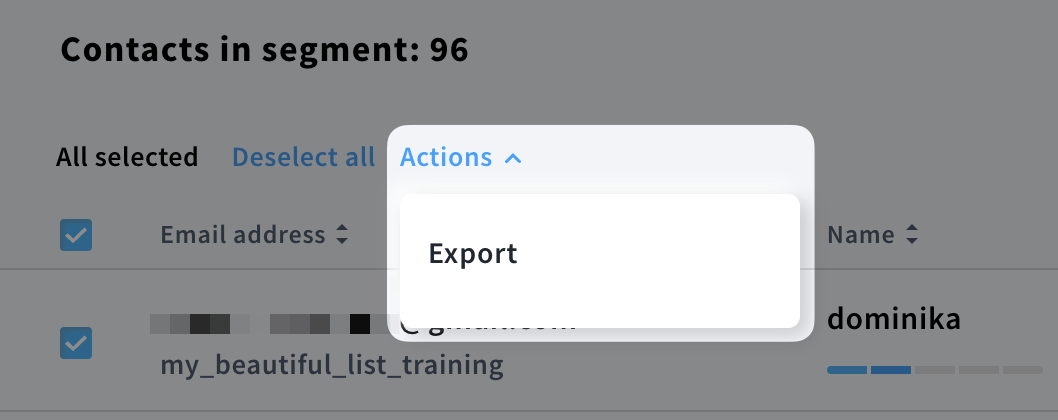
- From the Actions menu, choose Export.
- Follow steps 6–8 from our dedicated tutorial on exporting contacts.
How to duplicate a segment
To duplicate a segment:
- Go to Tools > Segments (BETA).
- Click on the name of the segment you want to edit to open the editing view.
- Modify the name of the segment.
- (Optional) Modify the search criteria.
- Click Save as new segment.
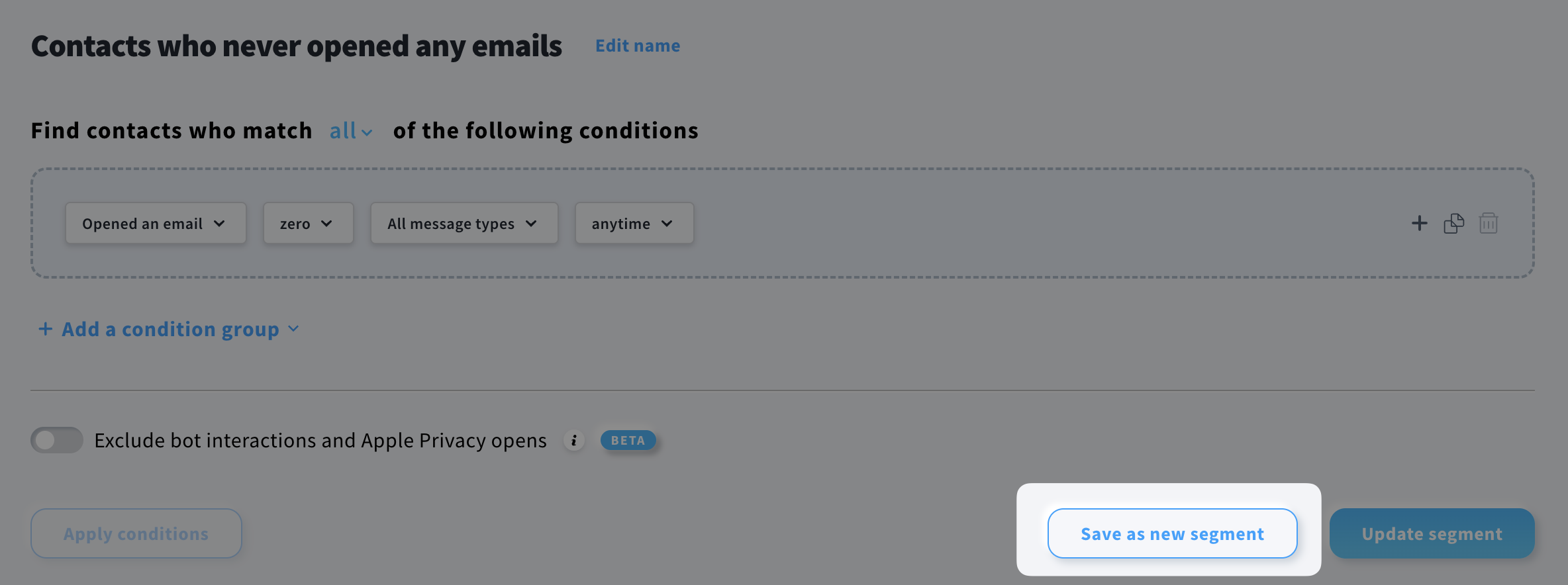
What’s the difference between Save as new segment and Update segment?
The Save as new segment option creates a duplicate saved under a different name. The Update segment option saves changes to an existing segment, for example when you add additional criteria or modify existing ones.
What can I do with segments
There are many uses for segments. The list below includes a few examples of what you can do with the segments you’ve created:
- Manage your contact list. Go to Contacts>>Segments to find your segments. See what contacts are in your segments and review or edit contact details. If you wish to, you can also export contact information or delete contacts from list(s) or from the account. You can also copy/move contacts from the segment to a different list.
- Send newsletters to specific groups of people. For example, you can send targeted messages based on, among others, custom fields, tags, customer actions, or client needs and wants.
- Exclude groups of people from getting your messages. For example, you know that specific groups of people within one list like to receive different message content (less text, more videos, and vice versa) or the same content but at different intervals. You can create as many segments as you need for these email addresses. When you create a newsletter, you can exclude these segments from the recipients. This way, you can tailor your communication to their needs and wants, and send them different messages within the same list.
- You can use segments as a base for Dynamic segment filter in an automation workflow to filter contacts based on values they already have.


