How to create segments with AI?
AI-powered segmentation makes it easier to build targeted contact groups without manually setting complex conditions. Simply describe the audience you want to reach, and AI will guide you with clarifying questions before suggesting the conditions needed to create the segment. This helps you quickly identify contacts based on their behavior, engagement, and profile data.
As of January 2026, a new segmentation version is available. It is being gradually rolled out to existing accounts and is already set as the default for all newly created accounts.
The new version can be identified by the BETA label and is still under active development, so some features may continue to evolve.
The steps outlined in this article apply exclusively to accounts with access to the new segmentation. If you don’t see this option in your account, it means it hasn’t been assigned to you yet.
How to create segments with AI
To create a segment with AI:
- Go to Contacts > Segments (BETA).
- Click Create segment.
- You will see the Create a segment with AI option.
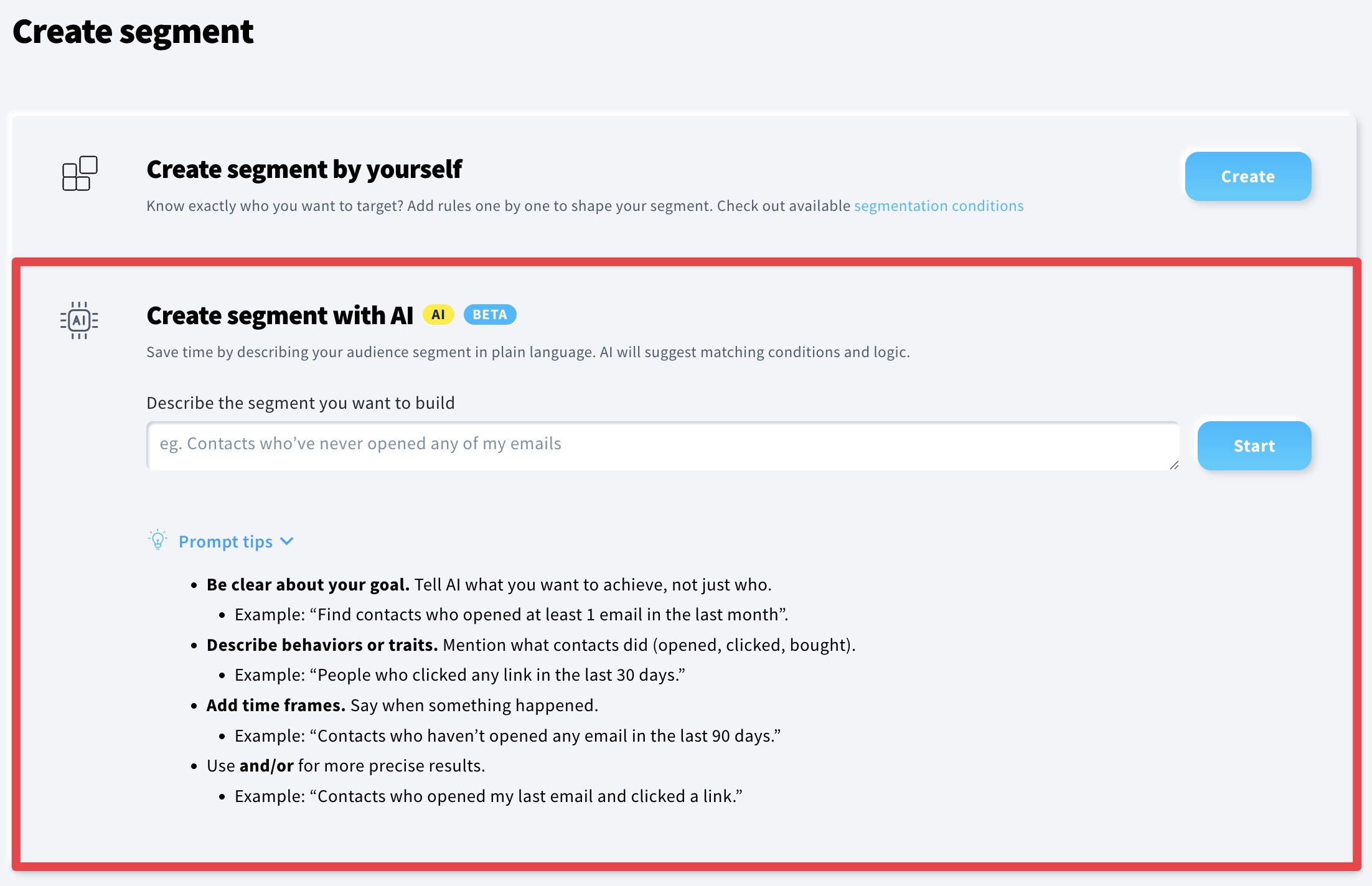
- In the text field, describe the segment you want to build. When writing your prompt, keep the following tips in mind:
- Be clear about your goal. Tell AI what you want to achieve, not just who.
- Example: “Find contacts who opened at least 1 email in the last month”.
- Describe behaviors or traits. Mention what contacts did (opened, clicked, bought).
- Example: “People who clicked any link in the last 30 days.”
- Add time frames. Say when something happened.
- Example: “Contacts who haven’t opened any email in the last 90 days.”
- Use and/or for more precise results.
- Example: “Contacts who opened my last email and clicked a link.”
- Click Start.
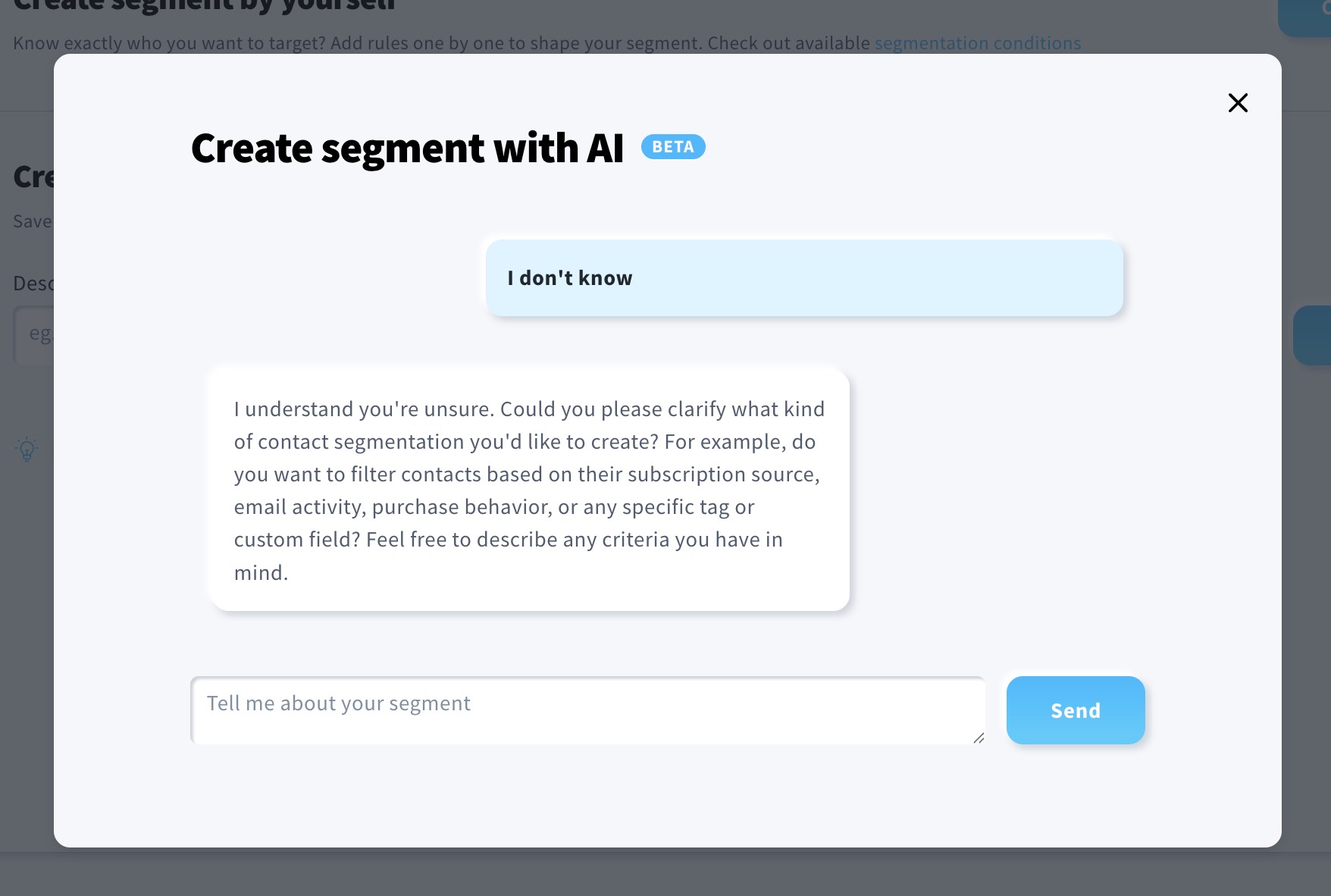
- A popup window will show up where, if necessary, our AI agent will ask you some additional questions to specify the segment details.
- Once all attributes are defined, the segment will be generated.
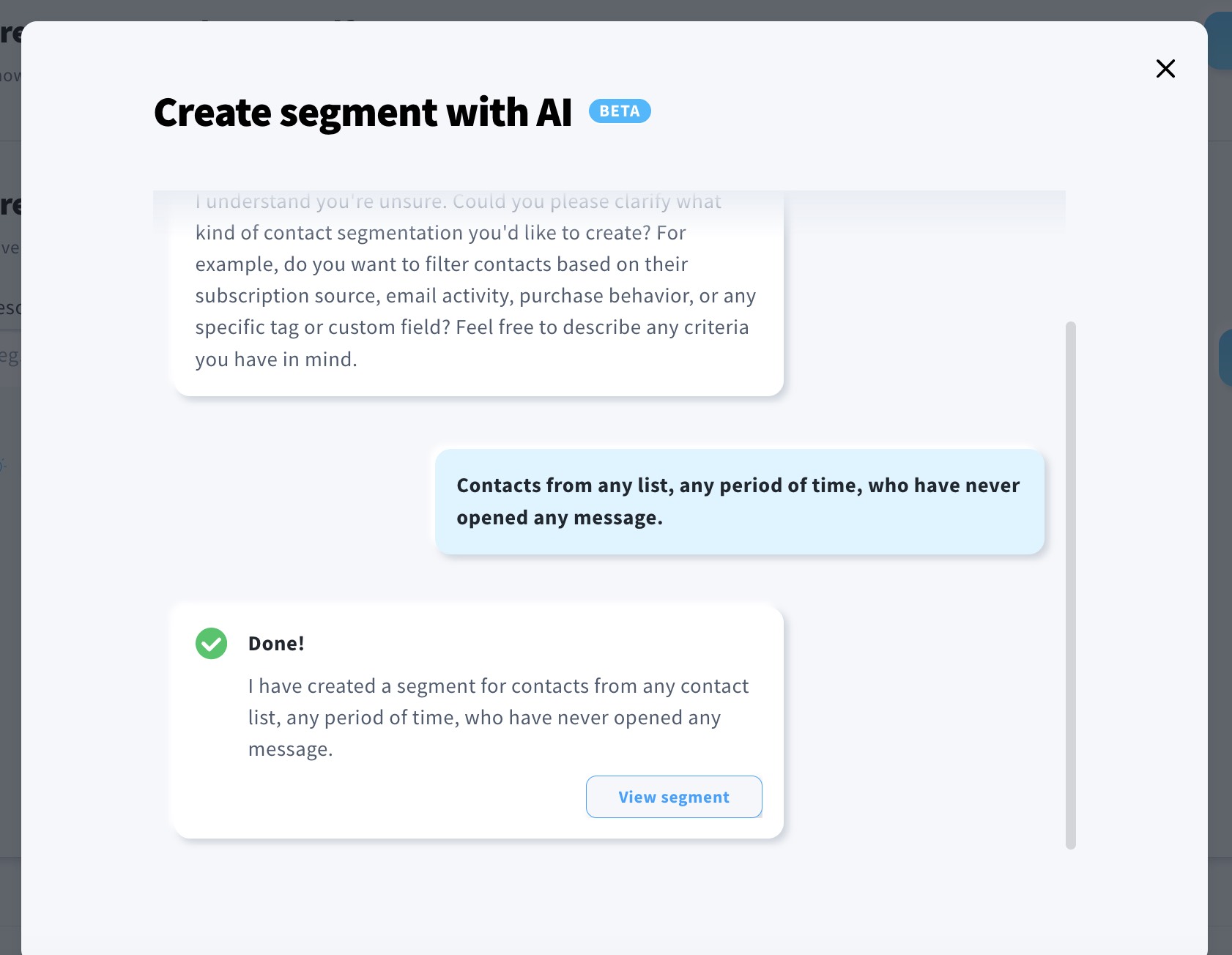
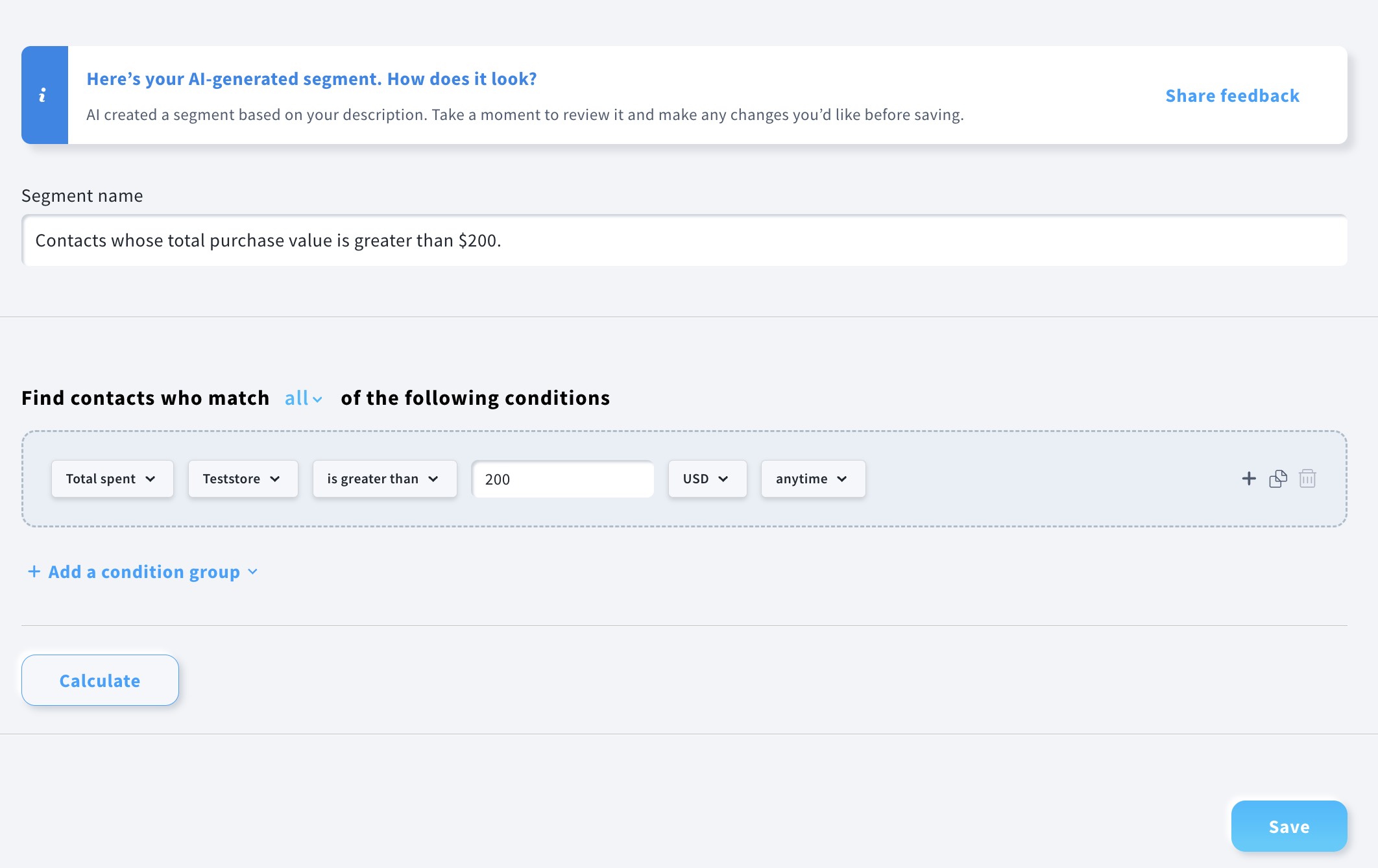
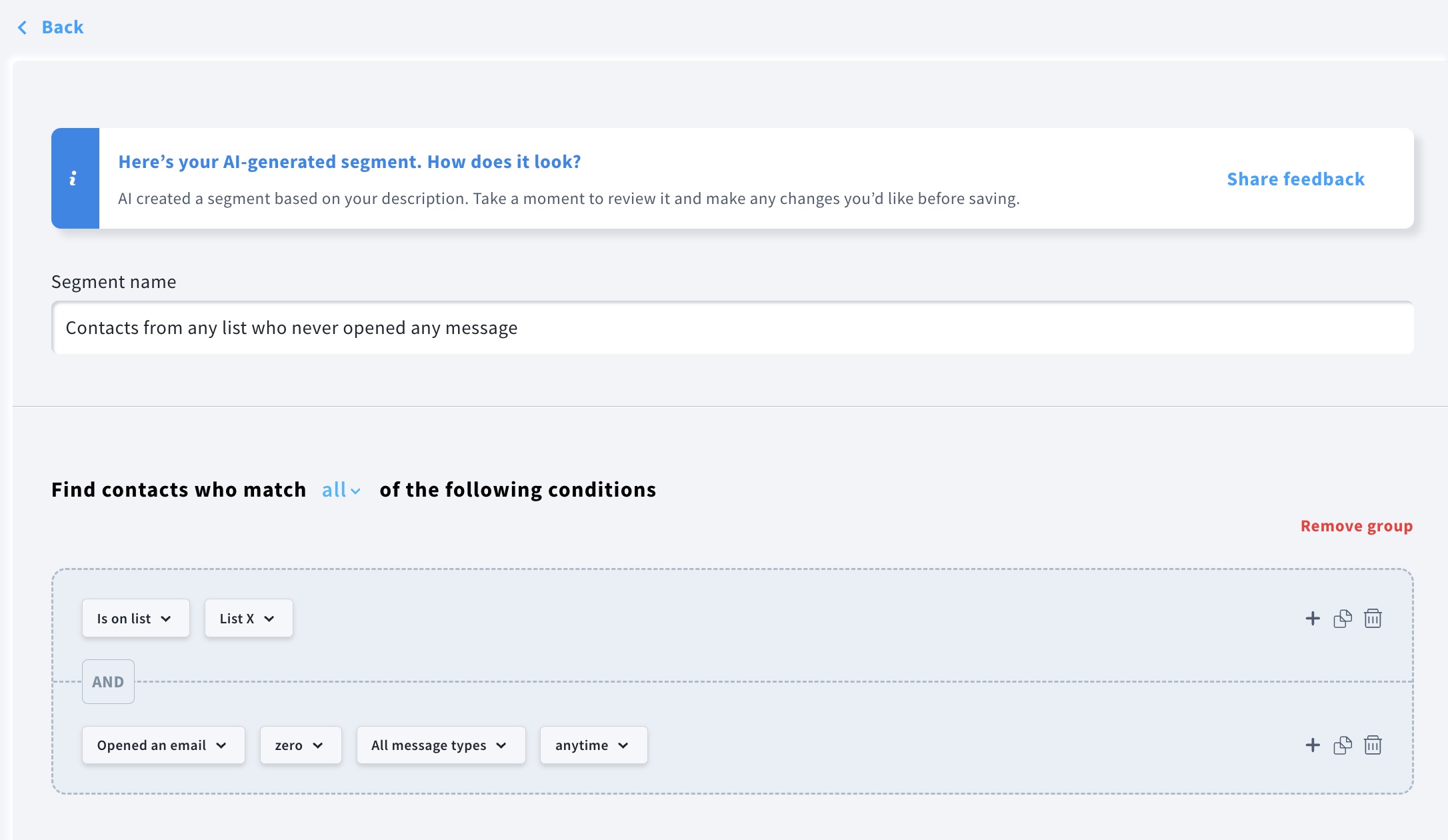
- Click View segment. There, you can review and modify the segment name and condition logic.
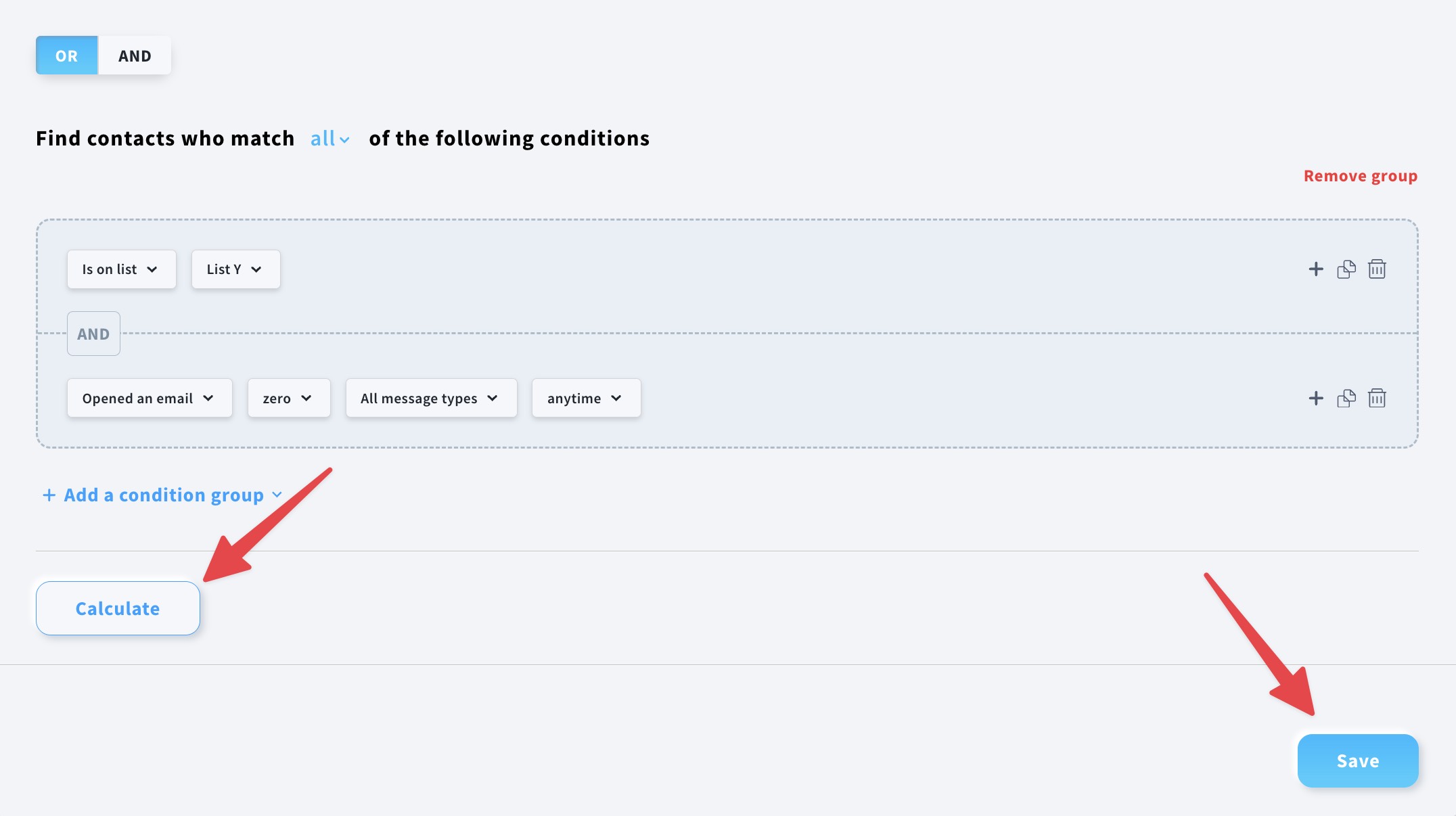
- Once you’re happy with the generated segment, scroll down and click Save. Before saving, you can also click Calculate to preview how many contacts will be included in the segment.
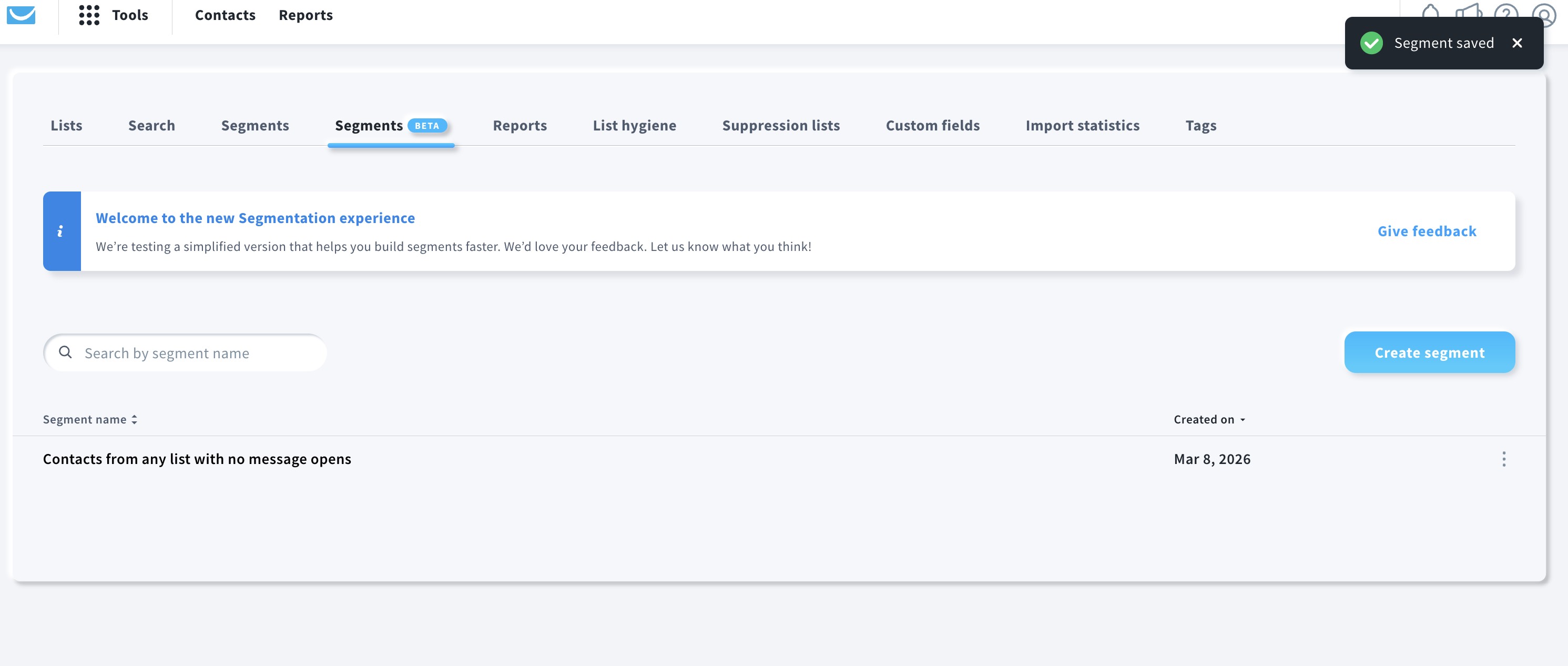
- After you click Save, a confirmation notification appears, and you are redirected to the Manage Segments (BETA) view, where you can access the newly created segment or create additional ones.
Example prompts for AI-generated segments
If you’re not sure how to phrase your request, here are a couple of examples of segments you can create with AI.
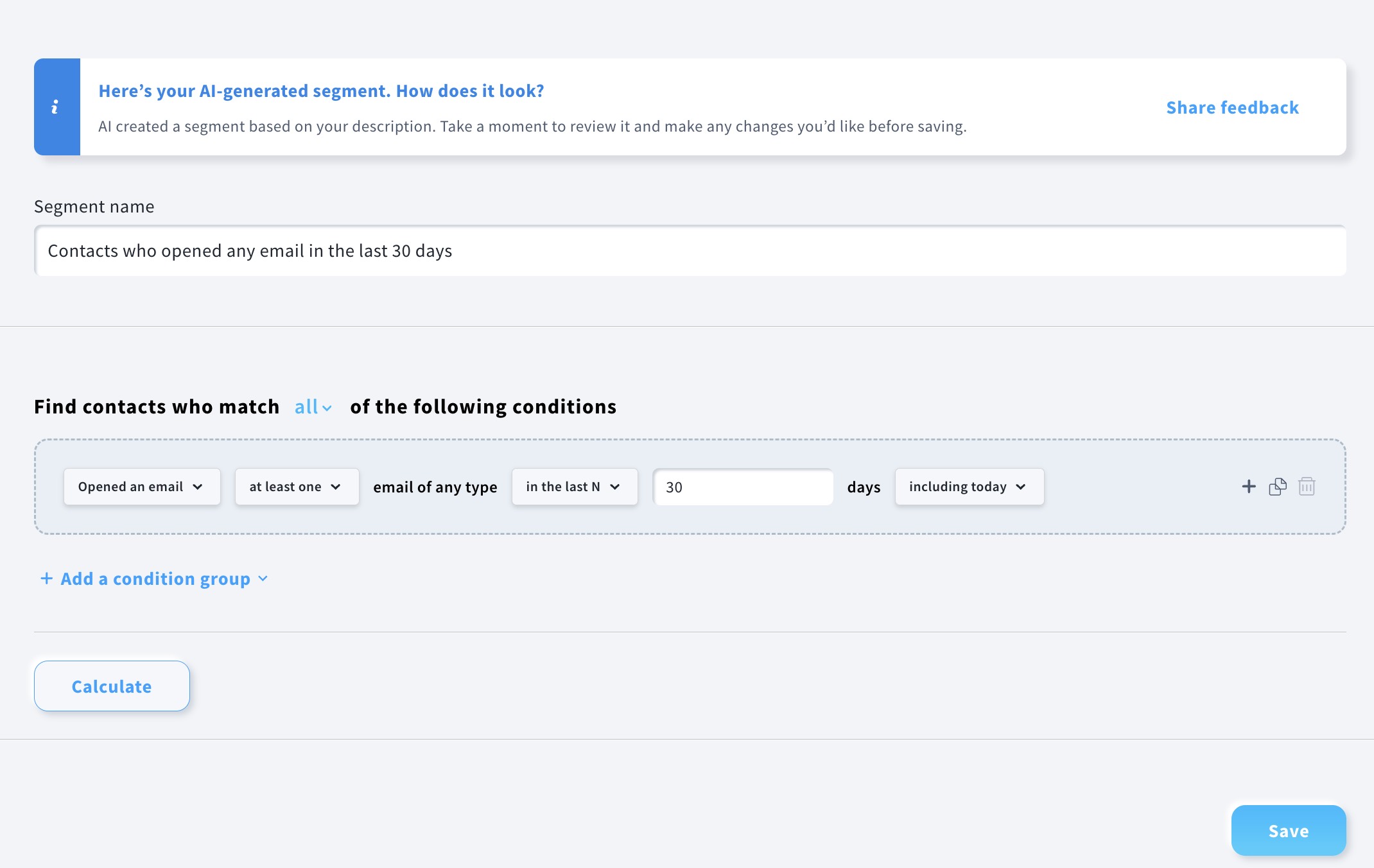
Example 1: Recently engaged contacts
Prompt:
“Contacts who opened at least one email in the last 30 days.”
This segment identifies subscribers who recently opened your emails. It’s useful when you want to target contacts who are currently engaged with your campaigns.
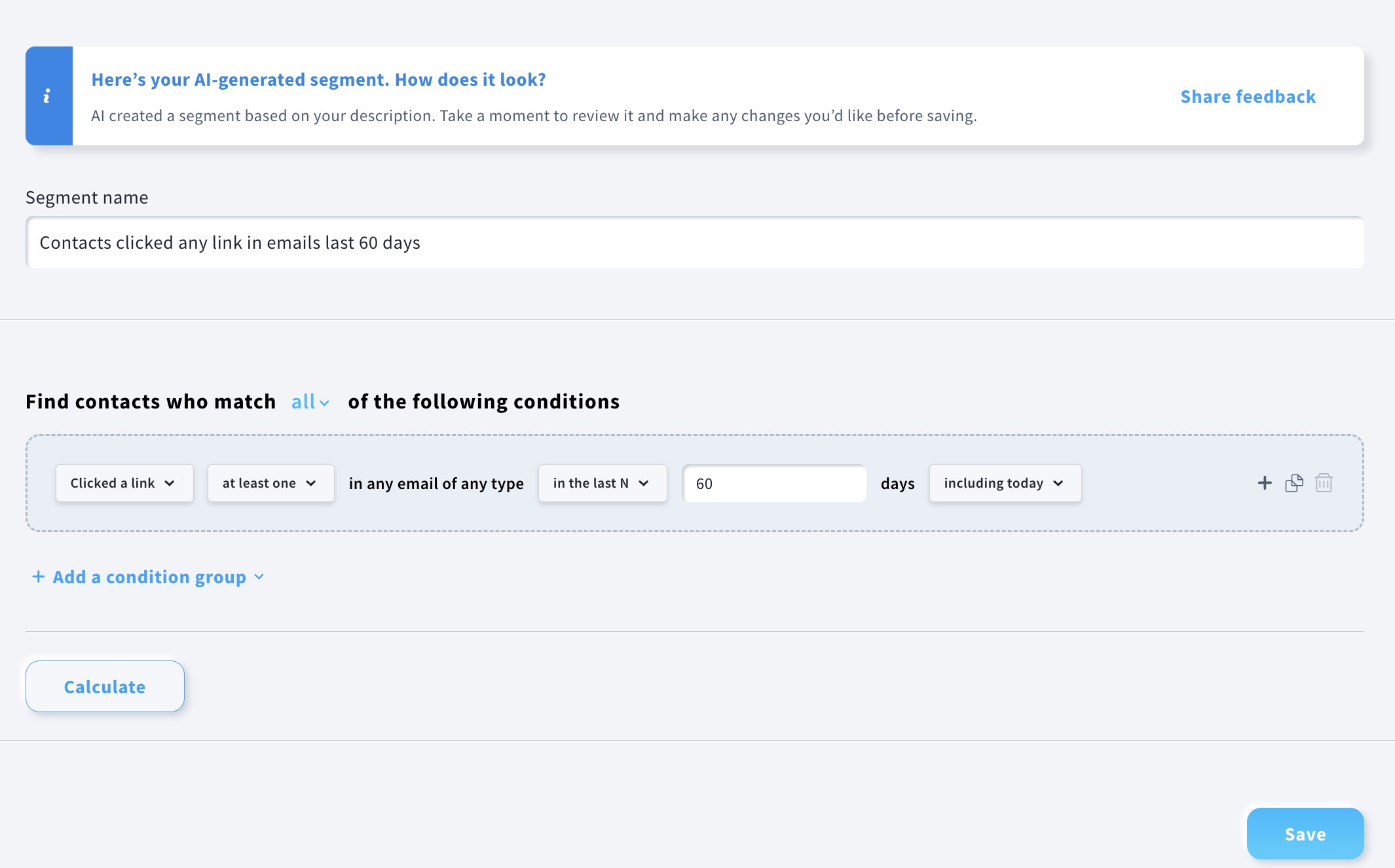
Example 2: Contacts who clicked links in a message
Prompt:
“Contacts who clicked any link in any of my emails in the last 60 days.”
This segment focuses on contacts who interacted with links in your campaigns, indicating interest in your content or offers. You can use it to target subscribers who are more likely to respond to promotions or follow-up messages.
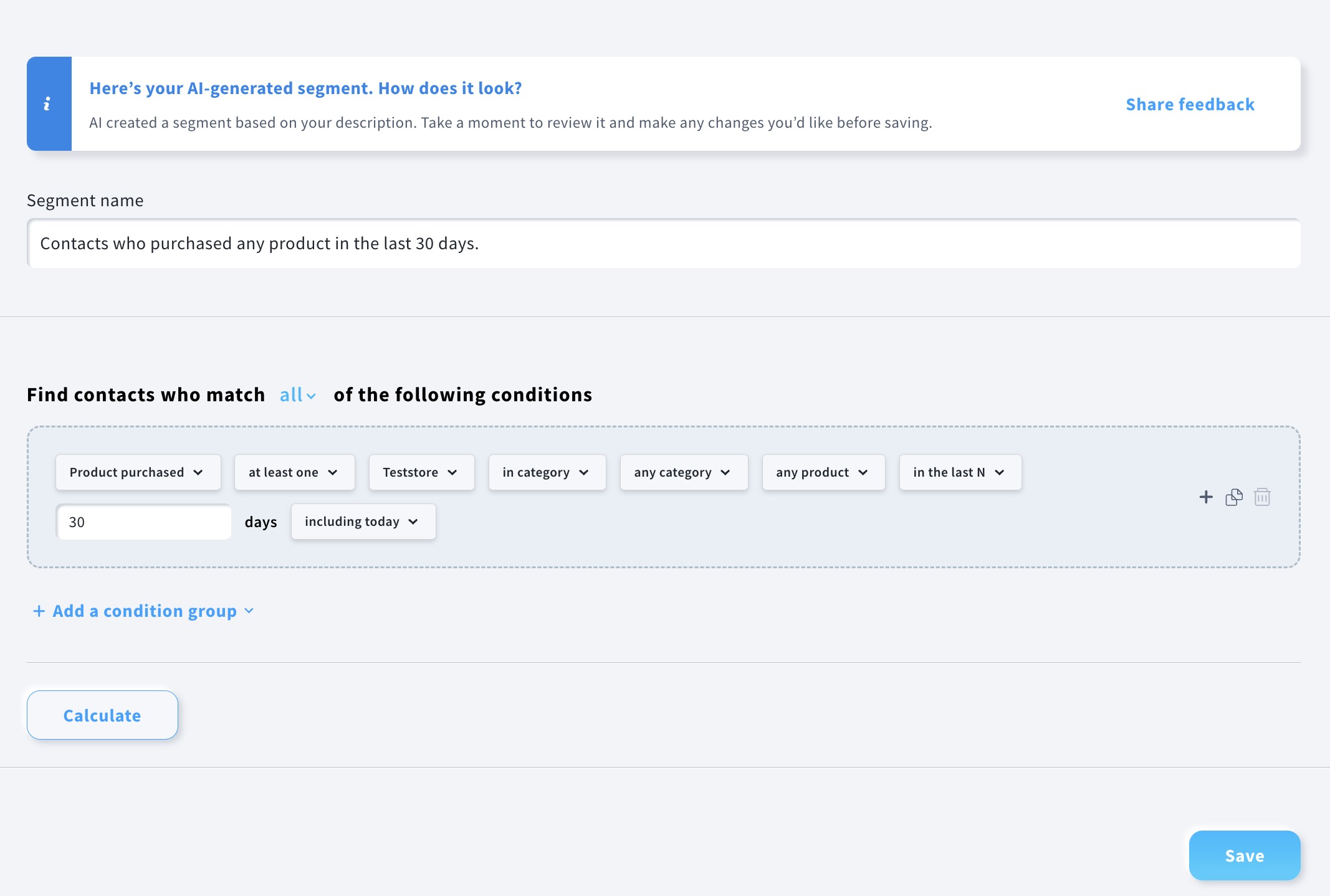
Example 3: Contacts who purchased a product
Prompt:
“Contacts who purchased any product in the last 30 days.”
This prompt returns customers who recently completed a purchase. Segments like this are often used for post-purchase communication, such as follow-up emails, product recommendations, or requests for reviews.
Example 4: High-value customers
Prompt:
“Contacts whose total purchase value is greater than $200.”
This search helps identify your highest-spending customers. Targeting this group can be useful when running special campaigns, loyalty programs, or early access promotions.