
What are pre-built segments and how to use them?
Pre-built segments are ready-to-use templates designed to make segmentation faster and easier.
Instead of creating a segment manually, you can now choose from a set of 24 pre-configured templates tailored to common use cases. The templates are grouped into four key categories:
- Email engagement
- Subscription method
- Sales & revenue
- Contact details
- List quality & deliverability
Pre-built segments help you save time and make it easier to personalize campaigns at scale by using proven audience criteria, which can lead to higher engagement and better campaign performance. They also help ensure consistency and reduce the risk of errors when building segments, making them especially valuable for users who are new to segmentation or want to follow best practices.
As of January 2026, a new segmentation version is available. It is being gradually rolled out to existing accounts and is already set as the default for all newly created accounts.
The new version can be identified by the BETA label and is still under active development, so some features may continue to evolve.
The steps outlined in this article apply exclusively to accounts with access to the new segmentation. If you don’t see this option in your account, it means it hasn’t been assigned to you yet.
How to use pre-built segments
- Go to Contacts > Segments (BETA).
- Click Create segment.
- You will see the Use a pre-built segment option.
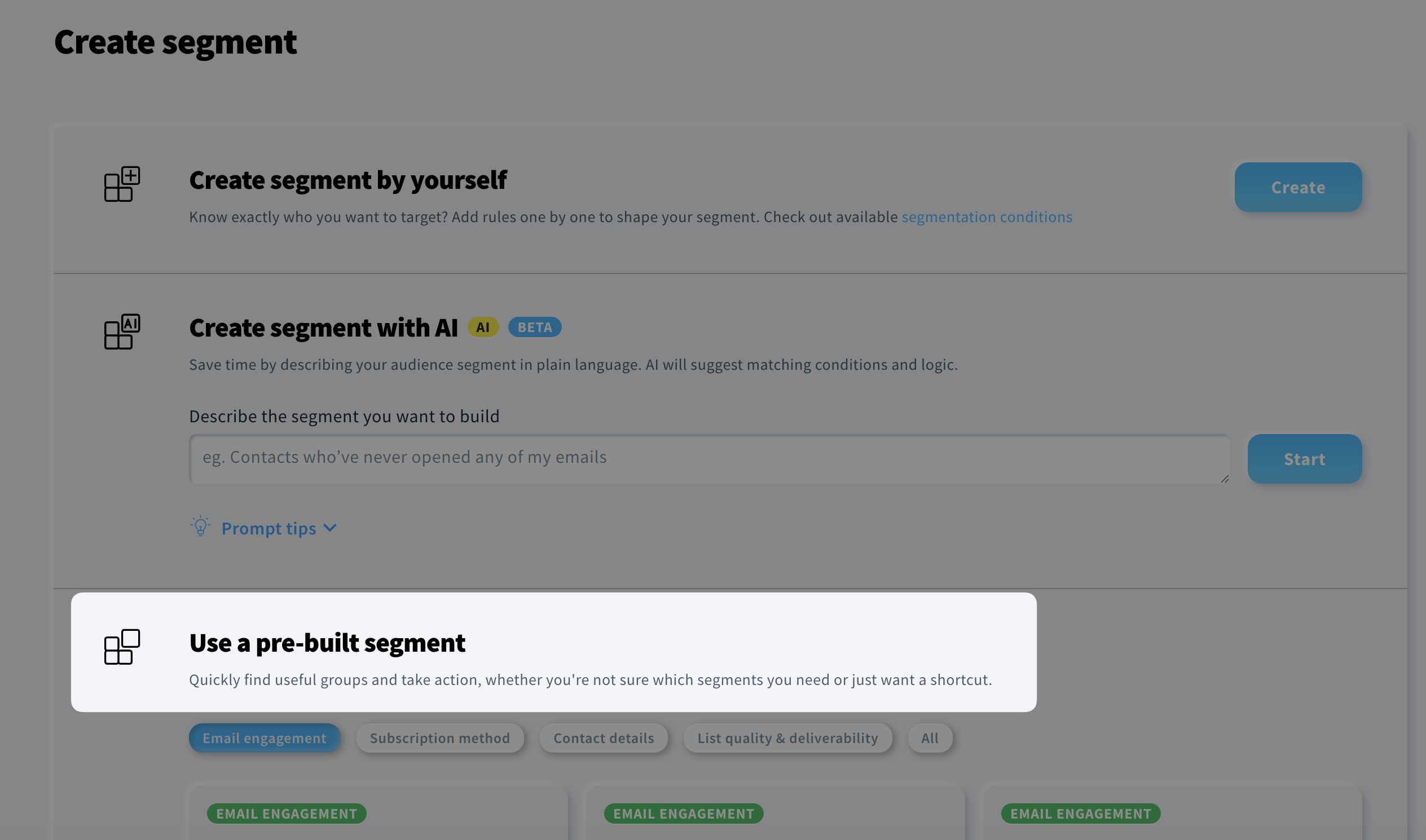
- Choose a category or view all categories.
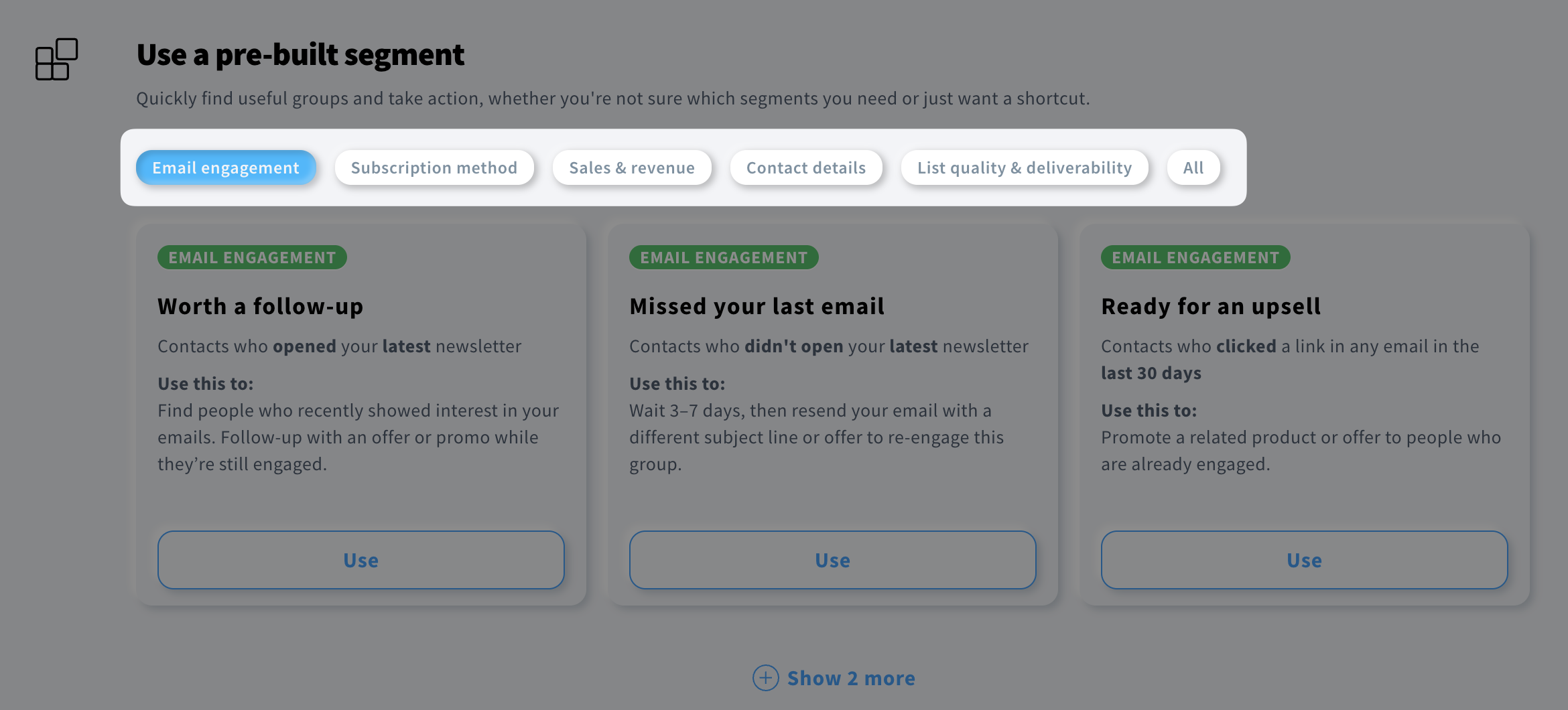
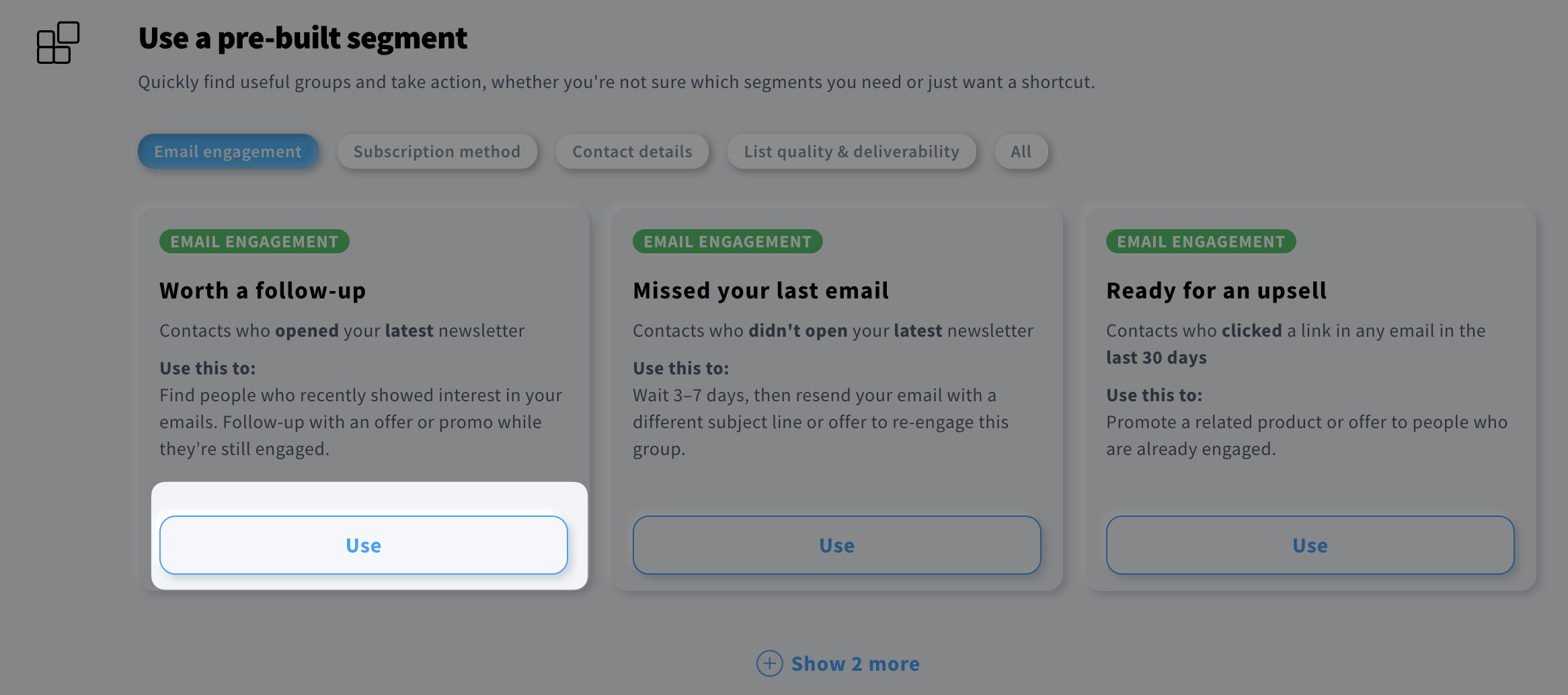
- Find the segment that matches your needs and click Use.
- In the next step, you will see a summary of the segment, its name and the applied condition(s). Note: At this stage, you will need to refine the search condition by selecting specific messages, dates, and other relevant data. You will also be able to exclude bot interactions or even add your own conditions if you want to adjust the scope of the criteria.
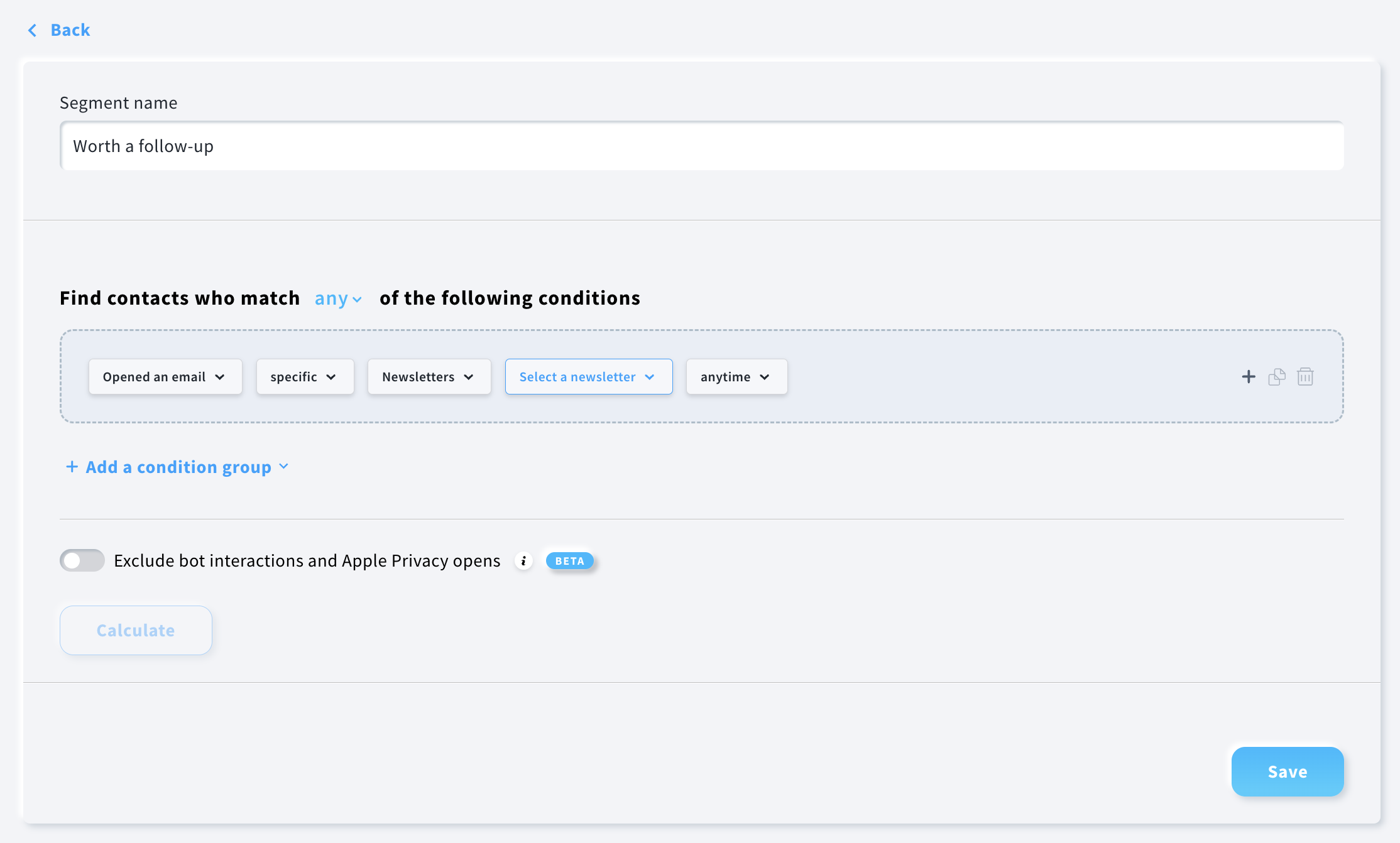
- To save the segment, click Save.


