
How to use Send mobile notification action?
Mobile Notifications feature is available only in MAX plans. Click here to learn more about GetResponse MAX.
This action allows you to trigger a mobile notification on your subscriber’s mobile device. When you build your workflow, you can define what condition needs to be met for your notification to be shown.
Use this action to show more personalized or goal-oriented notifications on your subscribers mobile devices, instead of just one general notification.
For example, you can create a different notification for those who opened a particular message from you. Alternatively, you can show notifications only to contacts subscribed to a particular list.
Before your notification can be displayed, the contact must be subscribed to your list and have active consent to mobile push (assigned token).
Before you begin
- You need to have your own mobile app published in Google Play and/or Apple’s App Store and meet the requirements described in our tech documentation for Android or iOS
- Add a mobile app under Tools > Push notifications > Mobile apps.
- Create and configure at least one mobile push. You can find a guide for creating your notification here: How to create a Mobile Notification?
How to use the Send mobile notification action in a workflow
You can’t use the Send mobile notification action as the first element of the workflow.
The element has only one exit point, no matter if a contact going through workflow has or hasn’t seen the notification.
To add the Send mobile notification action to your workflow, you need to drag-and-drop this element to your workspace and connect it to at least one element.
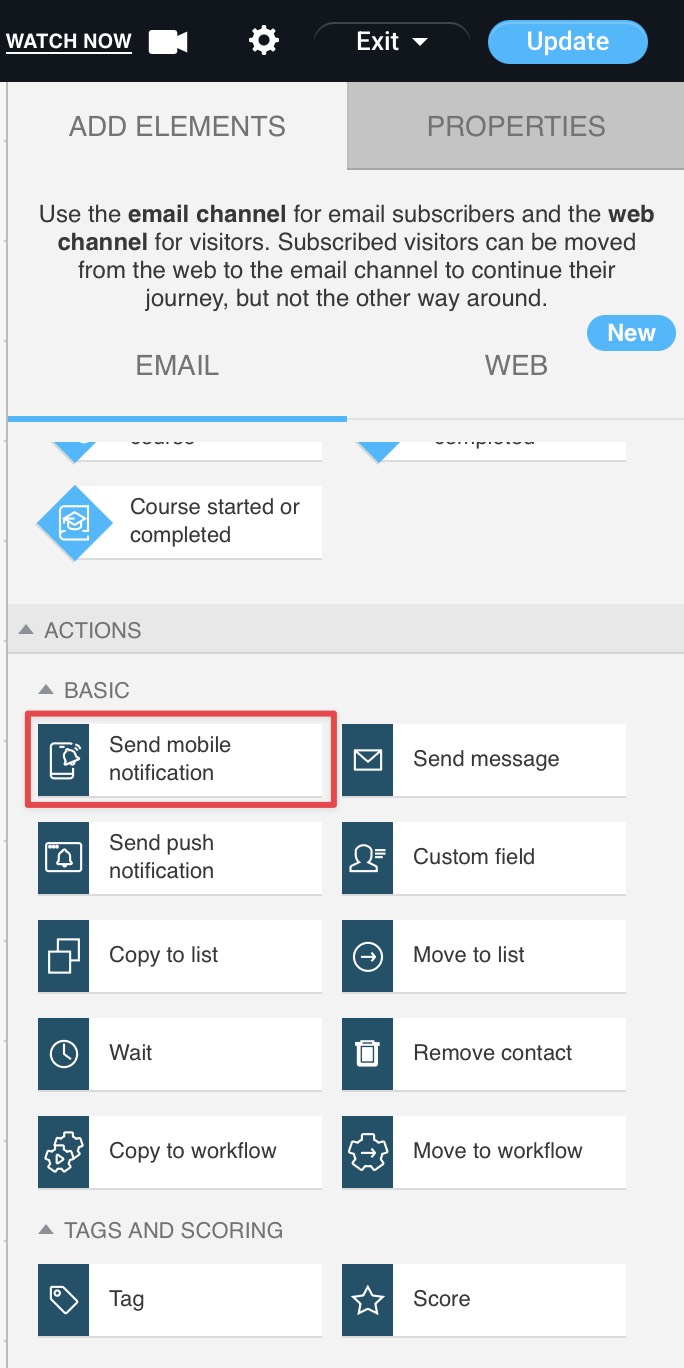
How to configure the properties
There are three main required settings you need to configure in the action details:
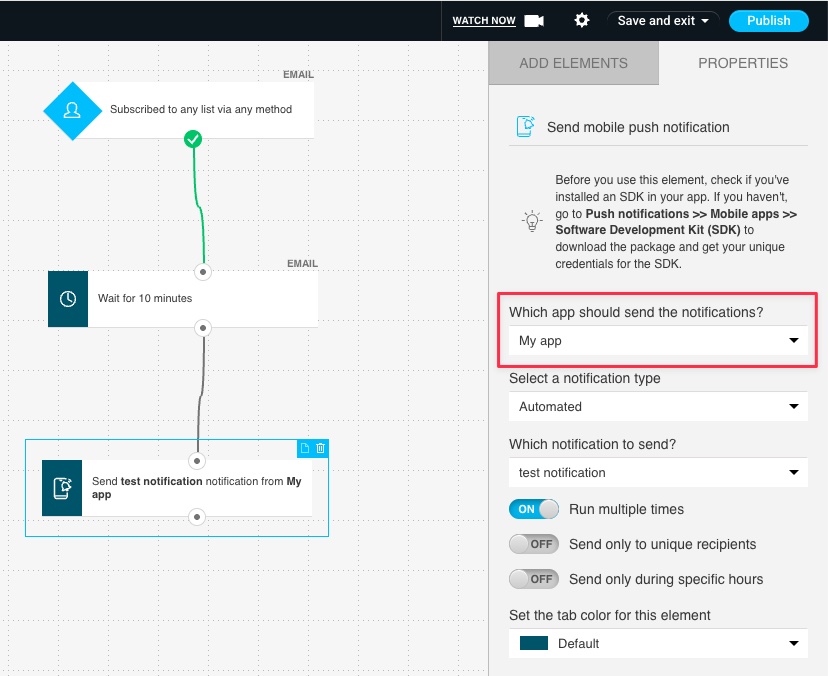
- Which app should send the notification?
You need to select an app added in Mobile apps that your notification will be sent from.
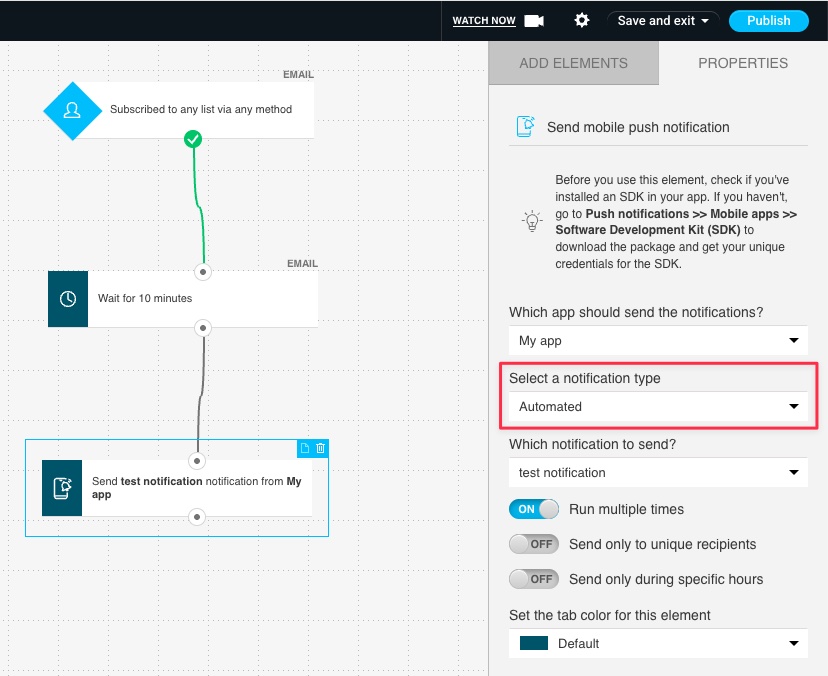
- Select a notification type
You can select any type of notification (Sent or Draft).
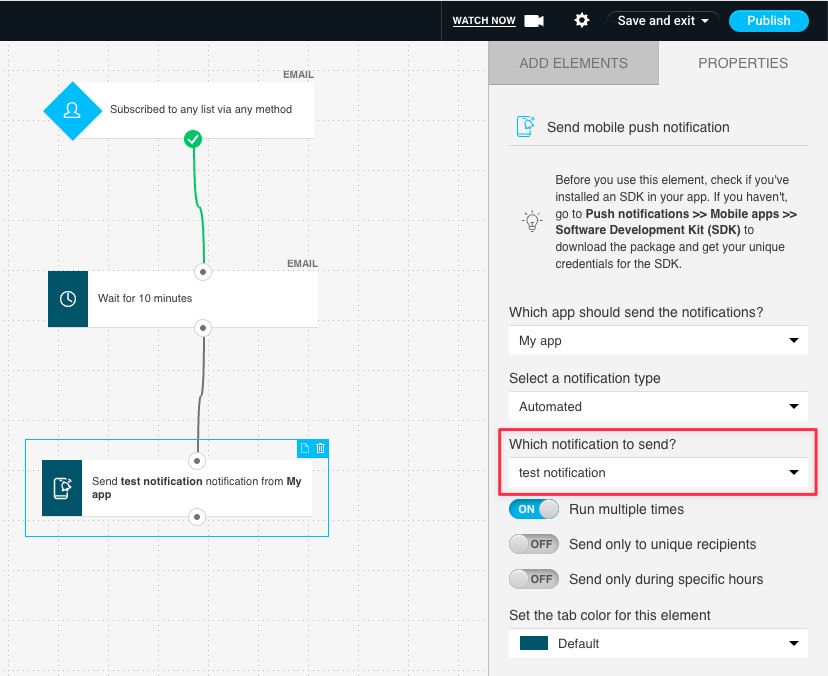
- Which notification to send?
You need to select a specific notification that will be shown and your workflow will convert it (copy) to an Automation message type. In the process, you can re-name your automation copy of the notification to make managing content more convenient.
There are also 3 additional options you can use:
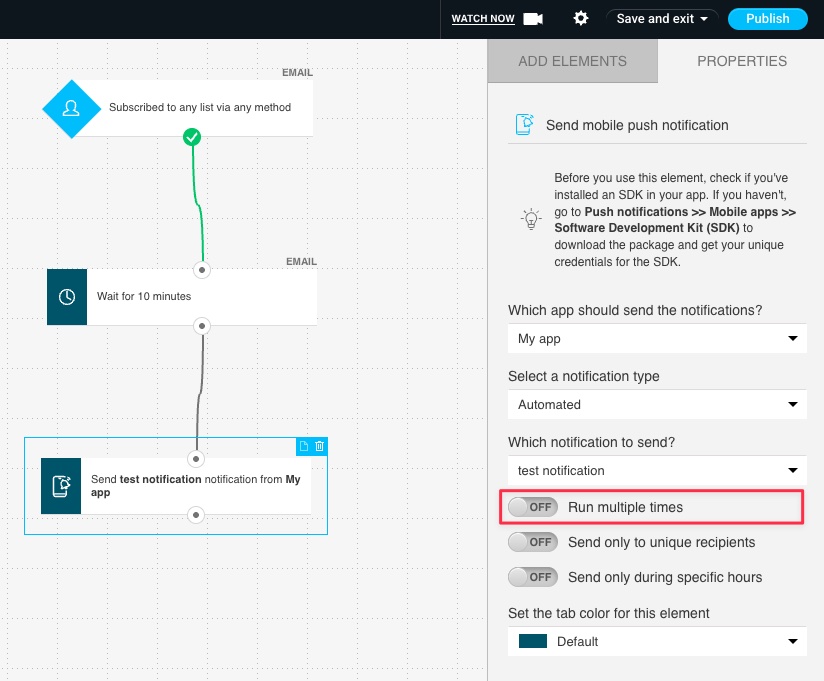
- Run multiple times – if enabled, will make it possible for a contact to go through this step more than once. You can find more details about this option here: Can I run specific actions and conditions multiple times?
- Send only to unique recipients – enable that option to show notifications only to unique contacts. Thanks to it, duplicated contacts won’t see the notification more than once.
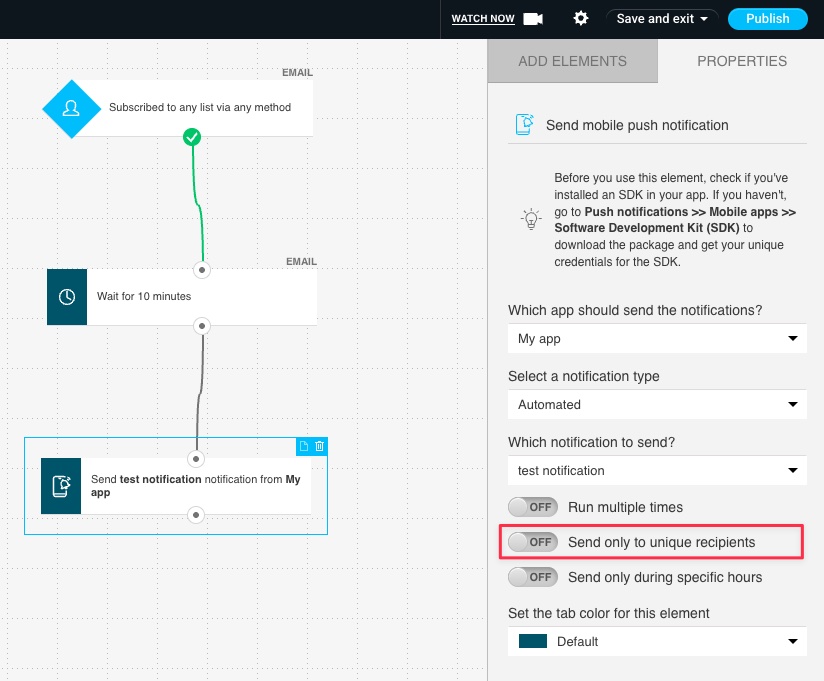
If you enable that option after publishing your workflow, automation won’t check if your contact has already seen the push notification before.
You can find more details about this option here: How to send only to unique recipients.
- Send only during specific hours – enable this option to show your notification between specific hours. The minimal time window is 1 hour, the ending hour can’t be set up for later than the starting hour.
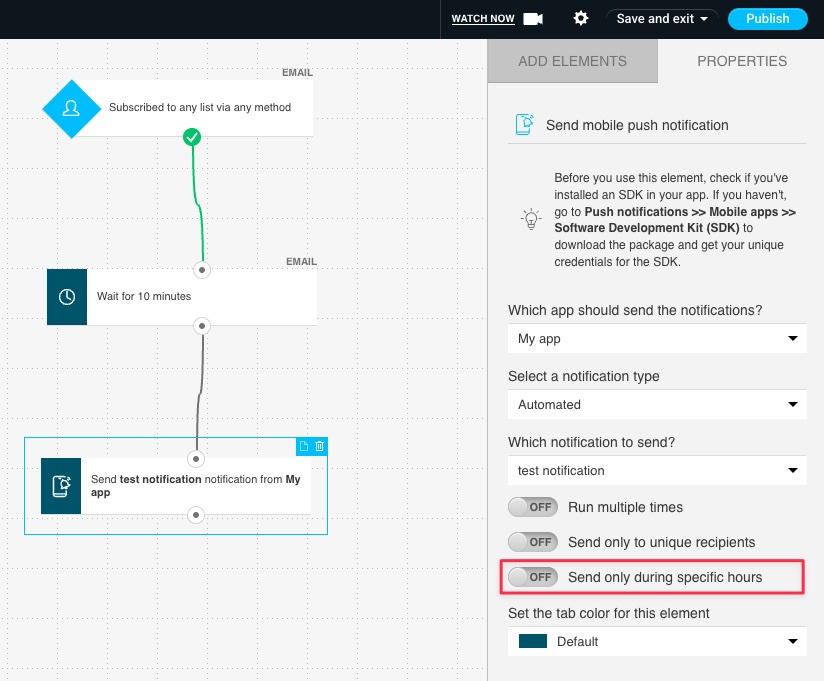
If a contact enters this action outside set hours, the notification will wait until the next available time window.
You can find more details about this option here: How to send only during specific hours.
Tips and tricks
- It isn’t recommended to place the ‘Send mobile notification’ action right after the ‘Subscribe’ condition. Please add the ‘Wait’ block between them (set to at least 5 or 10 minutes). Learn more about Wait action.
- If you import a workflow template from a different GetResponse account, all properties of the action will be reset.


