
Can I run specific actions and conditions multiple times?
You can set actions and conditions to work more than once in your workflow. To enable this option, you need to go to Properties and set Run multiple times to ON for the actions and conditions you’d like to use this way.
Once you enable this option for a given workflow element, you’ll need to choose how often contacts can pass through that element:
- Always – The element will be triggered every time a contact reaches it. For a condition, the contact can pass through whenever they meet the selected criteria. For an action, the action will be executed every time the contact reaches the element.
- Once per <selected time period> – Sets a waiting period before a contact can pass through the element again. If they reach the element during this waiting period, they will be skipped.
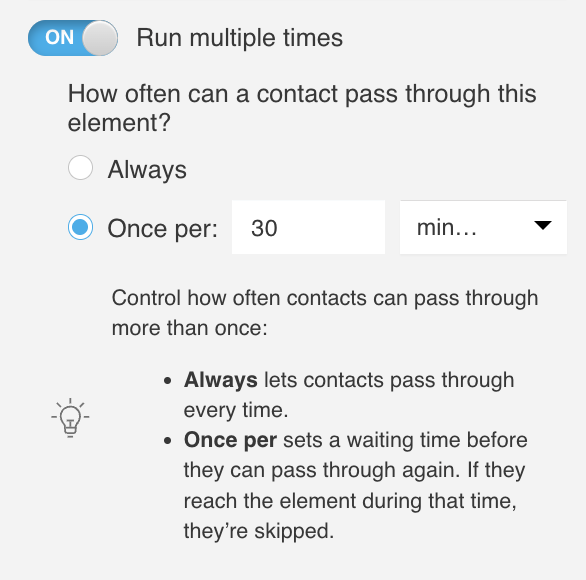
How does Run multiple times work
By default, a condition works only once for a given contact. For example, if a contact clicks a link, the condition is met, and the workflow doesn’t “react” when the contact clicks the link again. When you set the condition to run multiple times, it can trigger subsequent actions more than once for the same person. It “reacts” every time the condition is met in the time frame you defined for it under Properties. Note: Since your contacts subscribe just once, the Subscribed via condition doesn’t have the option to run multiple times.
Actions are performed once for one contact by default, too. If you’d like the workflow to repeat them for the same contact, set them to Run multiple times.
Filters are always on. You don’t need to change their settings because they don’t need to be told how many times they need to filter.
Can I run loops in automation
You can create loops in marketing automation. Running a loop is useful if you’re using the ecommerce functionalities in your workflow. For example, a loop can send and re-send an abandoned cart email to customers who left without making a purchase.
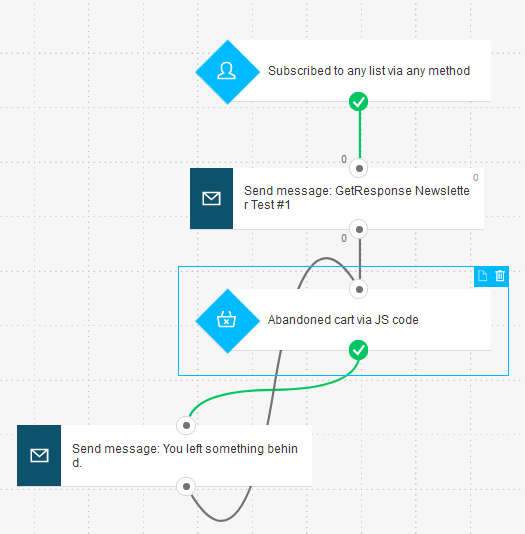
Note: Sending messages in a loop can lower deliverability, and cause your actions to be flagged by our compliance team.
Before you create a loop
Keep in mind that:
- A contact can’t exit a loop when it’s running.
- Once in a loop, a person continues to be affected by the same actions, conditions, and filters. This means they can receive the same message multiple times.
- A contact can be in more than one workflow. Actions in a loop (for example, changes in scoring and tagging) can affect that contact’s progress in another workflow.


