
How to sync PrestaShop promo prices with GetResponse for your email marketing?
Learn how to automatically showcase PrestaShop sale prices and original pricing within your GetResponse transactional emails and marketing campaigns to effectively increase customer engagement and store revenue.
Before you begin
Make sure that your PrestaShop store is integrated with GetResponse using our official plugin.
Due to the nature of Prestashop, synchronization of promotional prices may take up to several hours. Please keep this delay in mind when planning and scheduling your email campaigns.
GetResponse only syncs promotional prices applied directly to individual products. Catalog-wide rules, category discounts, or global store promotions are currently not supported.
Where can I use promo prices
You can display a discounted price in the following GetResponse components:
- Abandoned cart and Price drop messages within ecommerce campaigns.
- Product box blocks in newsletters (including A/B tests), autoresponders, and automation messages.
- Abandoned cart blocks in automation messages.
- Considered products blocks in automation messages.
In the Manage products view within the store in Ecommerce tools, we always show one price – the current one. However, both price types (original and discounted) remain available for all message components mentioned in this article.
How to set the promo price in PrestaShop
To show a discounted price alongside the original price, you need to Add a specific price in PrestaShop (under Specific prices). This enables GetResponse to display both: the current discounted price and the crossed-out original price.
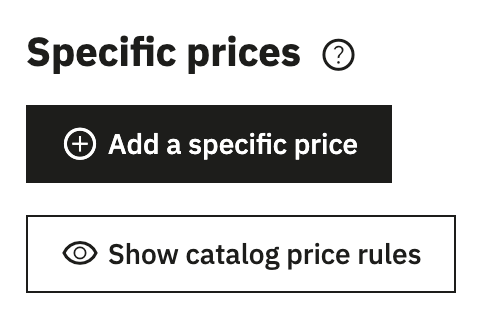
If a product does not have a specific price set in PrestaShop, your GetResponse message will only display a single, regular price.
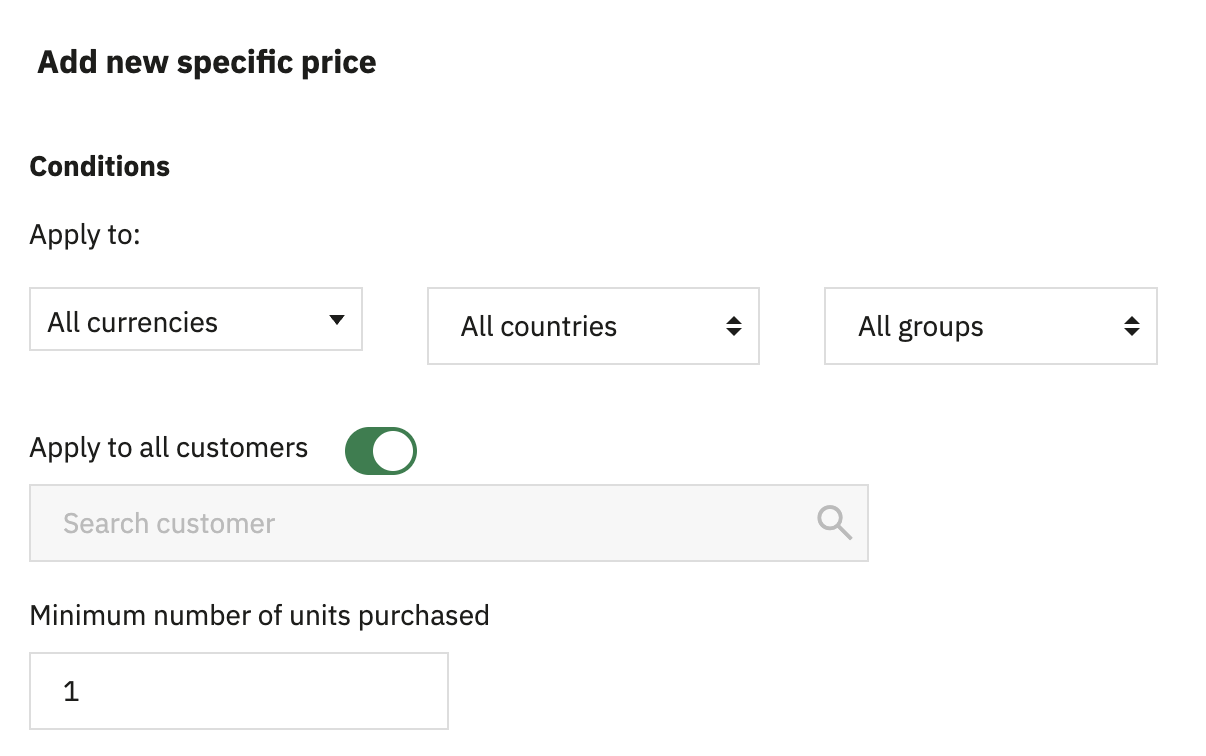
To ensure GetResponse recognises custom prices configured in PrestaShop Conditions, please configure them as follows:
- Set Apply to to: All currencies, All countries, All groups, and All customers.
- Set Minimum number of units purchased to 1.
Once these settings are applied, GetResponse will be able to recognise and use the configured prices in product recommendations and marketing campaigns.
This limitation exists due to how email delivery works: marketing campaigns are sent to a broad audience simultaneously, and the system cannot dynamically match group-specific pricing attributes for individual recipients at the moment of sending.
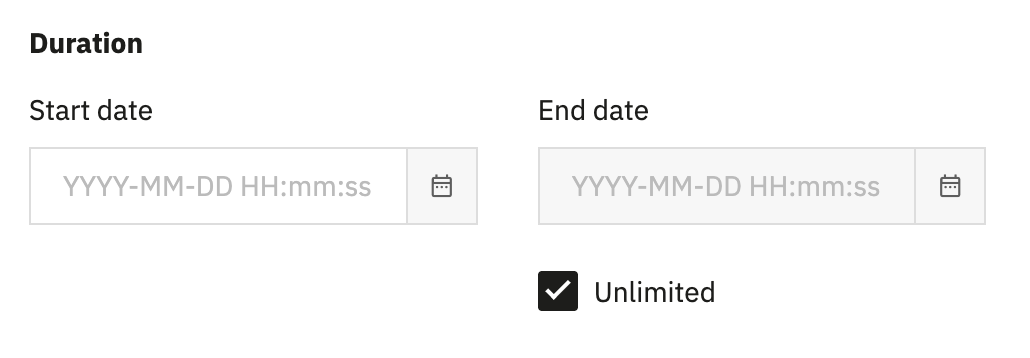
You can schedule product discounts automatically by defining a date range. GetResponse dynamically mirrors this schedule. As long as your email is sent within that designated timeframe, the promotional price will be displayed in the message.
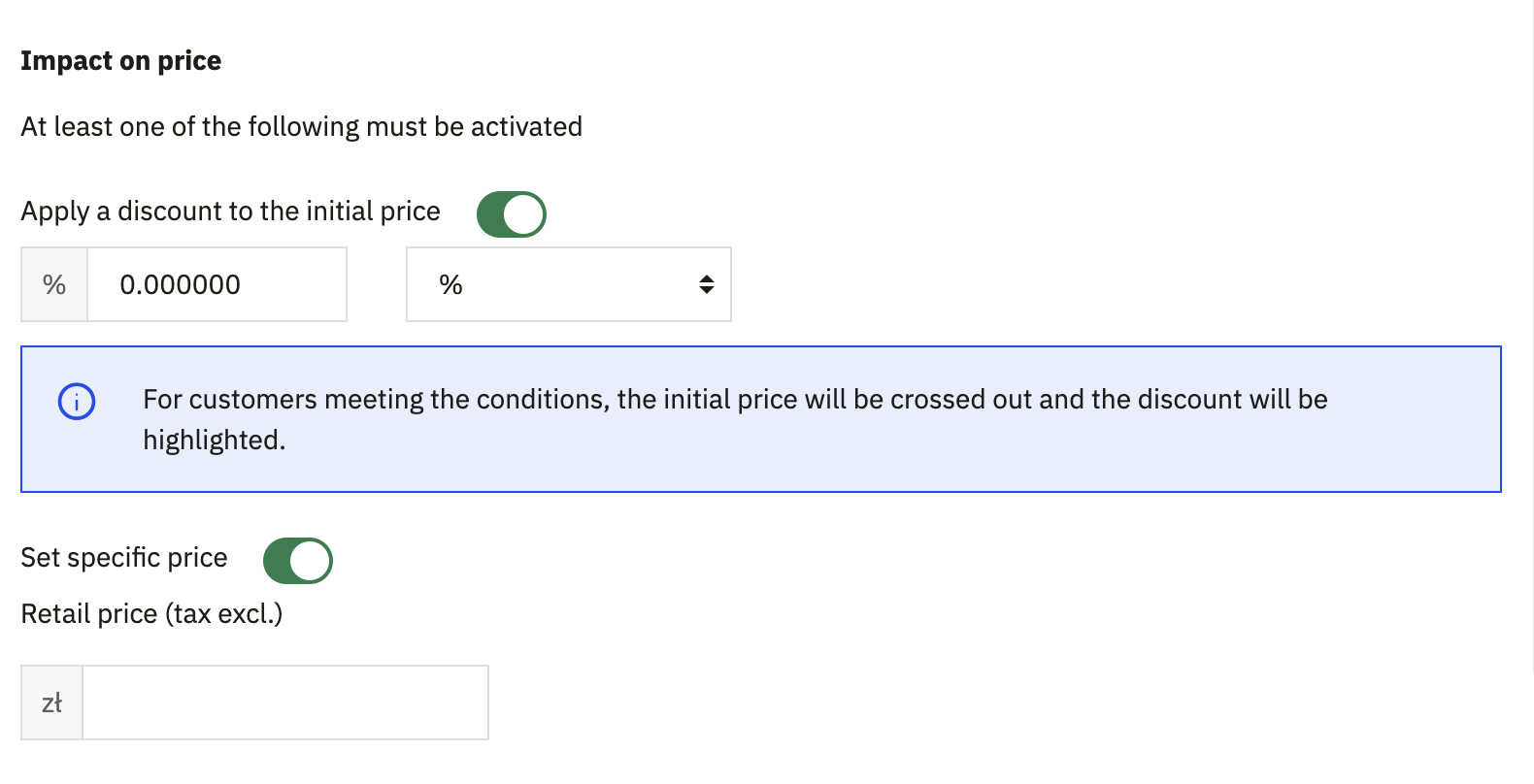
To apply the discount, navigate to the Impact on price section in PrestaShop. You can set the promotional price by applying a percentage or amount discount, setting a specific price, or both.
If you configure multiple specific prices for different timeframes, GetResponse follows a simple rule: we will always mirror the active price in PrestaShop at the exact time your email is sent.
Every price included in a message reflects the data synced to GetResponse at the time of sending. Keep the following in mind when planning your mailings:
- Emails always display the current price at the moment of dispatch. If you draft an email today (no promo) but it sends next week during a sale, your subscribers will automatically see the sale price without you needing to update the template.
- Important: Avoid sending a campaign immediately after changing prices in PrestaShop. Due to the synchronization delay, the data might not be updated yet, causing the old price to be sent.
We automatically ensure that the sale price is only displayed if it is lower than the original price.
Promo prices in ecommerce campaigns for abandoned cart
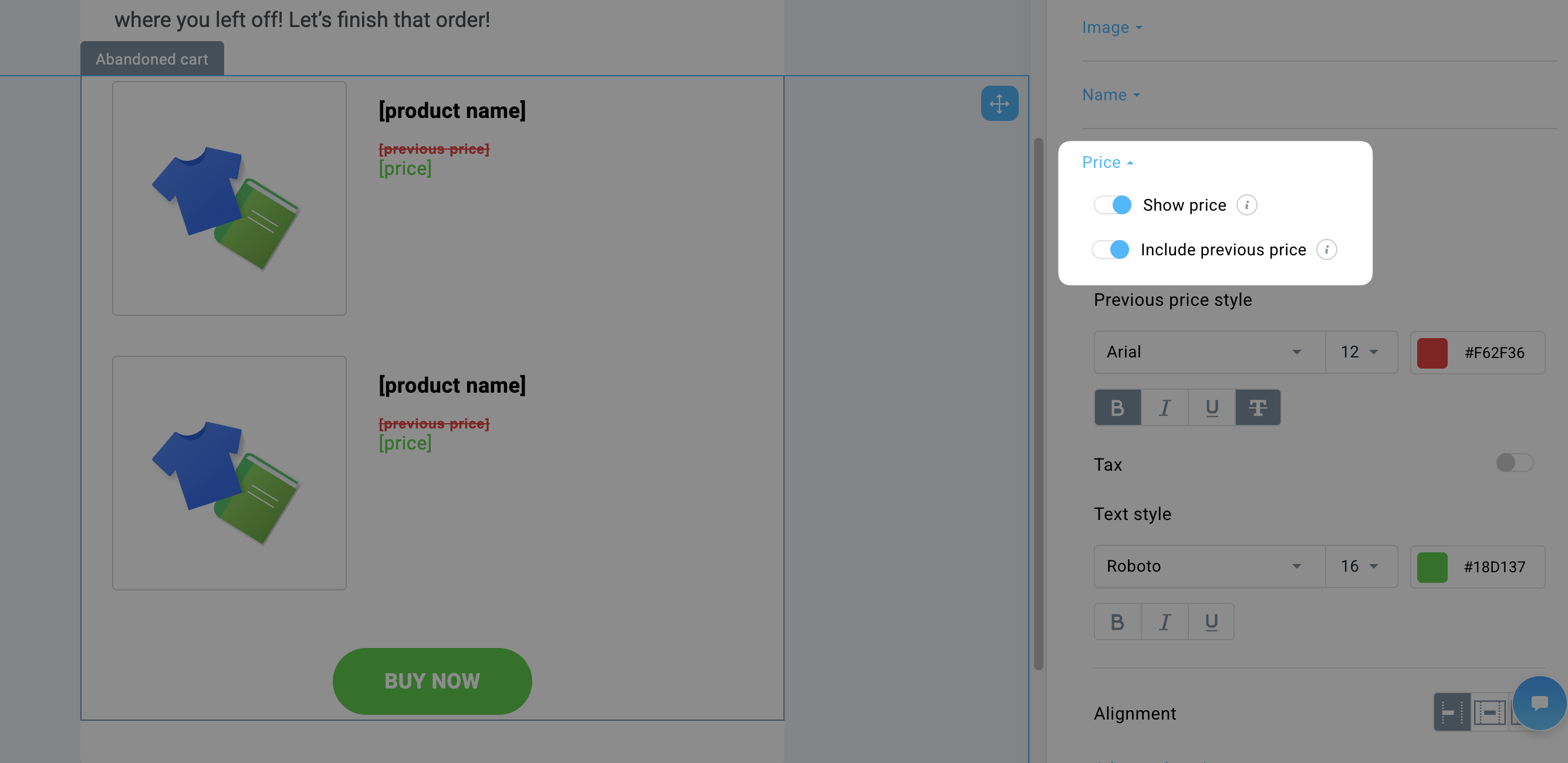
When creating an abandoned cart message, you can enable Show price and Include previous price. This dynamically pulls the promotional price into the recipient’s inbox. While these options allow you to style both prices separately in the editor, please note that the previous price will not appear in the recipient’s inbox at all unless a specific price is actively set for that product in PrestaShop.
Configuring promo prices for Abandoned cart blocks in automation messages, as well as Considered products blocks works exactly the same way.
Promo prices in price drop ecommerce campaigns
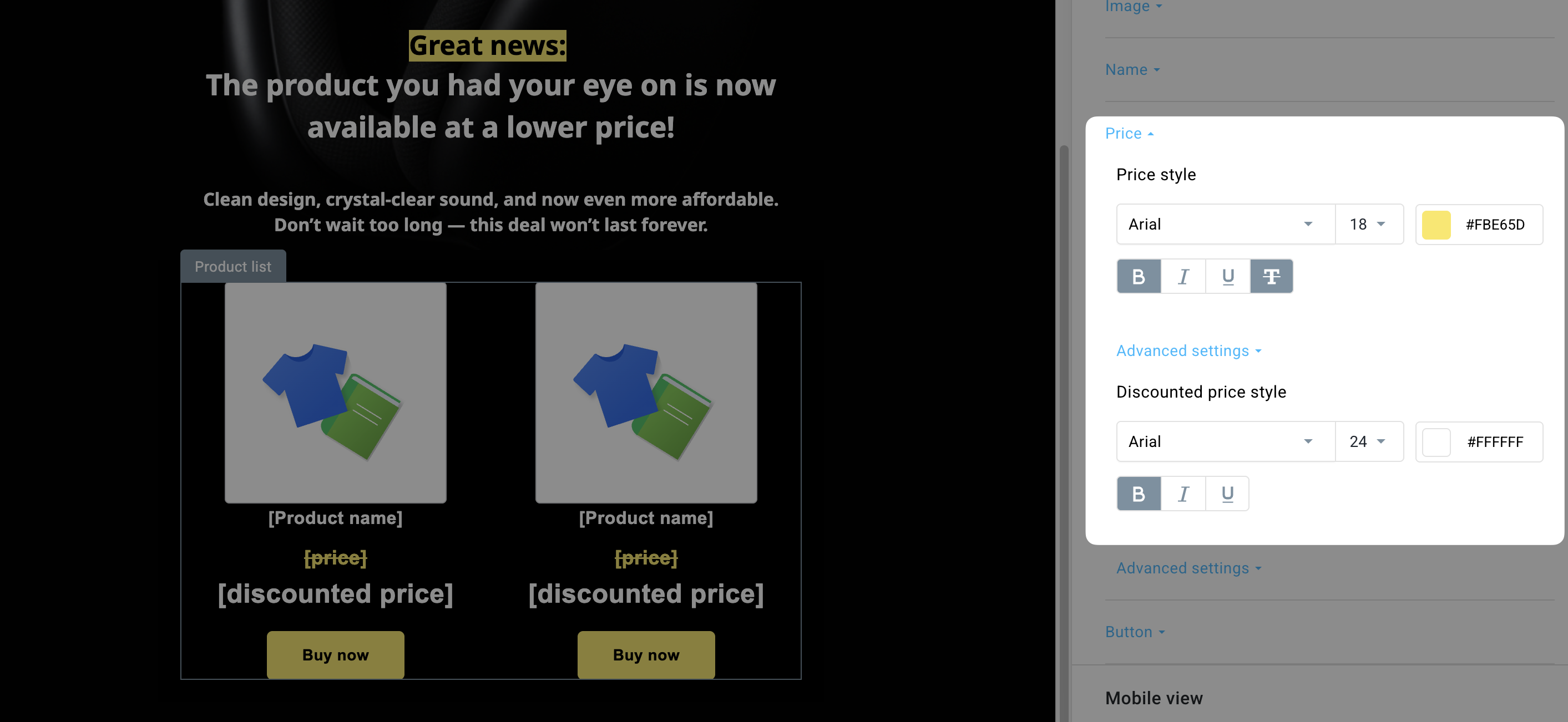
In price drop messages, both price options are enabled by default in the editor. While you can customize the styles, the previous price will only be visible to the subscriber if a specific price is set in PrestaShop.
Note a slight terminology difference here: the previous price is labeled as Price, and the current PrestaShop price is labeled as Discounted price.
Promo prices in Product boxes
When you add a Product box, select a product with a specific price, and enable the Include previous price option, the original price will appear in the editor. If you enable Include previous price for a product without a specific price set, you will see a placeholder ([previous price]). This placeholder will not be visible to subscribers even if the specific price is missing at the time of sending.
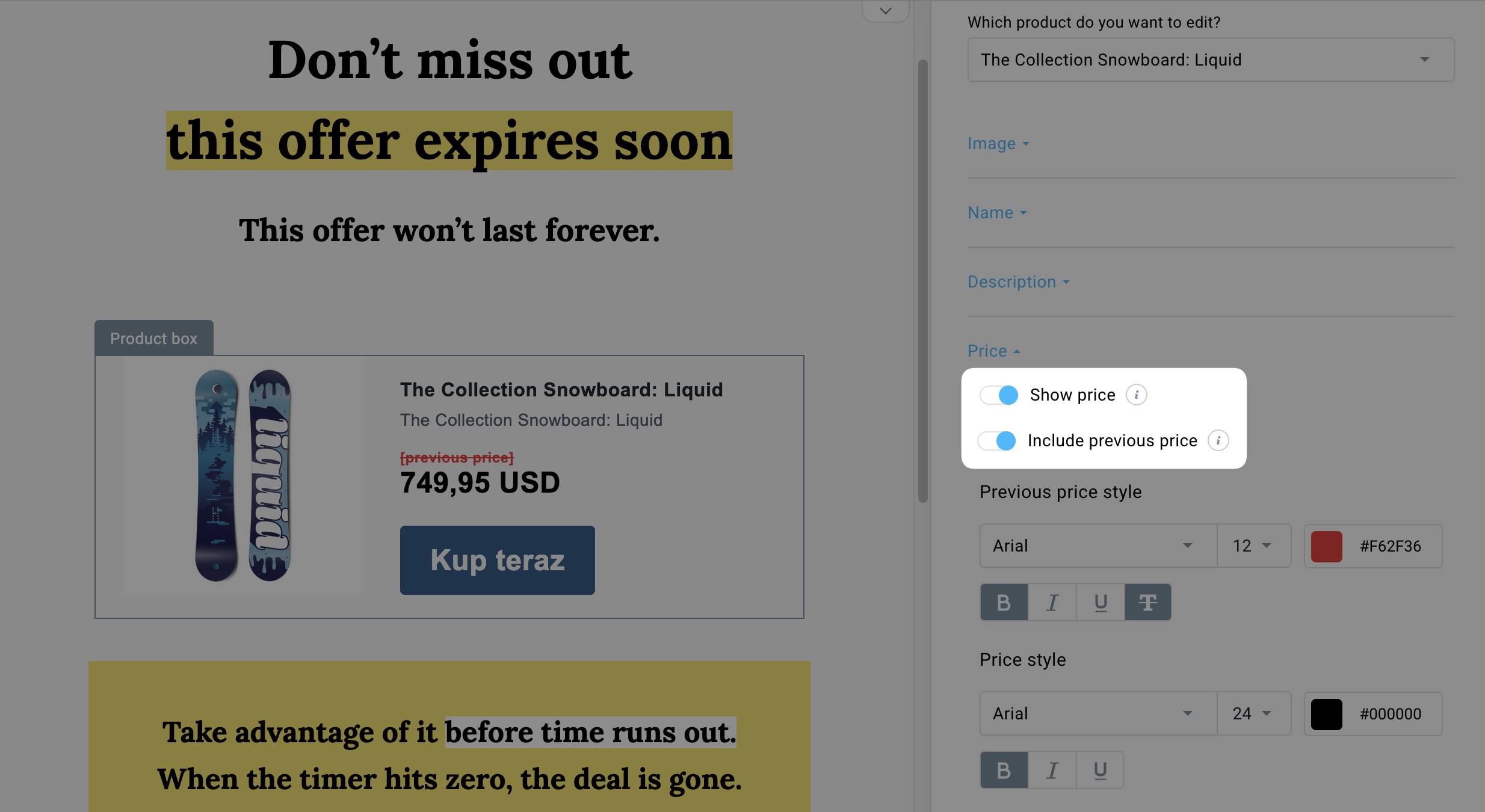
If a product’s price is updated before the message is sent, the product box will always show the correct price at the moment of sending even if the message was saved earlier as a draft or template.
We automatically check whether a product is on sale and adjust the display for you.
If there’s no sale price, the product box will simply show one price.


