
How to cancel my paid account?
The instructions in this article refer to paid accounts. Click here to learn how to cancel a Free account.
You can only cancel your subscription using a browser, you will not be able to close your account in the mobile app.
If you’re unsure about canceling, don’t hesitate to reach out to our Customer Success Team for help.
You may close your GetResponse account at any time during your subscription, provided that your account is fully paid up (with no outstanding fees) and your contact list does not exceed the limit included in your purchased plan.
Your account will remain active until the end of the last paid billing period, and until then, you will continue to have access to all plan features and all content you have created. After cancellation, any existing account limits will continue to apply. If you exceed your contact limit after cancellation, you will not be able to add new contacts unless you reduce the number of contacts in your account or reactivate your plan.
GetResponse is a pay-as-you-go service. Therefore, we don’t issue refunds, even if you cancel immediately after your credit card is charged for the new billing period.
Before closing the account, we provide a one-time opportunity to choose from the following options:
for monthly payments:
- using GetResponse for 1 month completely free of charge (the amount equivalent to the package price is added to the account balance),
- downgrade to a lower plan,
- freezing your account for 60 days.
for annual payments:
- using GetResponse for 2 months completely free of charge (the amount equivalent to 2 months of using the plan is added to the account balance. You still pay for the year, we do not move the next payment date, but the payment amount is for 10 months, not 12),
- downgrade to a lower plan.
How to cancel the account
To cancel your account:
- Go to Profile > Billing.

- Click Cancel plan.
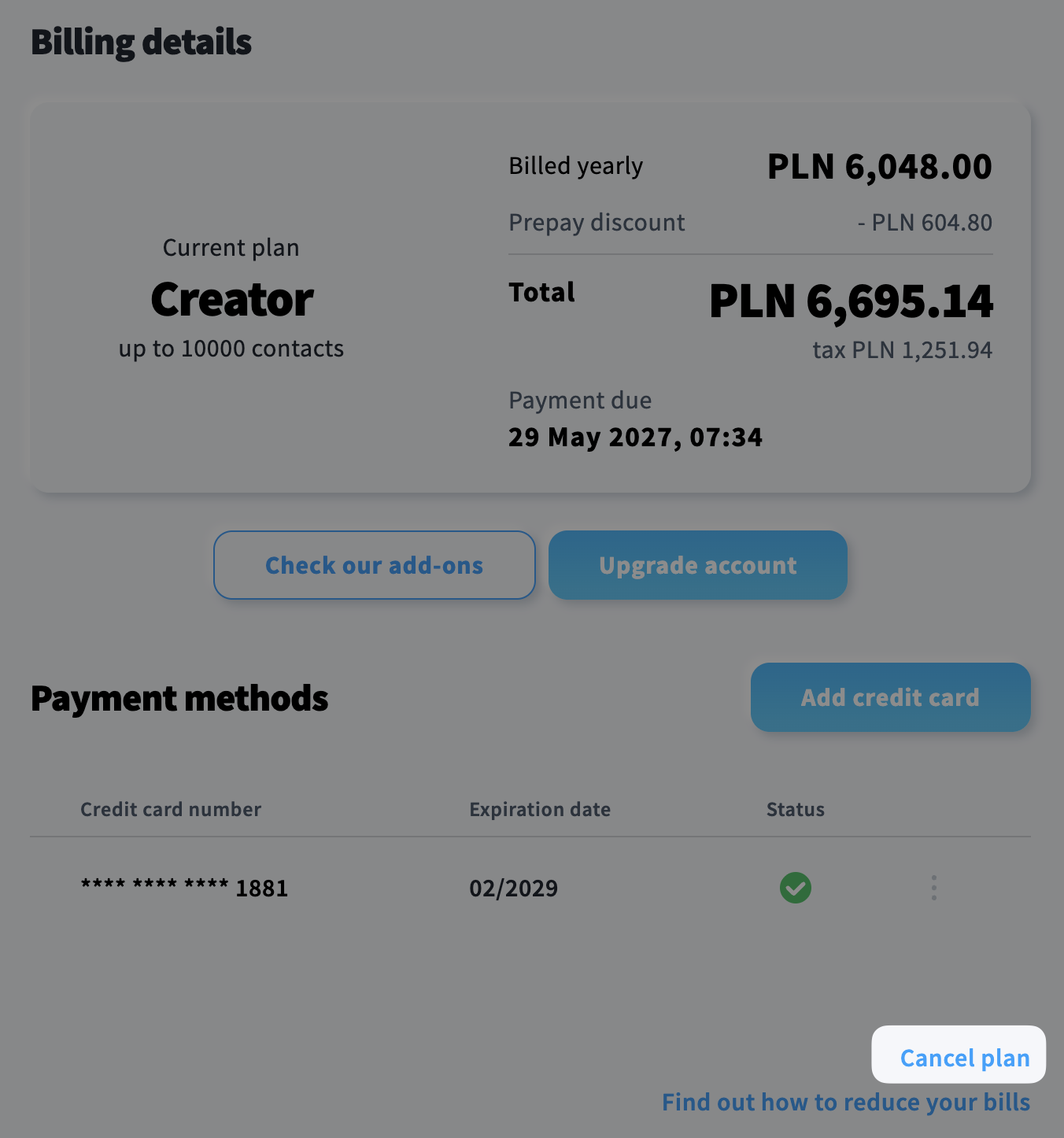
- Review the provided information and if you still want to cancel, click Yes, move on to cancellation.
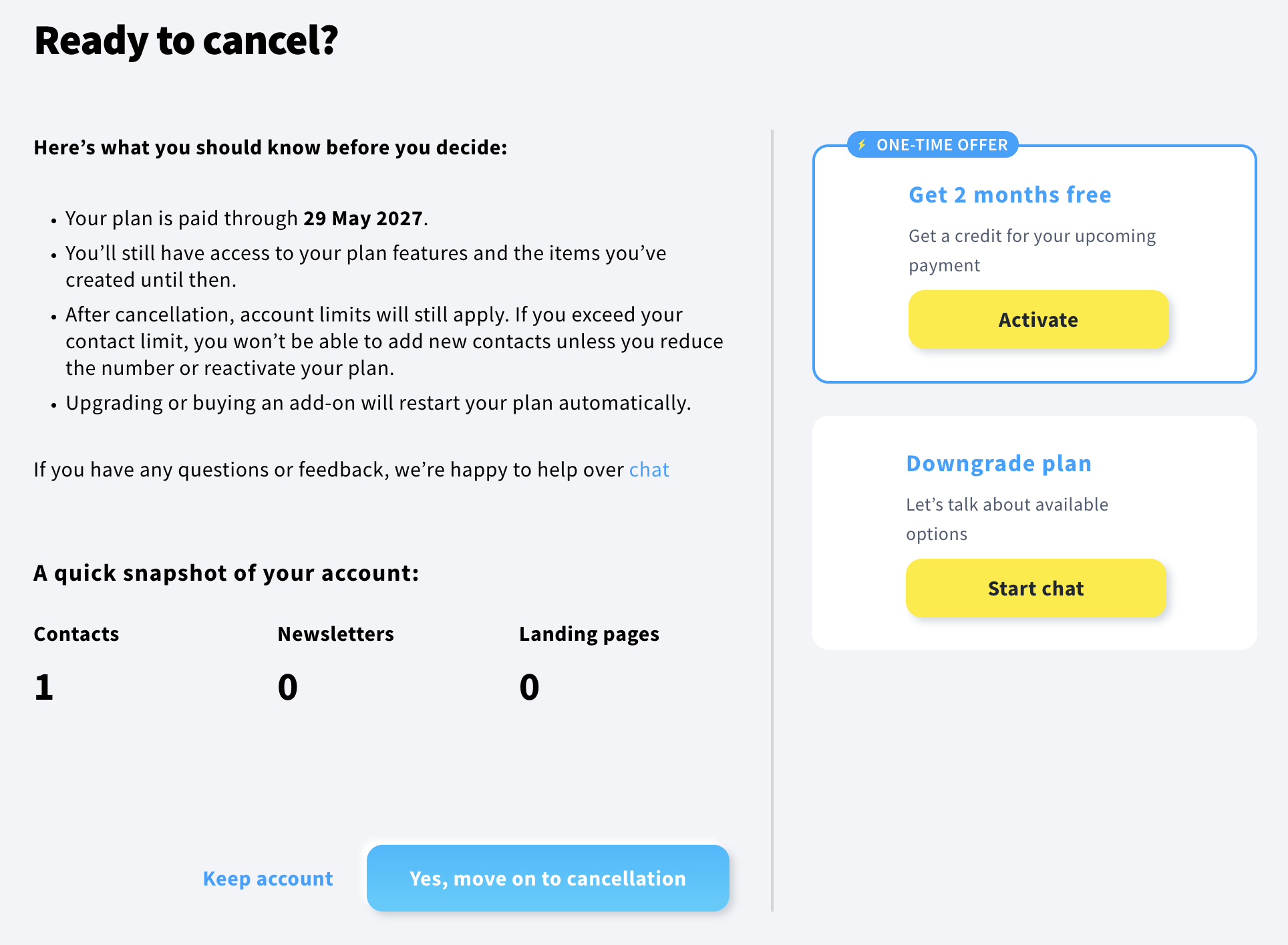
- Optionally, you can provide the cancellation reason.
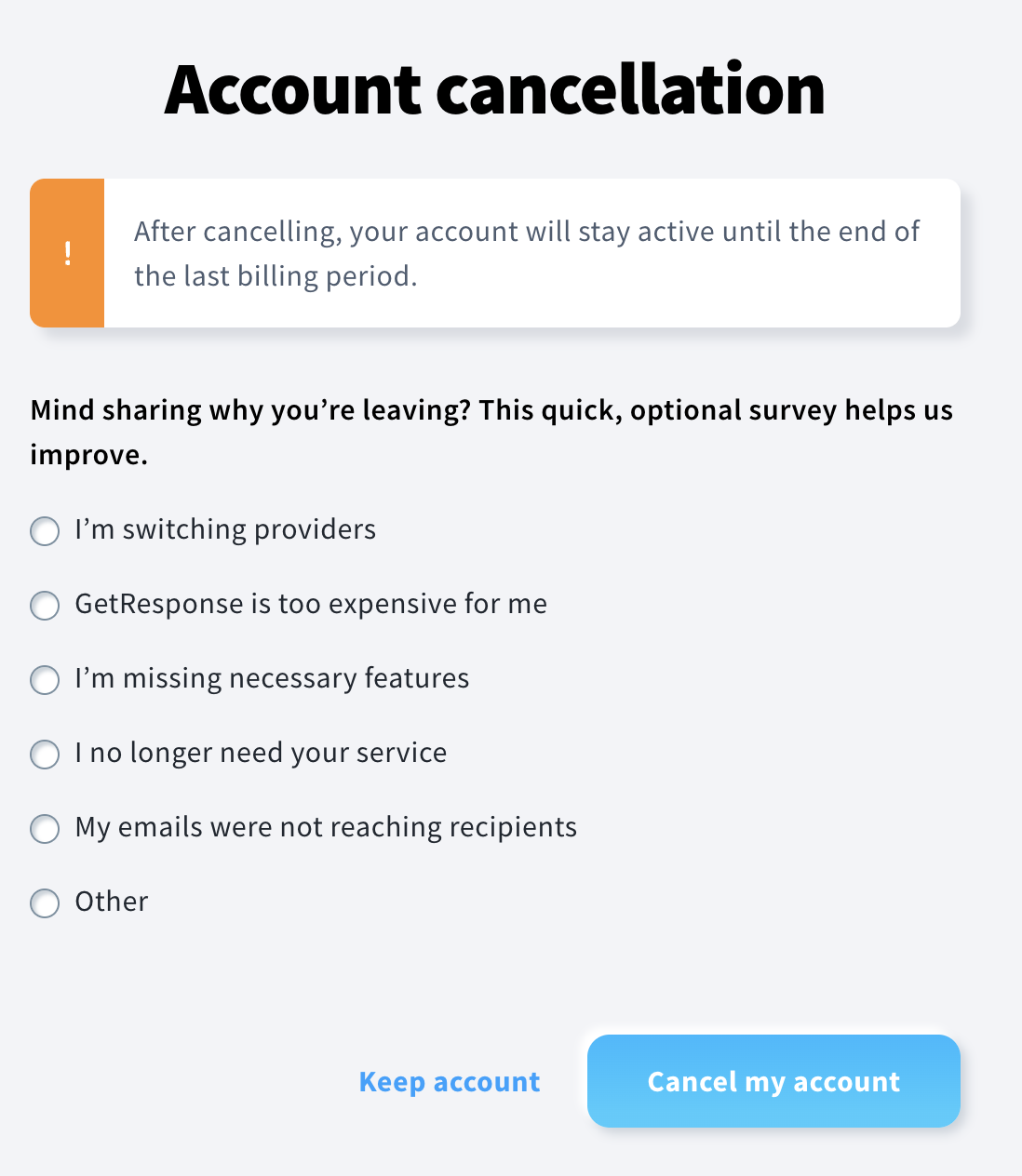
- Click Cancel my account.
- If the cancellation was successful, a confirmation message will appear. A banner will also be displayed on both the dashboard and the billing page, reminding you that your account cancellation has been scheduled and showing the date on which your account will be closed.
How to undo account cancellation
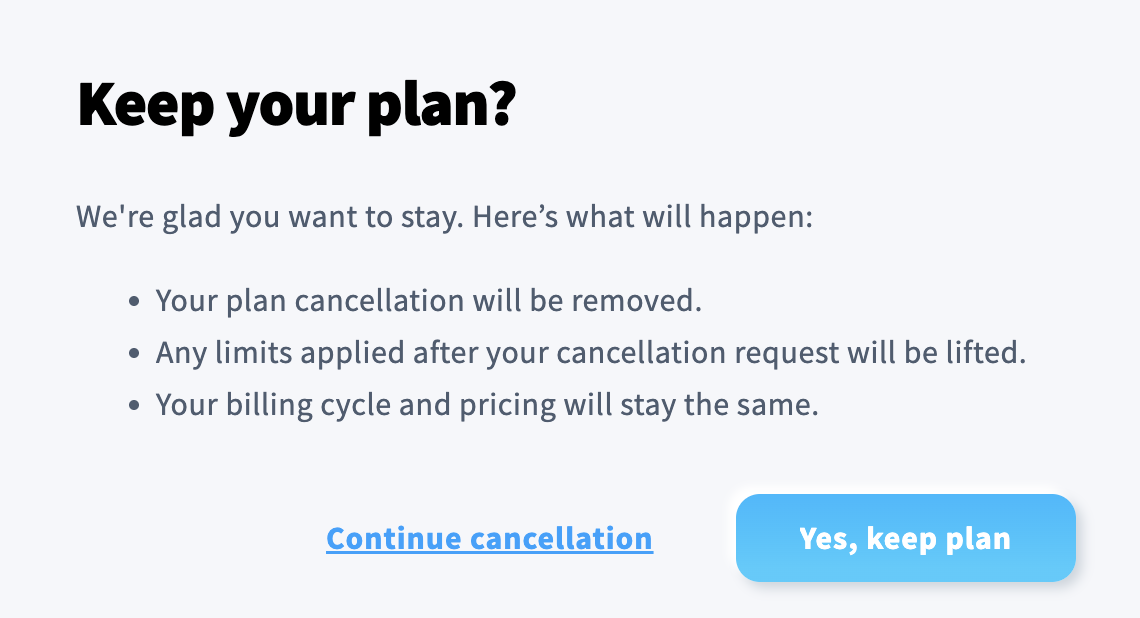
If you change your mind, you can cancel the scheduled account closure at any time. To do so:
- Go to Profile > Billing.
- Click I want to keep my plan.
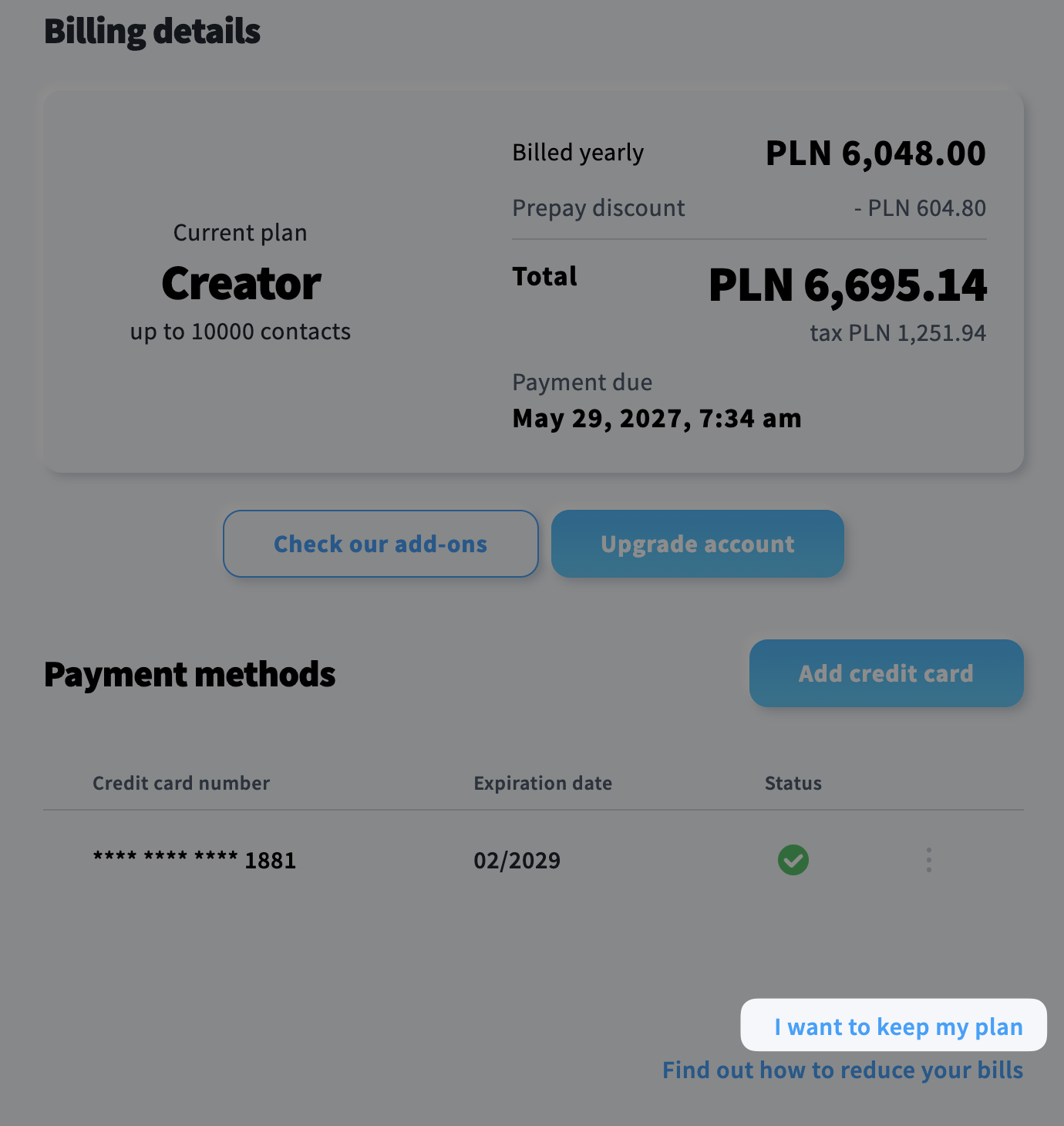
- Confirm your decision by clicking the Yes, keep plan button.
Frequently asked questions
1. Can I schedule account cancellation if I have outstanding payments?
No. If your account has any outstanding payments, you must settle them first before you can schedule and complete the account cancellation yourself.
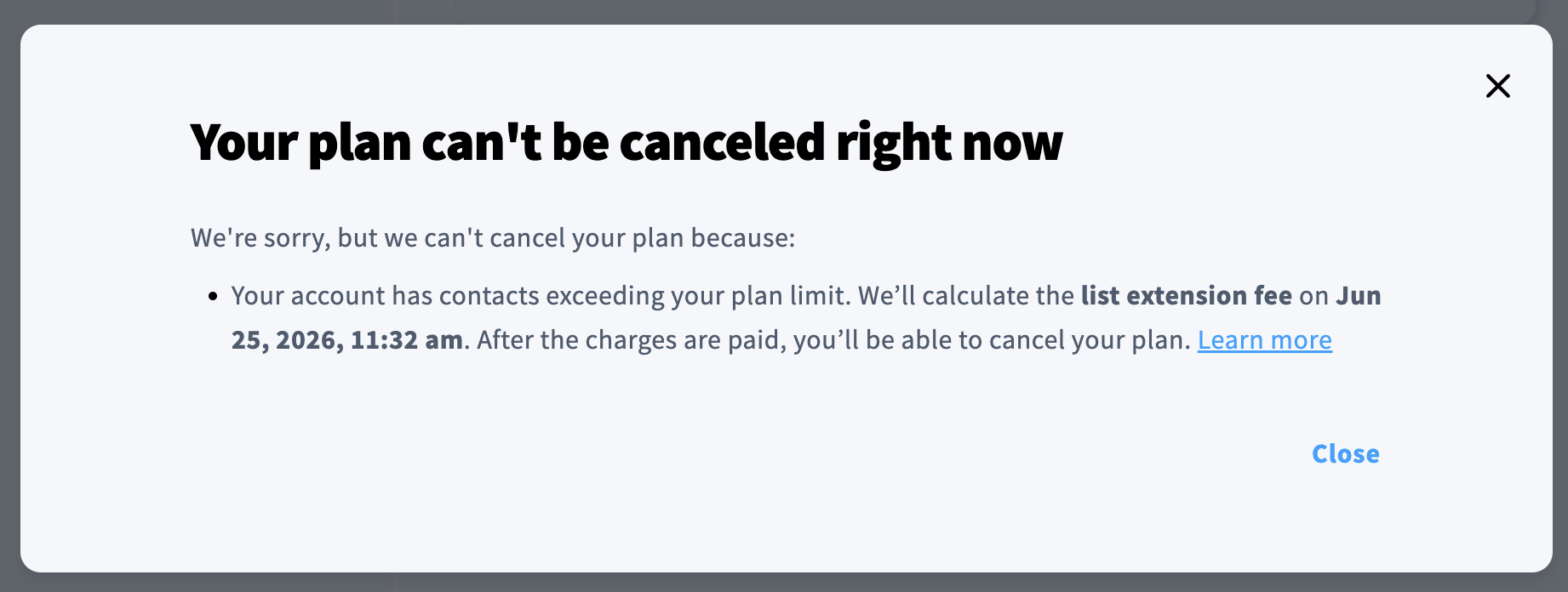
2. Can I schedule account cancellation if I’m exceeding the list size allowed by my purchased plan?
No. If you’re already exceeding the allowed list size, you will not be able to cancel your account. The list extension fee will be charged on the last day of the current billing period, and account closure will only be possible once this fee has been paid.
3. Can I exceed the list size after account cancellation has been scheduled?
No. Once account cancellation has been scheduled, adding contacts beyond your plan’s list size limit is disabled during the notice period.
4. What happens if I upgrade the account or purchase an add-on during the notice period?
If you upgrade the account or purchase an add-on after cancellation has already been scheduled, the cancellation will be automatically reverted. This means your account will remain active, and a new billing period will start automatically upon completion of the current billing period.


