How to run pings and traceroutes and generate HAR files?
A traceroute is a diagnostic tool used to track the pathway taken by packets from your device to a destination server. It might be required by GetResponse support to troubleshoot any connectivity issues between your computer and GetResponse.
Ping is a tool used to test the reachability of a server. Running these commands will provide you with diagnostic information about the network connectivity and the route taken to reach the specified destination.
A HAR (HTTP Archive) file records a log of web browser interaction with a site. This log can help the support team troubleshoot complex performance or loading issues within the platform.
Running a Traceroute on Windows
On Windows, you can perform a traceroute in the Command Prompt. Here’s how:
- Open Command Prompt: Press the Windows key + R to open the Run window. Type cmd and press Enter to open a Command Prompt tab.

- Enter Tracert Command: Type tracert, followed by a space, then the web address of the destination site (e.g. tracert app.getresponse.com). Press Enter.

Running a Ping on Windows
On Windows, the ping command can be executed in the Command Prompt. Here are the steps:
- Open Command Prompt: Press the Windows key + R to open the Run window. Type cmd and press Enter to open a Command Prompt tab.
- Enter Ping Command: Type ping, followed by a space, then the web address of the destination site (e.g. ping app.getresponse.com). Press Enter.

Running a Traceroute on Mac OS:
On Mac OS, you can perform a traceroute using the Terminal. Here’s how:
- Open Terminal: Click the Spotlight/magnifying glass icon in the Menu bar. Search for Terminal and open it by double-clicking on it.

- Enter Traceroute Command: In the Terminal window, type traceroute, followed by a space, and then the web address of the destination site (e.g. traceroute app.getresponse.com). Press Enter.

Running a Ping on Mac OS:
On Mac OS, the ping command can be executed using the Terminal. Here are the steps:
- Open Terminal: Click the Spotlight/magnifying glass icon in the Menu bar. Search for Terminal and open it by double-clicking on it.
- Enter Ping Command: In the Terminal window, type ping, followed by a space, and then the web address of the destination site, and then -c followed by number of ping attempts to avoid infinite pinging (e.g. ping app.getresponse.com -c5). Press Enter.

Generating a HAR file in Google Chrome
To generate and download a HAR file using Google Chrome, follow these steps:
- Open Developer Tools: Open Google Chrome and go to the page where you are experiencing the issue. Click the three-dot menu icon in the top-right corner, navigate to More Tools, and select Developer Tools (or press F12 / Ctrl + Shift + I on Windows, or Cmd + Option + I on Mac).
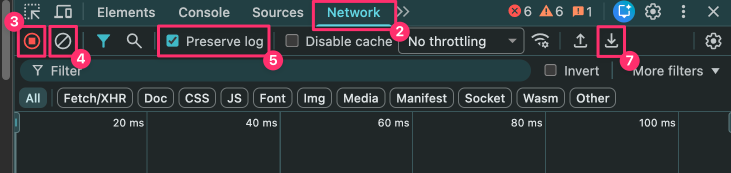
- Go to the Network Tab: In the Developer Tools panel, click on the Network tab.
- Record: Look for a small round record button in the upper-left corner of the tab and ensure it is red. If it is grey, click it to start recording.
- Clear existing logs: Click the Clear button (a circle with a diagonal line through it) next to the record button to clear any existing activity logs.
- Log: Make sure the Preserve log checkbox is ticked.
- Reproduce the issue: Refresh the page and recreate the issue or error you experienced.
- Save the HAR file: Once the network log populates with the recorded activity, click on the download icon next to the gear icon, and choose a location on your computer to save the file.
Generating a HAR file in Mozilla Firefox
To generate and download a HAR file using Mozilla Firefox, follow these steps:
- Open Developer Tools: Open Firefox and navigate to the page where you are encountering the problem. Click the menu menu icon (three horizontal lines) in the top-right corner, select More Tools, and click Web Developer Tools (or press F12 / Ctrl + Shift + I on Windows, or Cmd + Option + I on Mac).
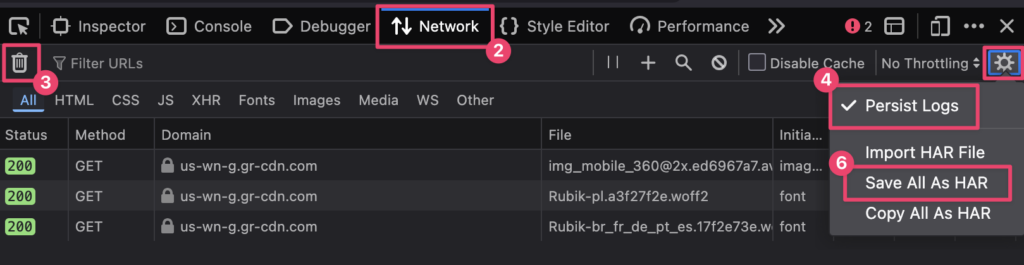
- Go to the Network Tab: Click on the Network tab. The panel will automatically start recording network activity.
- Clear: Clear current logs beforehand by clicking the trash can icon.
- Configure: Click the gear icon in the upper-right corner of the network panel and select Persist Logs.
- Reproduce the issue: Refresh the webpage and perform the steps that caused the original issue.
- Save the HAR file: Click the gear icon in the upper-right corner of the network panel, then click Save All As HAR, and save the file to your computer.