
How to create and send SMS in self-service accounts?
This article applies to self-service accounts only (Starter, Marketer, Creator). If you have a MAX account and would like to send SMS messages, please refer to the dedicated guide here.
Sending SMS within self-service accounts comes with certain restrictions and limits. Click here to learn more.
This guide walks you through the entire process – from selecting recipients and setting up a sender name to composing and delivering your message. Note: SMS marketing in self-service accounts is available for users based in Poland, Germany, and Switzerland.
How to create SMS
Before you can send SMS messages from a self-service account, you need to:
- Add a sender name and wait for it to be approved by our Compliance Team.
- Add funds to your SMS balance.
To create a text message:
- Go to Tools > SMS.
- Click Create text message.
- Choose whether you want to send the message to contacts from a selected list in your GetResponse account or to contacts imported from a file.

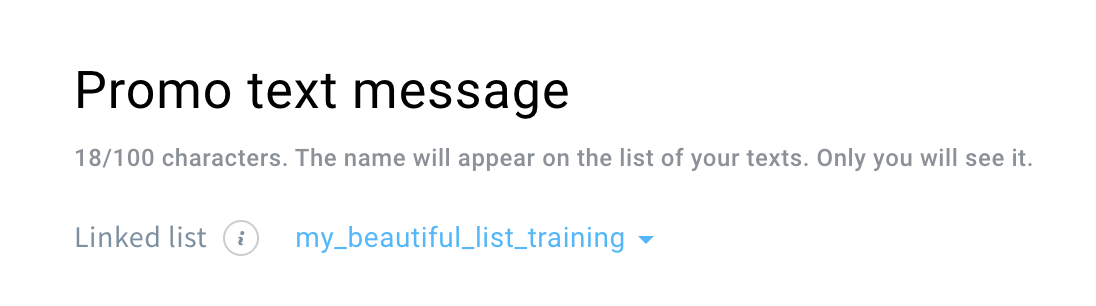
- Give your text message an internal name.
- Choose the list to link your message to.
- Add recipients.
- Contacts from your list: click Add recipients and select the list(s) and/or segment(s) you want to send the text message to.
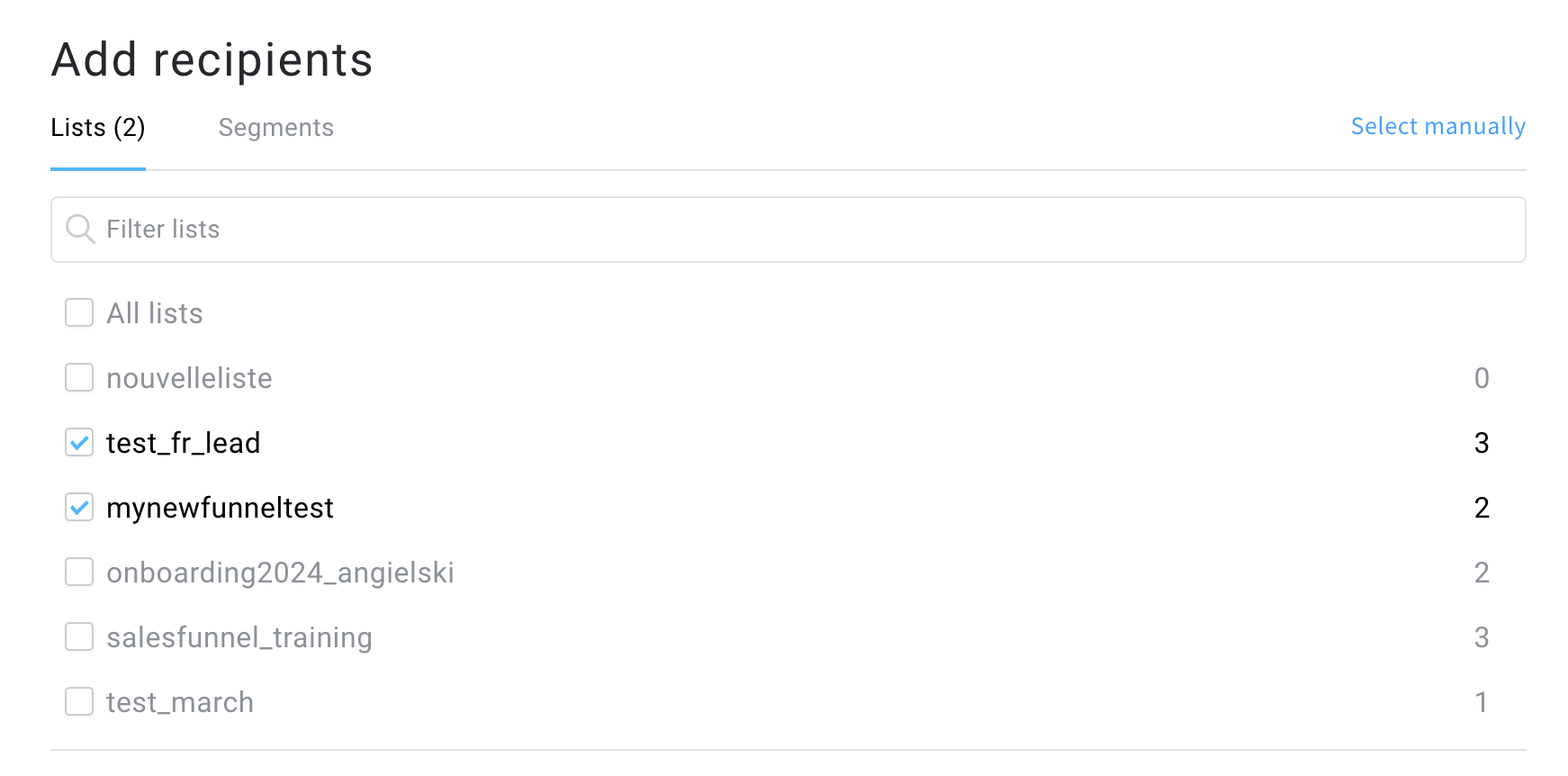
Next, select which custom field we should use to fetch the phone numbers.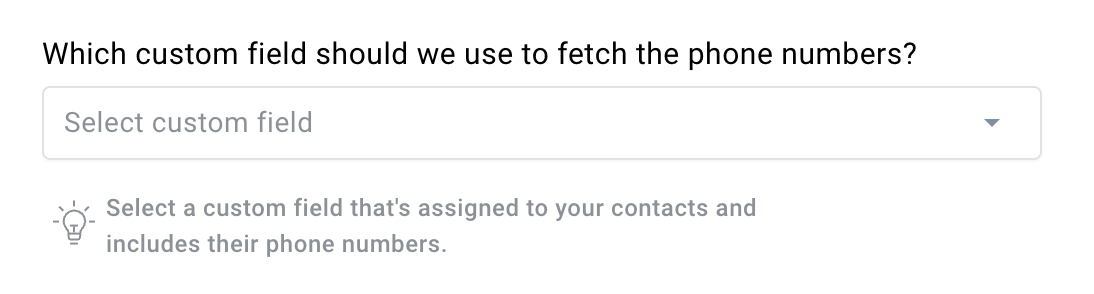
Click Add. - Numbers from a file: click Add recipients and upload a file. You can upload .CSV, .TXT, .XLSX files up to 10MB. Our system only accepts files with one column. We recommend uploading no more than 50,000 contacts at a time. Larger files may take up to 1 hour to process.
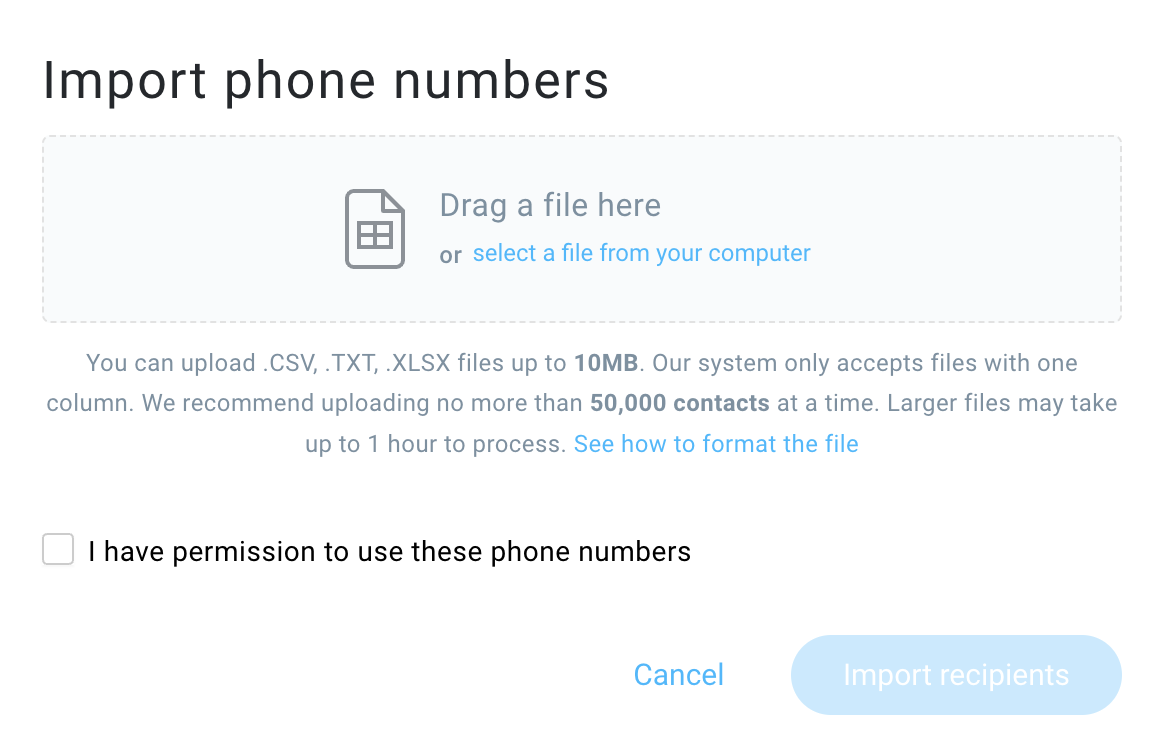
Check the I have permission to use these phone numbers box. Next, click Import recipients.
Note: The people whose phone numbers you import in the file won’t be added to your contact lists.
- Contacts from your list: click Add recipients and select the list(s) and/or segment(s) you want to send the text message to.
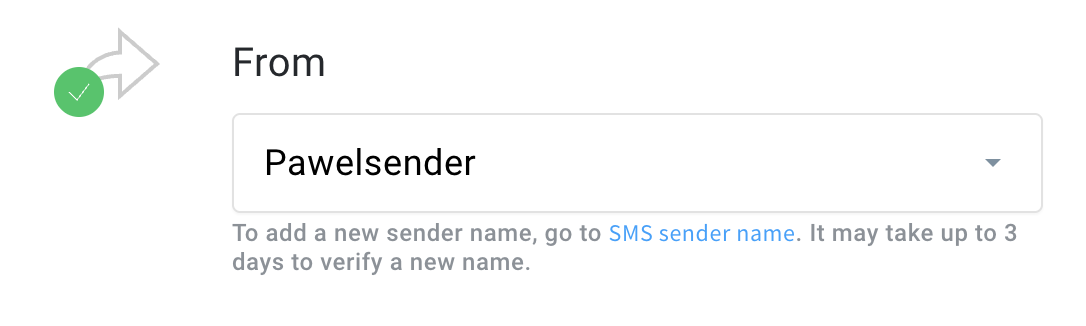
- Select the sender name. This name will appear as the sender of your message.
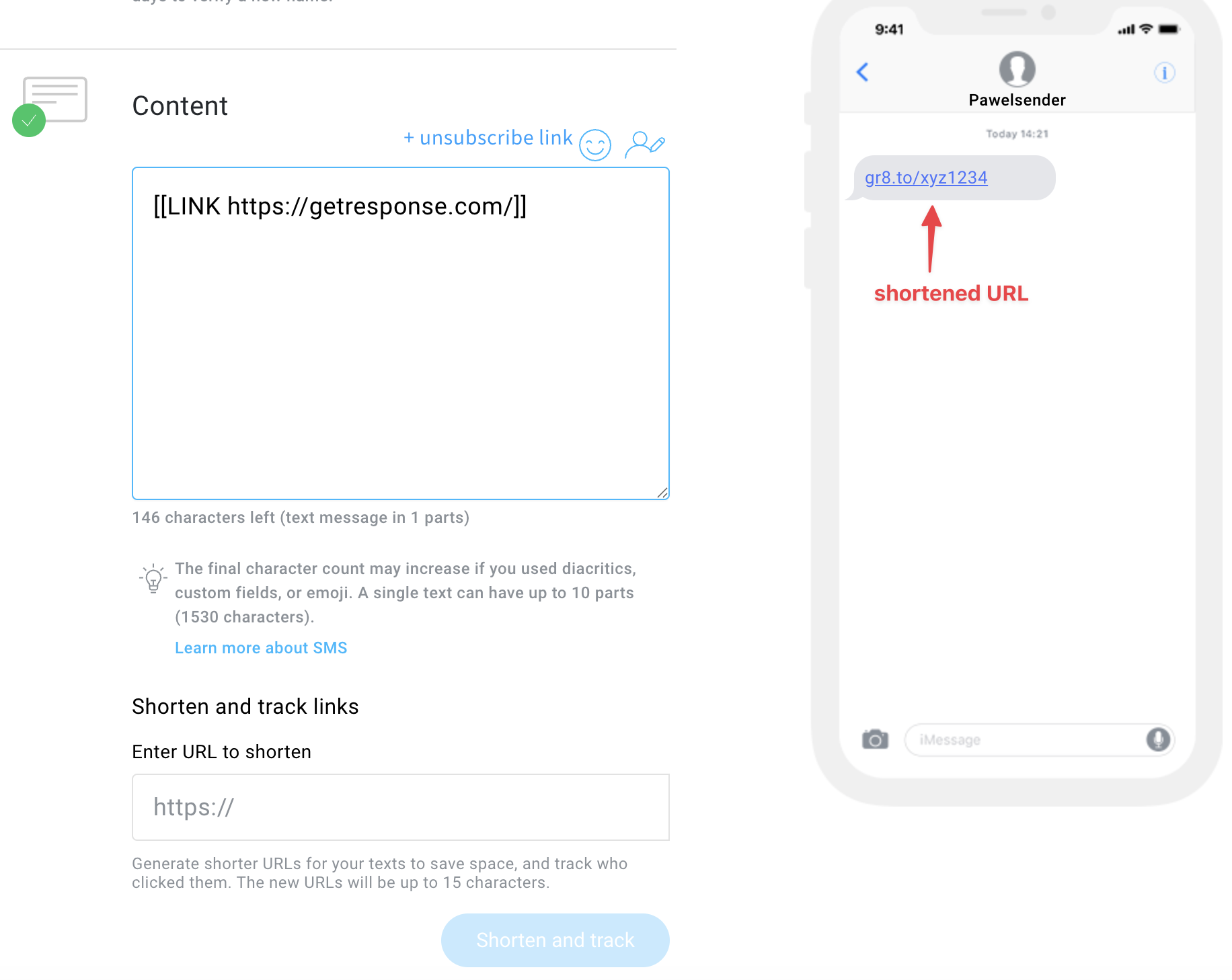
- Enter the content of your message.
- Add a trackable opt-out link by clicking + unsubscribe link.
- (Optional) If you’d like to include links in your message, add them in the Shorten and track links section. GetResponse will automatically shorten them to help save space in your SMS. Shortened links will use our default domain: gr8.to.
- Set the message scheduling settings and click on Send text message to send it.
Guidelines for writing SMS messages
What is the character limit for my messages
A single message using ASCII characters (A-Z letters, punctuation and numbers) can have up to 160 characters. Messages using special characters including emoji and diacritics can have up to 70 characters. Longer messages are created automatically if the number of characters exceeds these limits. Longer messages can have up to 1530 characters and 670 characters if they use diacritics. Longer messages are sent as multiple SMS messages (up to 10 linked messages).
How to use emoji in text messages
To use emoji in your messages click on the emoji button that appears in the top right corner of the message editor.
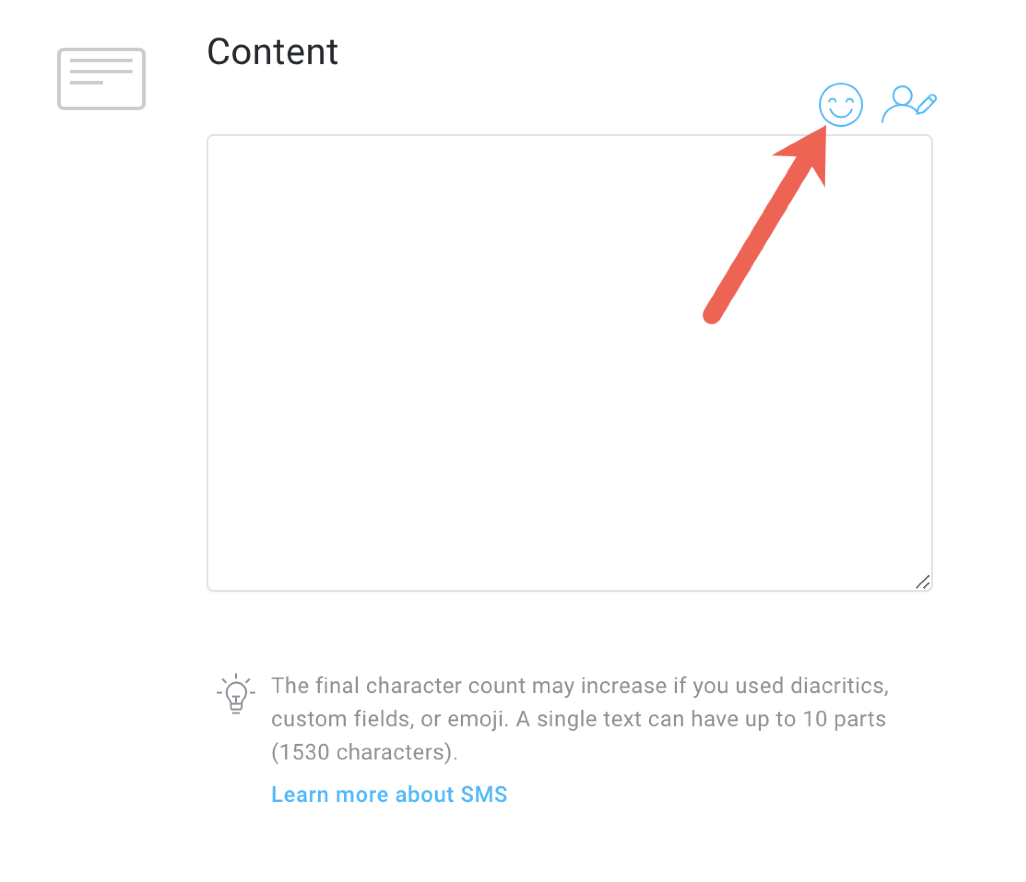
Note: One emoji is counted as two characters in a message.
How to use custom fields in text messages
To add custom field personalization in your message, click on the custom field button that appears in the top right corner.

Note: Custom fields may increase the character count of your message which can cause higher charges.
How to cancel a text message
To cancel an SMS send go to Tools > SMS, then hover your mouse over the Actions menu icon (vertical ellipsis) to the right of your SMS and click on Stop sending.


