
Most email campaigns have the same problem: people don’t act immediately.
A subscriber opens your email, scans the offer, and thinks, “I’ll check this later.” But by the time they return to their inbox, your message is buried under dozens of new ones.
One way to prevent this is by introducing urgency. When subscribers know an offer won’t last forever, they’re much more likely to take action.
One simple way to create that urgency is by adding a countdown timer to your email.
Instead of relying on phrases like “limited-time offer” or “ends soon,” a countdown timer shows exactly how much time is left — making the deadline clear and hard to ignore. The visual nature of countdown timers helps them stand out in crowded inboxes, increasing the likelihood of engagement.
In this guide, you’ll learn:
- What countdown timers are and how they work in email marketing
- Why countdown timers increase conversions
- Which email campaigns benefit from them the most
- Best practices for using them effectively
- How to add a countdown timer to your emails in GetResponse
Let’s start with a quick look at what countdown timers are and how they work in email marketing.
What is a countdown timer in email marketing?
A countdown timer in email marketing is a dynamic visual element that shows how much time remains before an offer, promotion, or event expires.
Studies show that adding countdown timers to marketing emails can increase conversions by about 8–20% on average, because visible deadlines create urgency and encourage subscribers to act before the opportunity disappears.
Countdown timers are commonly used in emails for:
- flash sales
- webinar and event registrations
- product launches and early-bird pricing
- limited-time availability and discounts
- seasonal promotions, like Black Friday or Cyber Monday
Because the timer updates automatically, it makes the deadline clear and difficult to ignore.
Why countdown timers increase conversions
Countdown timers work because they introduce a clear and visible deadline.
When people believe they have unlimited time to make a decision, they often postpone it. But when time is limited — and visibly running out — the decision suddenly becomes more urgent. The imagery of a ticking clock in your email, created by a countdown timer, amplifies this urgency and motivates subscribers to act quickly.
In practice, marketers often see this shift in behavior when a real deadline is introduced. Subscribers who might otherwise delay the decision are more likely to act while the opportunity is still available.
Here are three reasons countdown timers are so effective in email campaigns.
1. They highlight what subscribers might miss
People are generally more motivated to avoid losing something than to gain something new.
A countdown timer makes the potential loss visible — whether it’s a discount, early access to a product, or a limited-time bonus.
As the timer runs down, the opportunity feels more limited, which can encourage subscribers to act before the deadline passes.
2. They reduce decision delays
Without a deadline, many decisions get postponed.
Subscribers may intend to come back to an email later, but in a busy inbox that often doesn’t happen. A countdown timer introduces a clear time limit, prompting readers to evaluate the offer now instead of delaying the decision.
This helps move subscribers from consideration to action faster.
3. They make urgency visible
Phrases like “limited-time offer” or “ends soon” can be easy to ignore.
A countdown timer makes urgency visible. Seeing the time tick down creates a stronger sense of immediacy and draws attention to the deadline.
That visual cue reinforces the need to act before the opportunity disappears.
Let’s look at the types of email campaigns where countdown timers tend to have the biggest impact.
7 email campaigns that work best with countdown timers
Countdown timers can be used in many types of email campaigns, but they’re especially effective when there’s a clear and meaningful deadline.
Here are seven common campaigns where countdown timers can significantly increase engagement and conversions.
1. Flash sale emails
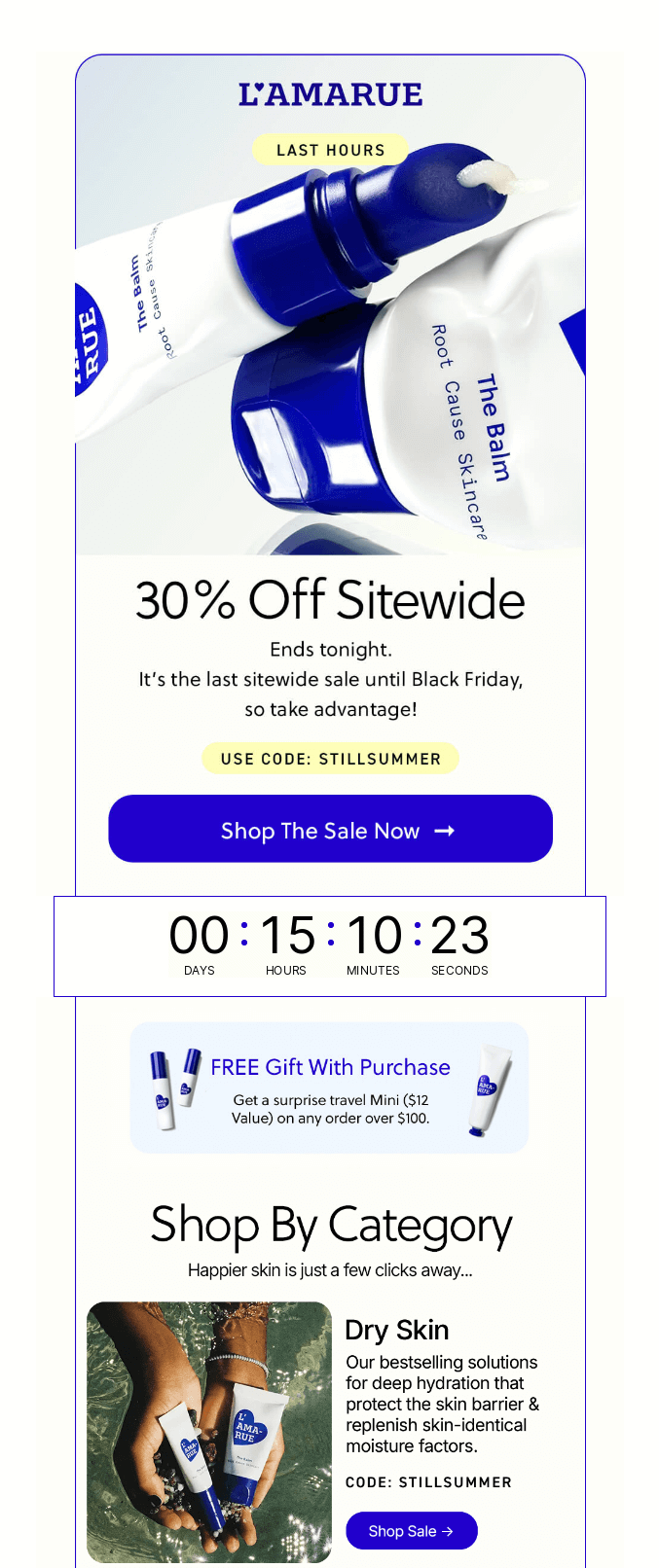
Flash sales are built around urgency, which makes countdown timers a natural fit.
A timer visually reinforces that the promotion is temporary. Instead of simply saying “Sale ends tonight,” subscribers can see exactly how much time remains, which can encourage quicker purchase decisions.
Countdown timers are especially effective during competitive shopping periods like Black Friday and Cyber Monday (BFCM), when many brands are running promotions at the same time.
2. Webinar and event registration emails
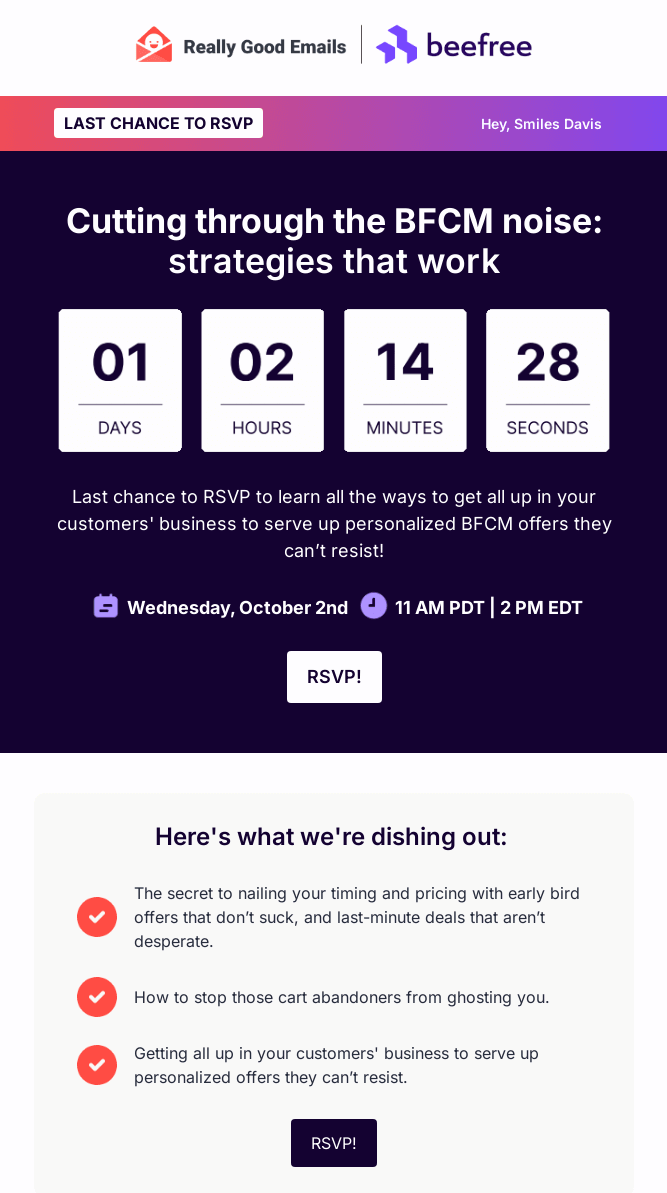
Webinars and events have a fixed start time, which makes them ideal for countdown timers.
Adding a timer to registration emails reminds subscribers that the event is approaching and that registration won’t stay open forever. Countdown timers are particularly effective in last-chance registration emails and “starting soon” reminders.
Using dynamic timers also means you can send the same email to different regions or time zones without having to create multiple regional versions, streamlining your workflow.
3. Product launch campaigns
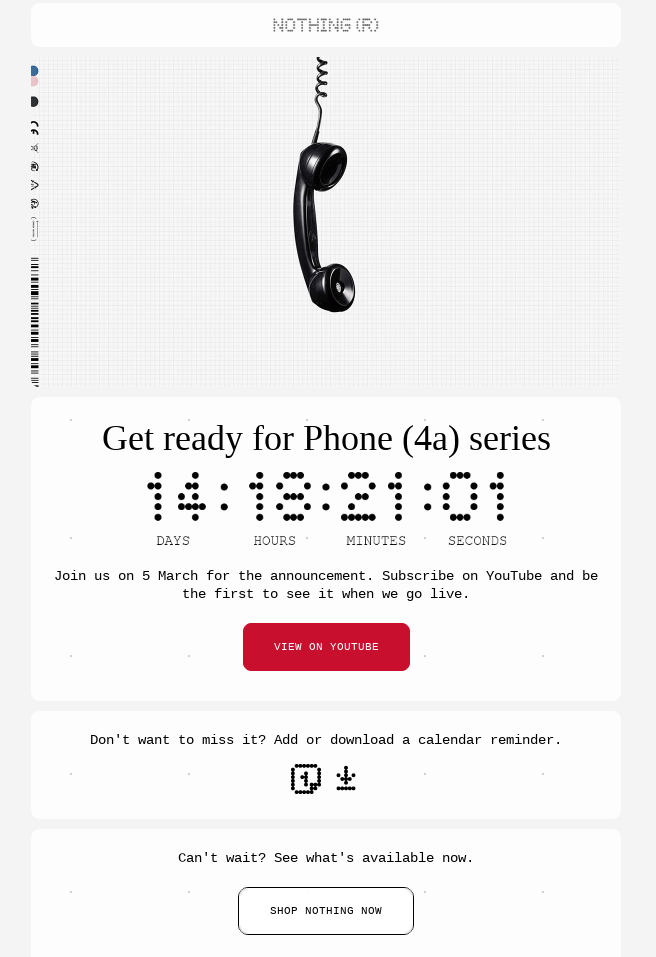
Product launches often include limited early access, launch bonuses, or introductory pricing.
A countdown timer helps highlight when these offers expire, encouraging subscribers to take advantage of the opportunity before it disappears.
For example, you can use a timer to show how long early access pricing, launch bonuses, or special introductory discounts remain available.
💡 Pro tip: You can also integrate countdown timers into your landing pages and popups to create urgency and encourage immediate action during product launches.
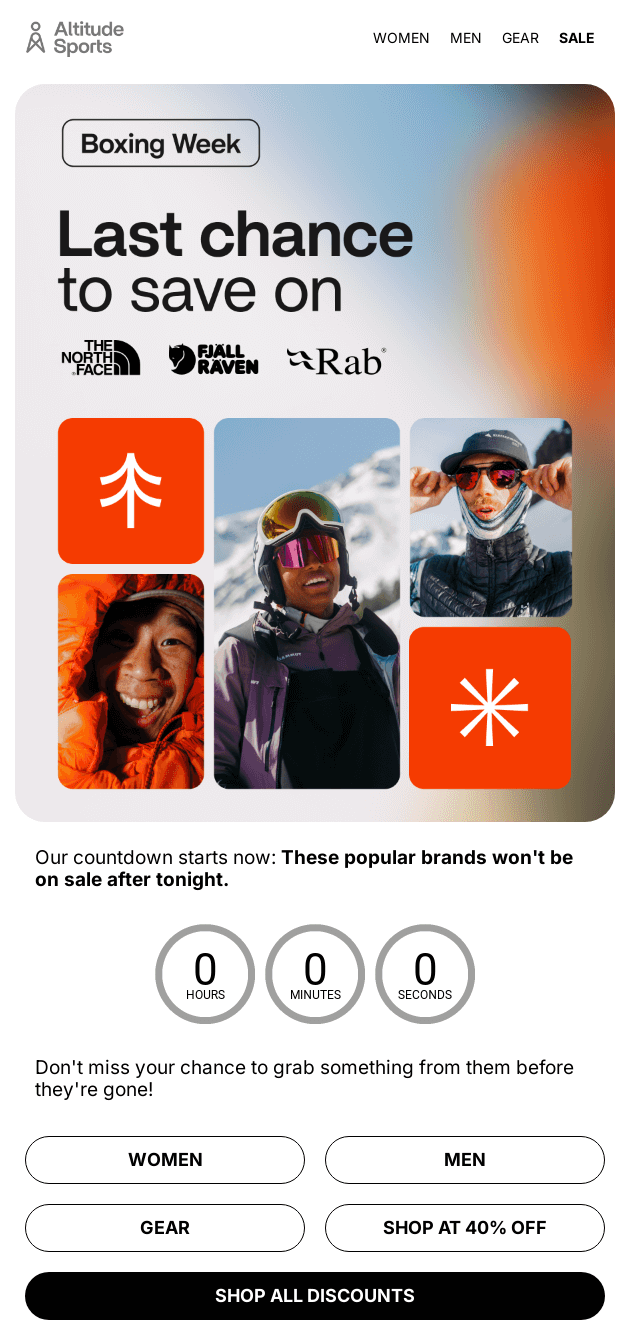
4. Limited-time discounts
Promotional campaigns frequently rely on short-term discounts, such as weekend sales, holiday promotions, or exclusive subscriber offers.
A countdown timer reinforces that the discount won’t last indefinitely. By showing exactly how much time remains, it can encourage subscribers to complete their purchase while the offer is still available.
Pro tip: You can use limited-time discounts around anniversaries, birthday celebrations, or even as part of your welcome email programs.
5. Cart abandonment emails
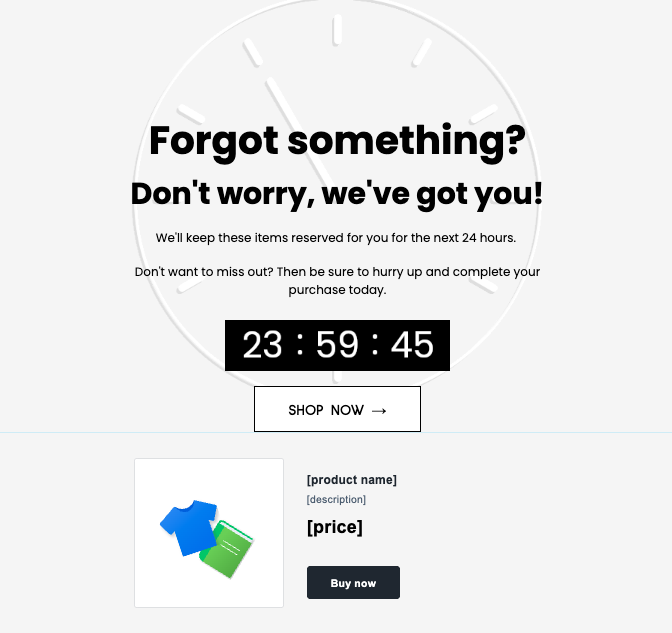
Cart abandonment campaigns already target subscribers who have shown purchase intent.
Adding a countdown timer can introduce an extra incentive to complete the purchase, especially when paired with a temporary discount or reserved offer.
The timer reminds subscribers that the incentive is time-limited, which can help recover more abandoned carts.
Let’s look at a few best practices for using countdown timers effectively in email campaigns.
6. Free trial expiration emails
Countdown timers work well in trial reminder emails because they visually reinforce that access to the product will soon expire.
Instead of simply saying the trial ends soon, a timer shows exactly how much time remains before premium features are disabled. This can encourage users to upgrade before the deadline.
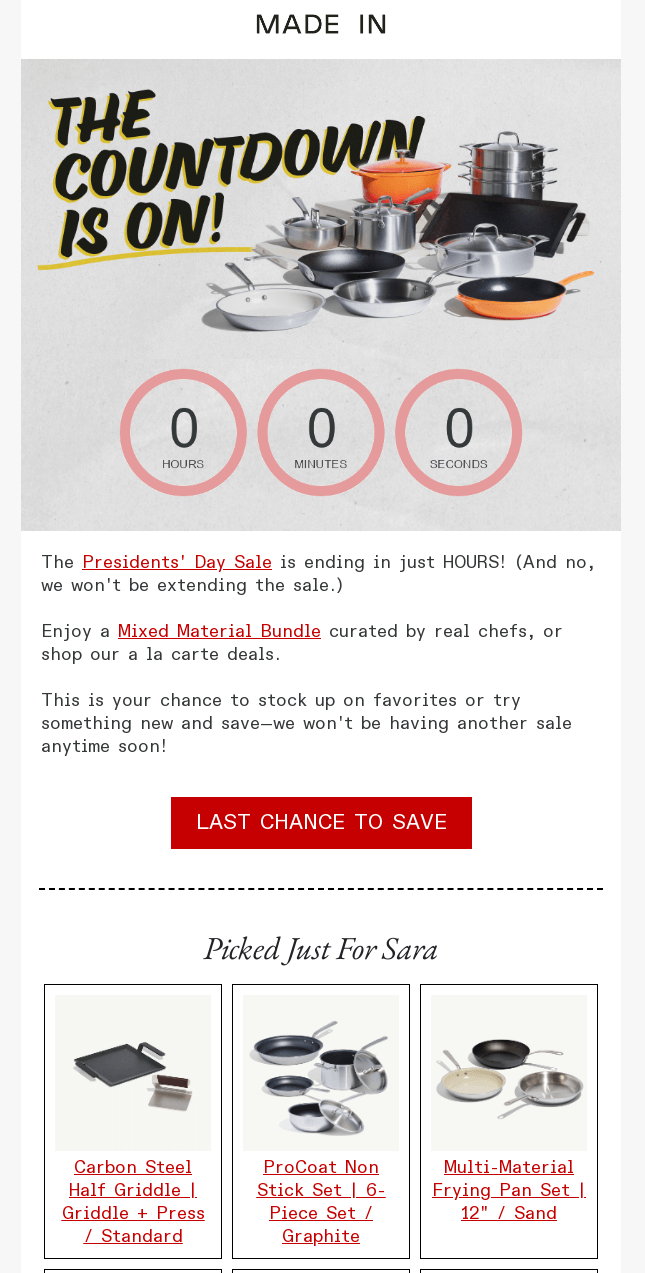
7. Seasonal promotion campaigns
Seasonal promotions often revolve around a specific shopping window, such as Valentine’s Day, Cyber Monday, or end-of-year holiday sales.
Adding a countdown timer highlights how long the seasonal offer will remain available, reinforcing the limited nature of the promotion and encouraging faster purchasing decisions.
Real-world example
Countdown timers and time-limited promotions are widely used by ecommerce brands to drive faster purchasing decisions.
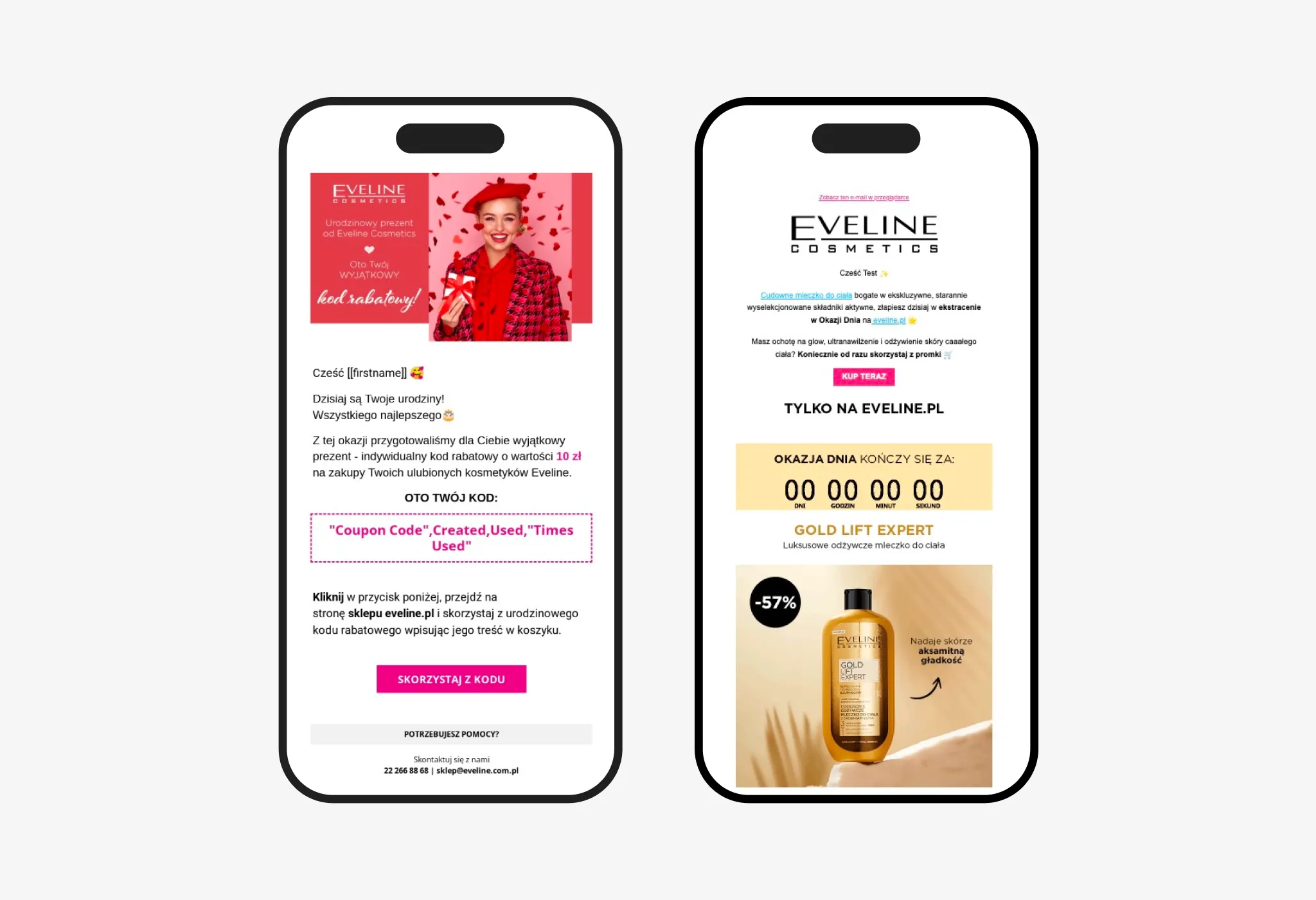
For example, beauty brand Eveline Cosmetics uses targeted promotional newsletters and segmented email campaigns as part of its email marketing strategy. One of their campaigns generated $13,000 in revenue from a single email in just one month, showing how well-timed promotional emails can translate directly into sales.
Let’s look at a few best practices for using countdown timers effectively in email campaigns.
7 best practices for using countdown timers in email marketing
Countdown timers can be highly effective, but like any marketing tactic, they deliver the best results when used strategically. Here are a few best practices to help you get the most out of them.
1. Use countdown timers for real deadlines
Countdown timers work because they create a genuine sense of urgency. If the deadline isn’t real, subscribers will quickly lose trust in your emails.
Use timers only when there’s an actual time limit, such as:
- flash sales
- webinar registrations
- limited-time promotions
- early access offers
When the deadline is meaningful, the urgency feels authentic — which makes the timer much more effective.
2. Place the timer close to your main call to action
A countdown timer should support the action you want readers to take.
In most cases, it works best when placed near the primary CTA so subscribers can immediately act while the sense of urgency is strongest.
A common layout looks like this:
- Headline
- Offer description
- Countdown timer
- CTA button
This makes the deadline clear and keeps the focus on the conversion.
3. Keep the message focused
Countdown timers work best in emails with a single clear objective.
If the email contains too many competing messages or offers, the urgency created by the timer becomes diluted.
Instead, build the email around one main action — whether it’s registering for an event, claiming a discount, or completing a purchase.
4. Pair the timer with urgency-focused copy
The timer should reinforce the message in your email, not replace it.
Use clear, direct language that highlights the deadline, such as:
- “Offer ends in a few hours”
- “Last chance to register”
- “Only a limited time left”
This combination of visual urgency and supporting copy can significantly strengthen the impact of the campaign.
5. Reinforce urgency directly in the inbox with Gmail annotations
You can also highlight urgency before the email is even opened.
Gmail email annotations allow promotional emails in Gmail’s Promotions tab to display extra details directly in the inbox preview — such as deal badges, promo codes, images, and offer expiration dates.

These visual elements help your message stand out in a crowded inbox and make it clear that the offer is time-limited. Marketers using Gmail annotations have seen a weighted average open-rate uplift of about 5.6% compared to similar campaigns without annotations.
When combined with countdown timers inside the email, this creates urgency both in the inbox and inside the message itself.
6. Combine urgency with social proof
Urgency can encourage subscribers to act faster, but it often works even better when paired with social proof, such as customer reviews.
When people see that others have already purchased and enjoyed a product, it reduces uncertainty and builds trust — especially in ecommerce categories where shoppers can’t see the product in person.
For example, the furniture retailer Selsey tested adding customer reviews to their abandoned cart emails. The results showed that emails with reviews increased conversions by 202%, and emails combining reviews with a discount code increased conversions by 239%.
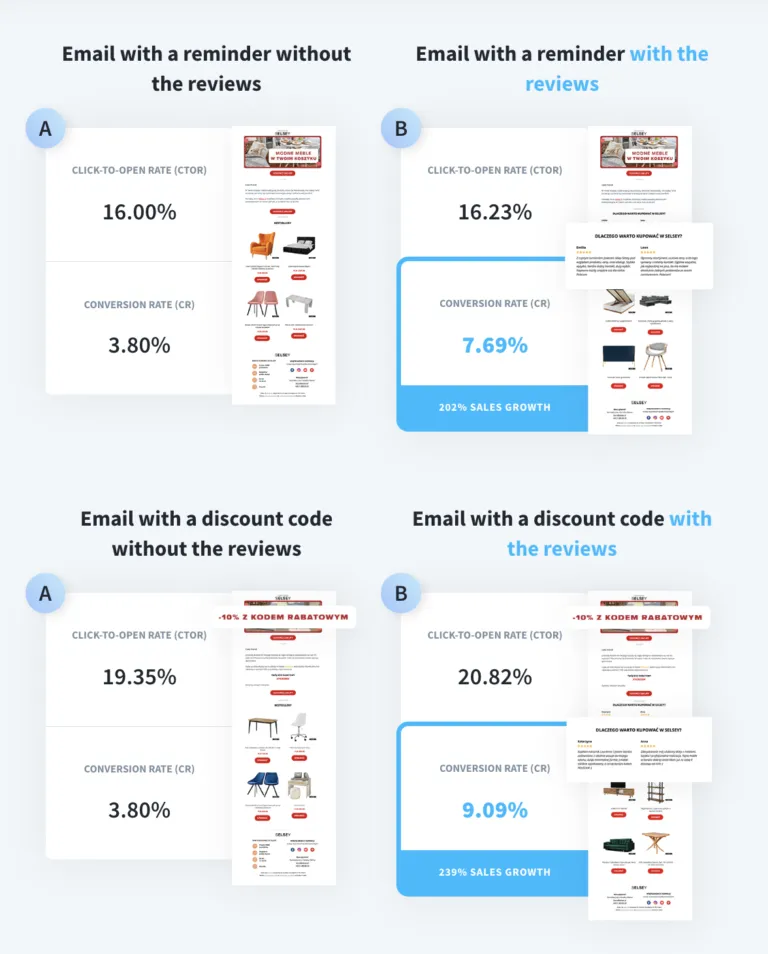
Combining elements like urgency, social proof, and incentives can make promotional emails significantly more persuasive.
7. Test countdown timers to see what works for your audience
While countdown timers often improve engagement, the best way to know their true impact is to test them in your own campaigns.
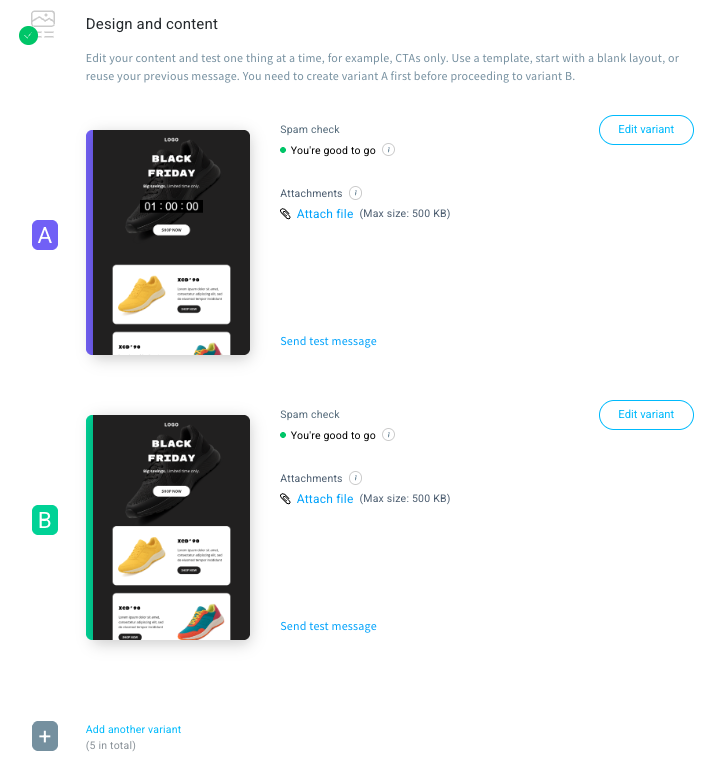
Email marketing performance can vary depending on your audience, industry, and the type of promotion you’re running. A/B testing — also known as split testing — allows you to compare two versions of an email to see which performs better based on real subscriber behavior.
For example, you could test:
- an email with a countdown timer vs. without one
- different timer placements in the email
- a countdown timer combined with a discount vs. no incentive
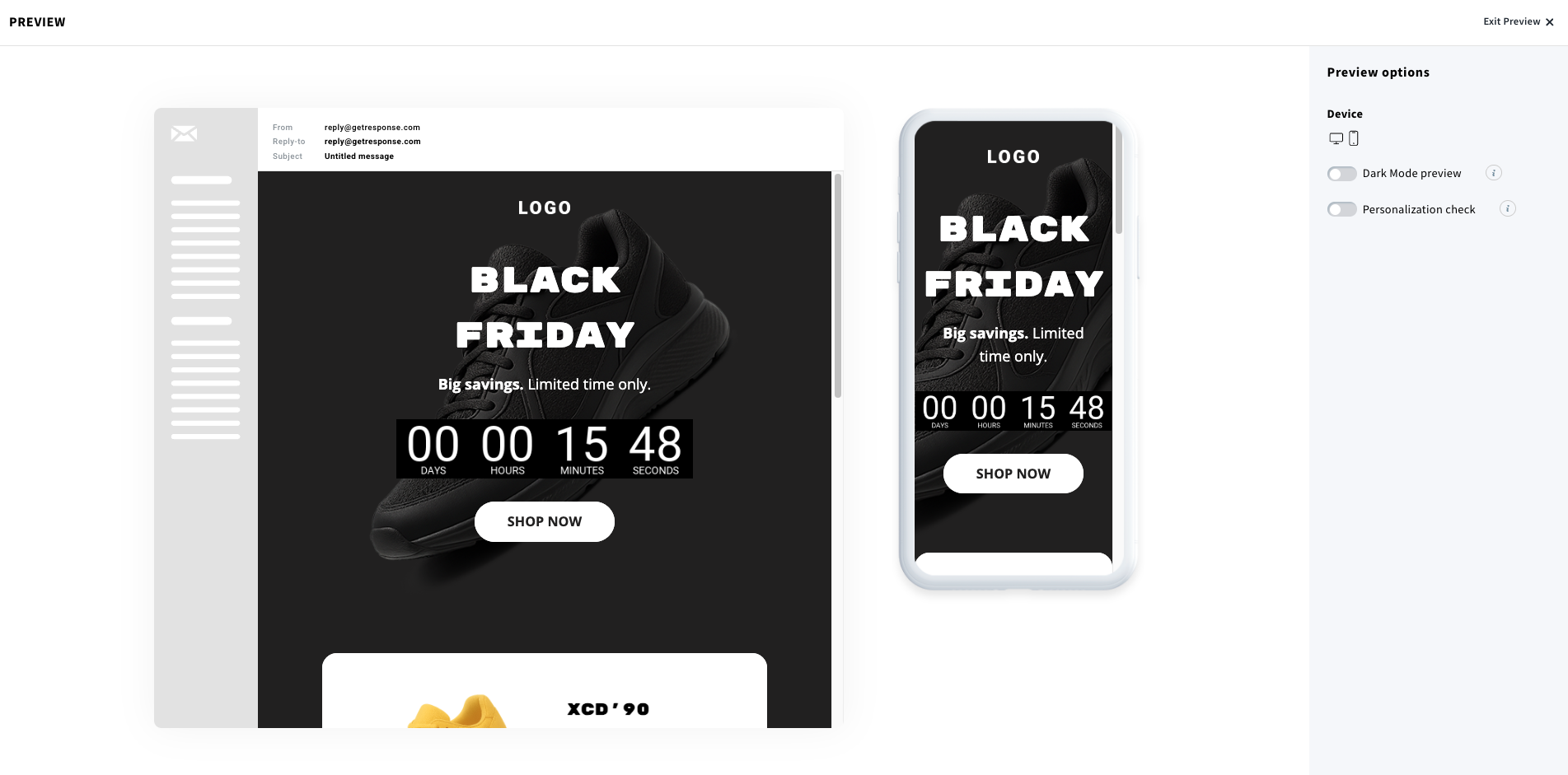
GetResponse offers several ways to test your campaigns. You can first use the preview feature in the email builder to check how your timer displays across devices and layouts. For more reliable insights, you can also run a proper A/B test in GetResponse, sending different versions of the email to segments of your audience and letting the platform identify the winning variant.
Testing removes guesswork and helps you make data-driven decisions about what drives clicks, conversions, and revenue in your email campaigns.
Learn more about creating A/B tests in GetResponse
Putting it all together: building high-converting promotional emails
But as we’ve seen throughout this guide, the most effective campaigns rarely rely on a single tactic. Instead, they combine several persuasion elements that work together to move subscribers toward action.
For example, a promotional email might include:
- a countdown timer highlighting when the offer expires
- customer reviews or testimonials that build trust
- a limited-time incentive, such as a discount or bonus
Together, these elements reduce hesitation and give subscribers a clear reason to act before the opportunity disappears.
Many ecommerce brands already use this approach successfully. For example, beauty brand Eveline Cosmetics generated $13,000 in sales from a single email campaign in one month using targeted newsletters and automation strategies.
Similarly, furniture retailer Selsey increased conversions in abandoned cart emails by adding customer reviews — showing how powerful social proof can be when customers are already close to making a purchase.
The takeaway is simple: the most effective promotional emails combine urgency, trust, and clear incentives to help subscribers make faster decisions.
And with the right tools, adding elements like countdown timers to your campaigns is easier than ever.
How to add a countdown timer to your emails in GetResponse
GetResponse offers a range of email templates that include a countdown timer element out of the box. However, if you’d like to add one to your existing design, there are two ways to do it.
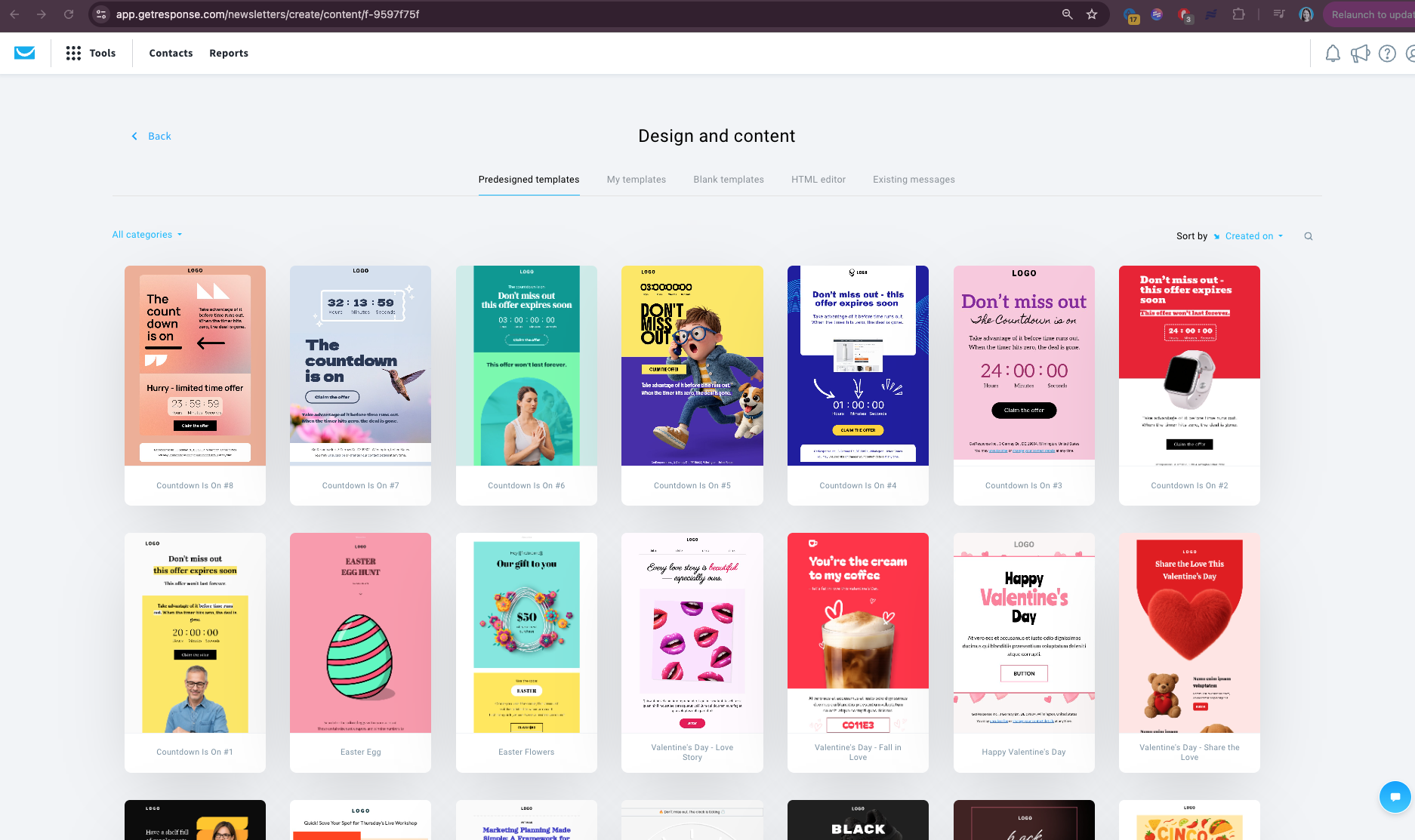
The simplest option is to use the new built-in countdown timer element in the Email Builder. Alternatively, you can embed timers generated by external tools using a custom HTML block.
Method 1: Add a countdown timer with the built-in drag-and-drop element
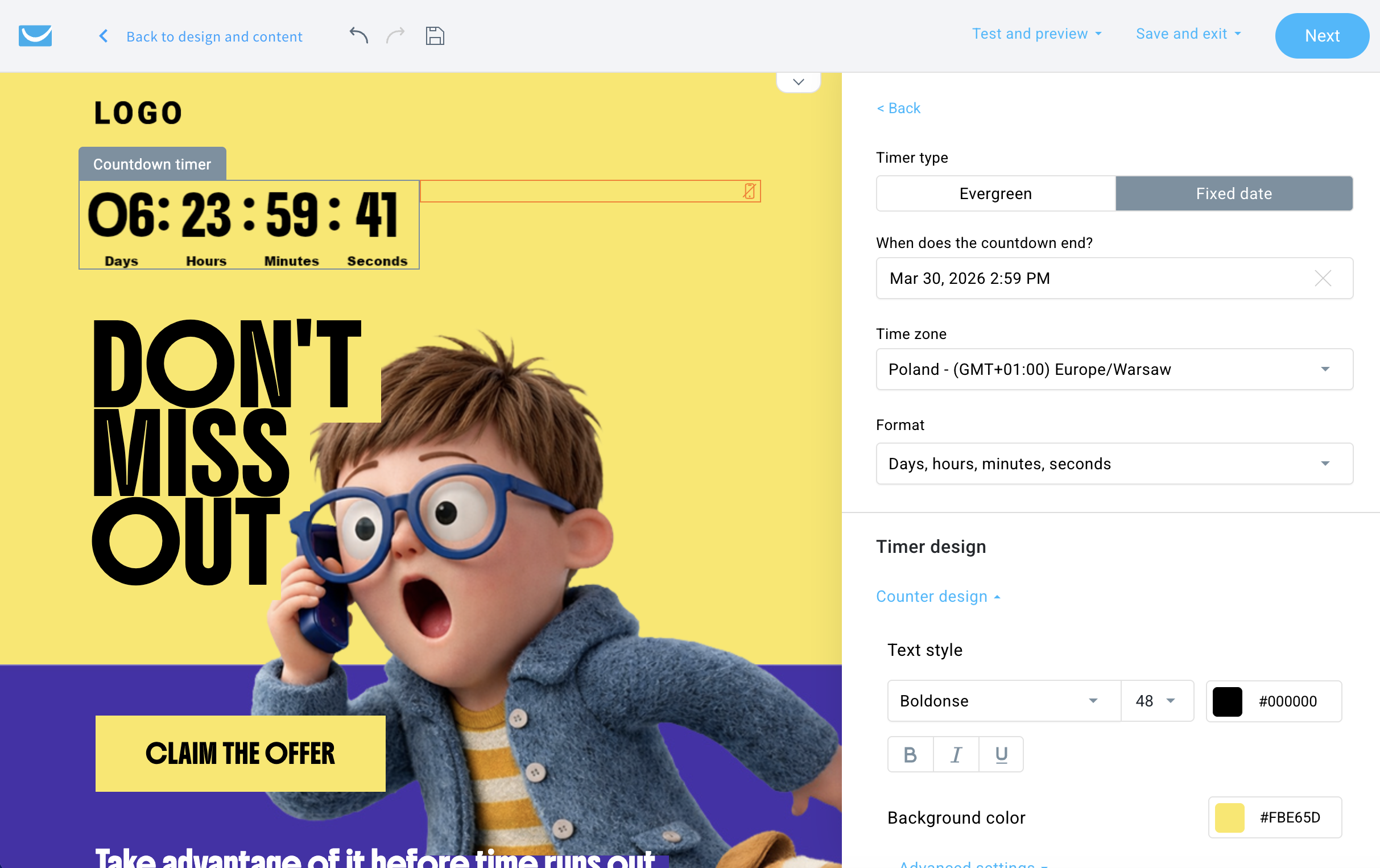
The simplest way to add a timer is to use the Countdown Timer element directly in the GetResponse Email Creator.
To do this:
- Open the Email Creator.
- Drag the Countdown Timer element into your email layout.
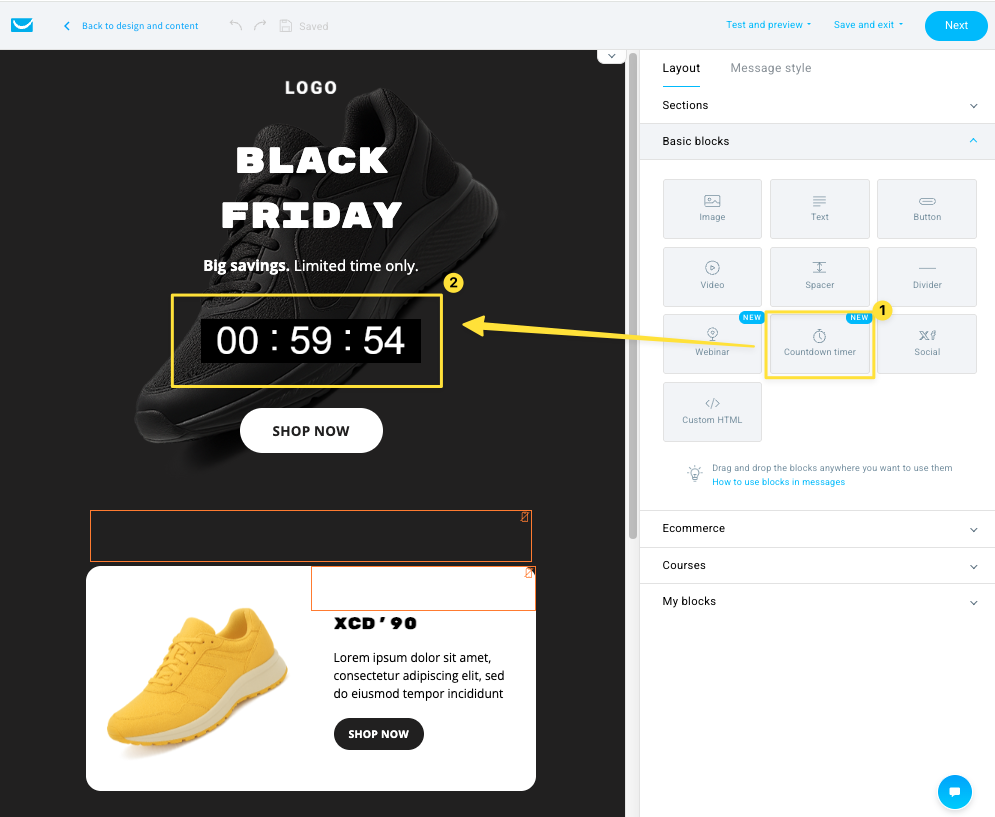
- Choose the type of timer you want to use.
- Set the timing and customize the design.
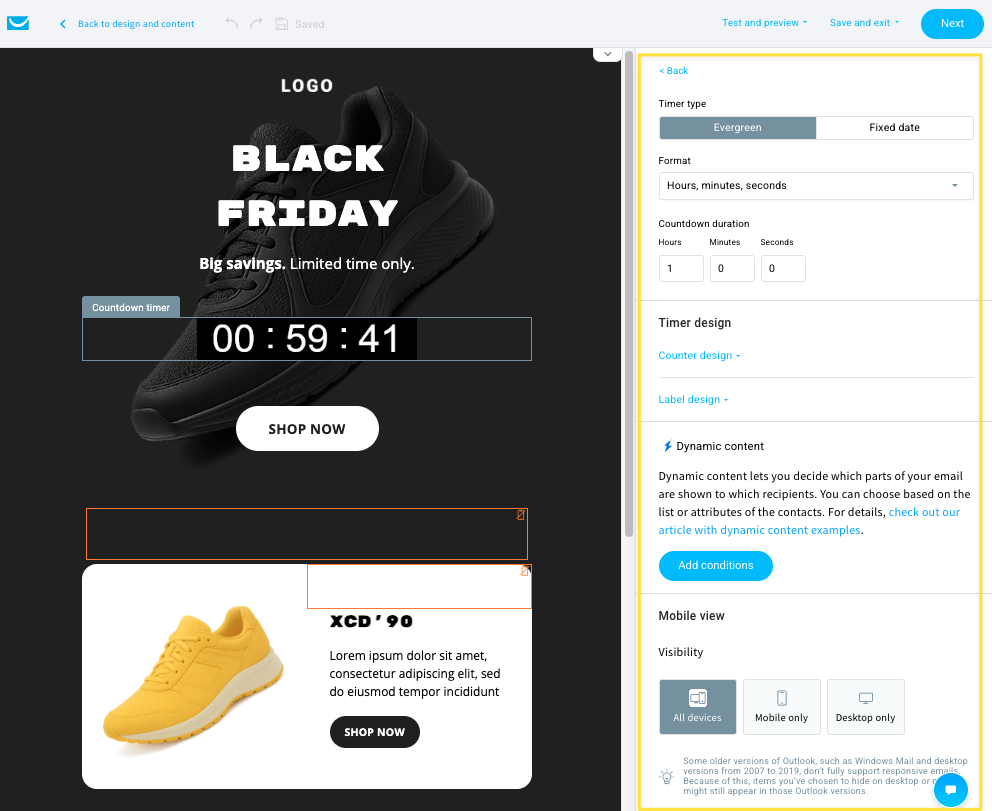
GetResponse currently supports two types of countdown timers:
Evergreen countdown timer
An evergreen timer counts down a specific amount of time (for example, 5 hours or 2 days). Each subscriber can see their own countdown based on when they receive or open the email, which makes this type ideal for automated campaigns and funnels.
Fixed date countdown timer
A fixed-date timer counts down to a specific moment in time, such as the end of a sale or the start of a webinar. Every subscriber sees the same deadline (adjusted for their time zone). This type is commonly used for events, launches, and store-wide promotions, which happen at a specific time.
After selecting the timer type, you can customize the design — including the colors, labels, and formatting — so it fits your email style.
You can also specify whether the timer should appear on specific devices (e.g. only on mobiles) or for specific audiences (e.g. subscribers with a particular tag).
Because the timer is a native element in the builder, you can place it anywhere in your email without writing any code.
Method 2: Embed a countdown timer using HTML code
There’s also another, more traditional, way to add a countdown timer by embedding one generated by an external tool.
Many email marketing platforms that don’t have a native solution rely on this approach.
Tools like NiftyImages, Sendtric, or CountdownMail allow marketers to create email countdown timers and other engaging elements like personalized images, polls, or weather widgets.
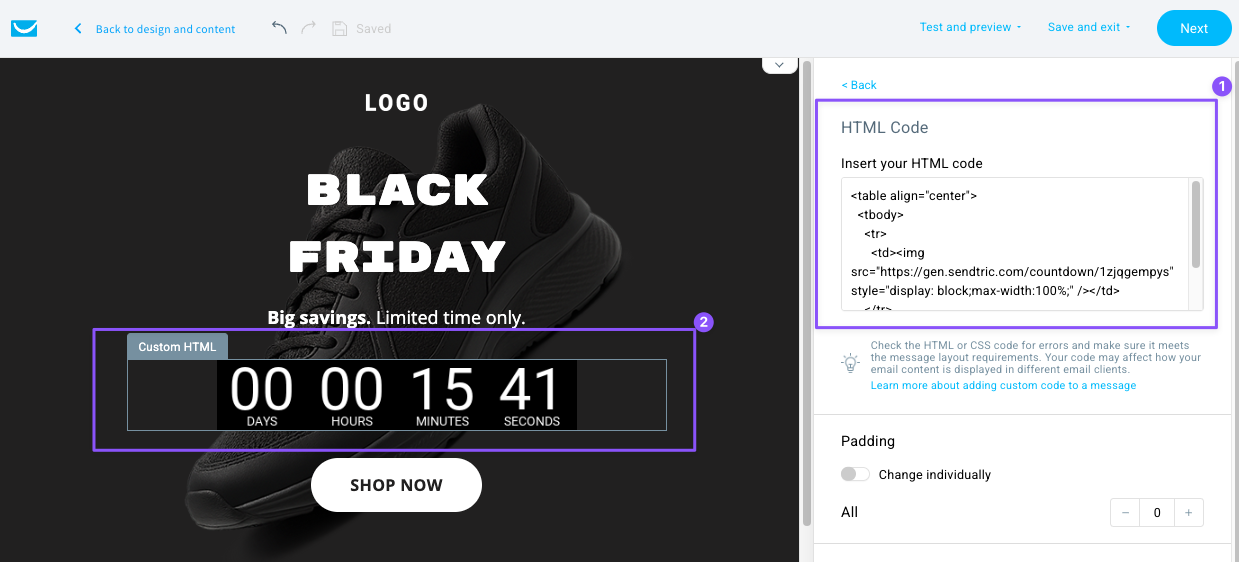
The process usually looks like this:
- Create and style the timer in an external tool.
- Copy the generated HTML embed code.
- Add a Custom HTML block to your email template.
- Paste the code into the block.
While this method works well, it typically requires switching between tools and copying code into your email editor.
Which method should you use?
If you’re creating a new email campaign in GetResponse, the drag-and-drop countdown timer element is the fastest and most convenient option.
However, the HTML method can still be useful if you want to use timers generated by a specific external service or need an exact format that you like.
Either way, adding a countdown timer to your emails is a simple but powerful way to introduce urgency and encourage subscribers to act before the opportunity disappears.
And if you want to be 100% confident that your email campaign looks exactly as you want it, be sure to use the GetResponse preview feature:
FAQ
Do countdown timers work in all email clients?
Countdown timers work in most modern email clients, including Gmail, Apple Mail, Yahoo Mail, and many mobile email apps. However, compatibility can vary depending on how the timer is implemented.
Many email countdown timers are built as animated images or dynamic content that updates when the email is opened. While this works well in most environments, some older email clients may not fully support dynamic timers.
For example, older desktop versions of Outlook may display only a static frame of the timer instead of a live countdown, which means the timer won’t visibly tick down in the message.
Because of this, it’s good practice to include a clear deadline in the email text (for example, “Offer ends at midnight”) so the message still makes sense even if the timer doesn’t render fully.
When should you use countdown timers in email campaigns?
Countdown timers work best when there is a real and meaningful deadline, such as:
- flash sales
- webinar registrations
- product launches
- early-bird discounts
- limited-time bonuses
They are especially effective when the outcome changes after the deadline— for example, when a sale ends, a price increases, or registration closes.
When might countdown timers not work well?
Countdown timers are less effective when timing doesn’t affect the outcome. For example, they may not add much value in emails promoting:
- on-demand webinars
- evergreen content downloads
- always-available products
If subscribers know the offer will still be available later, the urgency created by the timer can feel artificial and may reduce its impact.
Do countdown timers increase email engagement?
Countdown timers can improve engagement because they introduce visual urgency and fear of missing out (FOMO). When subscribers see that time is running out, they are more likely to act quickly rather than postpone the decision.
In email marketing, timers are commonly used in campaigns such as flash sales, product launches, event registrations, and limited-time offers to encourage faster clicks and conversions
How should you test countdown timers in email campaigns?
The best way to understand the impact of countdown timers is through A/B testing.
For example, you could test:
- an email with a countdown timer vs. without one
- different timer placements in the email
- a timer combined with a discount vs. no incentive
Testing helps you determine whether countdown timers actually improve open rates, click-through rates, or conversions for your specific audience.
Can you add a countdown timer to any email platform?
Yes. Most email platforms allow countdown timers either by embedding timers generated by external tools or through built-in elements in the email builder.
Some platforms, including modern email builders like GetResponse Email Creator, allow you to add timers directly through a visual editor without writing code. Other times, marketers create timers using services such as Sendtric, NiftyImages, or CountDownMail and then paste the generated HTML or image code into their email template.
