
How to import open tracking consent?
You can import open tracking consent statuses for your contact list using a CSV or a spreadsheet file. This allows you to manage contact consent statuses in bulk when uploading new or existing contact data.
Preparing your import file
To ensure your open tracking consents are correctly updated during import, add a dedicated column in your CSV/spreadsheet file:
- Column name:
consent:open_tracking - Supported values:
1: Consent given0: Consent declined- Empty / Blank: Status unknown
The system strictly checks for exact numerical values (1 or 0). Any other input (such as: yes, no, true, false, given, declined, maybe, unknown, 2, or -1) will automatically and silently map to Unknown. The import process will complete successfully without returning any validation errors or warnings.
How to import open tracking consent status
- Go to Contacts from your GetResponse dashboard.
- Click Add contacts.
- Choose From file.
- Upload file or paste the contacts.
- Choose how you want to update your contacts (e.g., Add new and update existing or Only update existing).
- Map the fields.
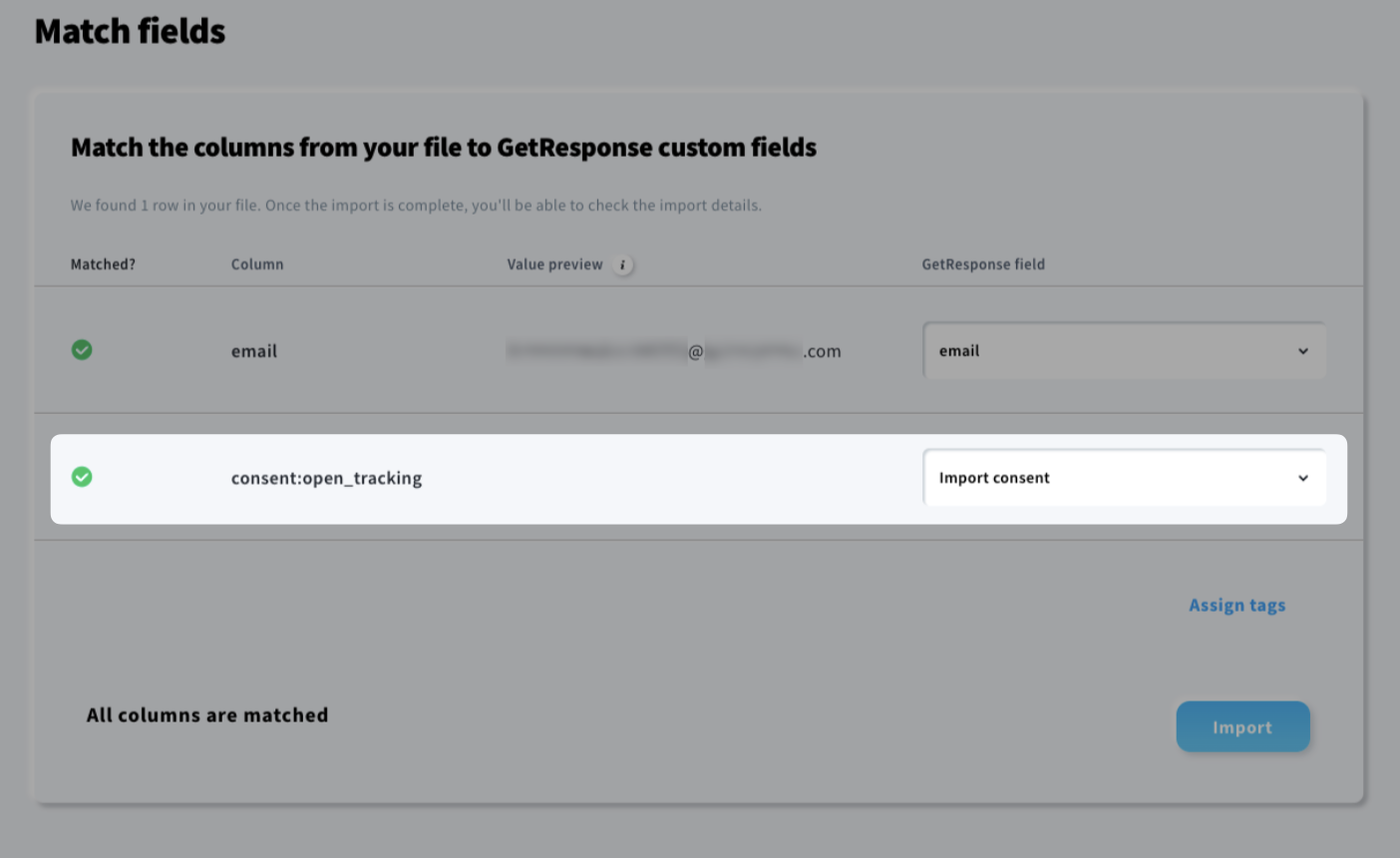
- Click Import to complete the process.


