
How to set up open tracking consent?
Open tracking consent lets you collect and manage contacts’ answers across your account. In this article, you’ll learn how to turn it on, choose what happens while a contact hasn’t answered, and give contacts a way to manage their preference.
If you send messages to contacts in France or Italy, or your business is based in either country, you may need to ask for consent before tracking opens for individual contacts. Learn more about how open tracking works and what the tracking pixel guidance in France and Italy means for GetResponse users.
You can choose whether contacts need to give consent before GetResponse tracks their email opens. When you turn it on, you also choose what happens to opens while a contact’s answer is unknown.
There are two options to choose from:
- OFF (default): Open tracking follows your message settings without checking a contact’s open tracking consent status.
- ON: A contact’s consent status determines whether GetResponse tracks their opens individually. You also choose how to handle contacts whose status is unknown.
Note: The setting does not turn on open tracking for a message where you have switched off Opens in that message’s tracking settings. See What is open rate tracking? for how message-level tracking works.
What does Unknown status mean
Unknown means the contact has not yet answered whether you may track their email opens individually. When you turn on Track opens only with consent, existing contacts receive this status until they give an answer or you update their status.
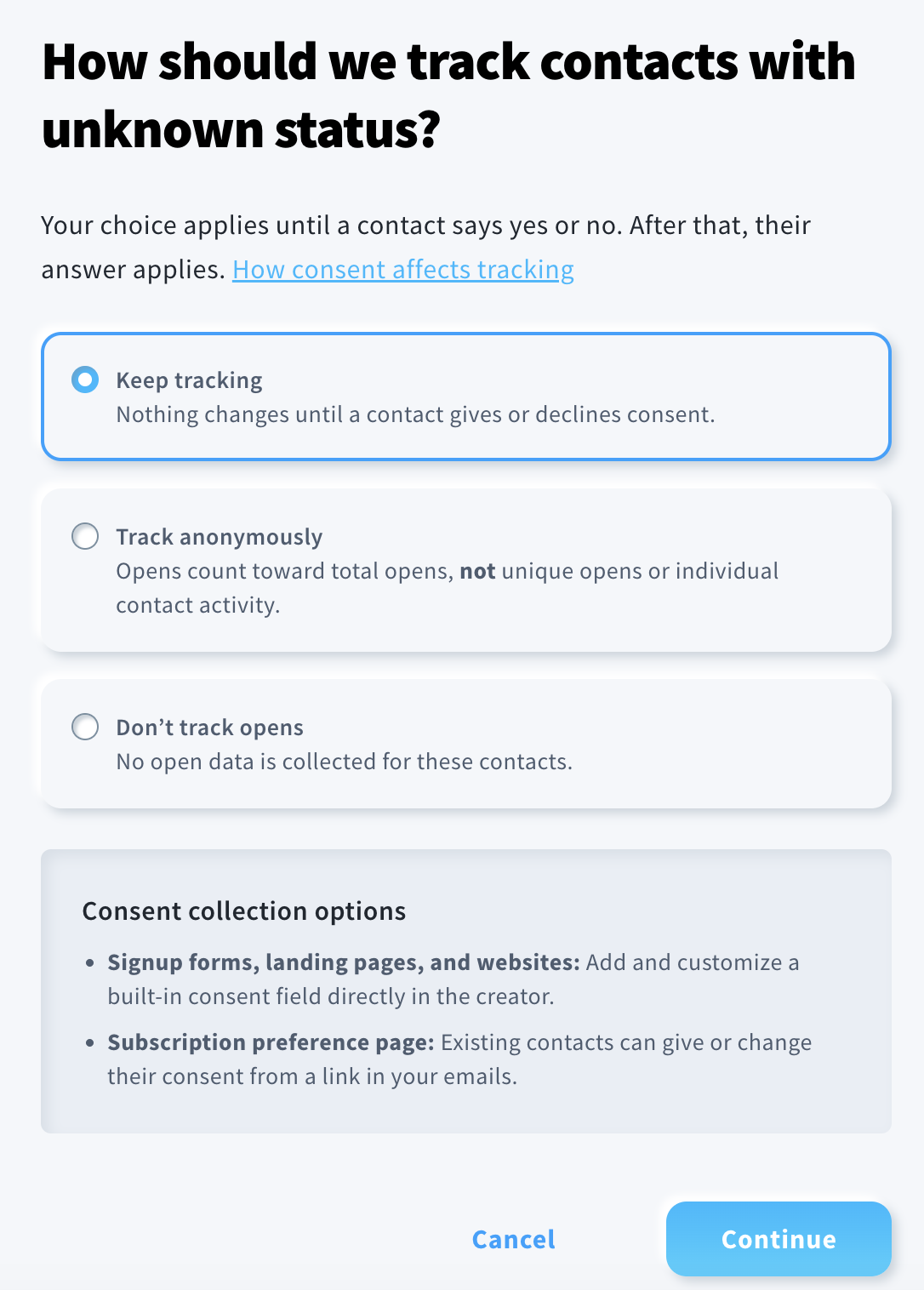
You can choose one of these options for contacts with an unknown status:
- Track anonymously: Their opens contribute to overall statistics, but are not attributed to individual contacts.
- Don’t track opens: GetResponse does not collect open data for these contacts.
- Keep tracking: GetResponse continues tracking their opens individually until they agree or decline.
Your choice for Unknown status applies only while a contact has not answered. Once they answer Yes or No, their answer determines how their opens are handled. See How does consent affect open tracking and statistics? for the effects on reports and contact activity.
How to turn on open tracking consent
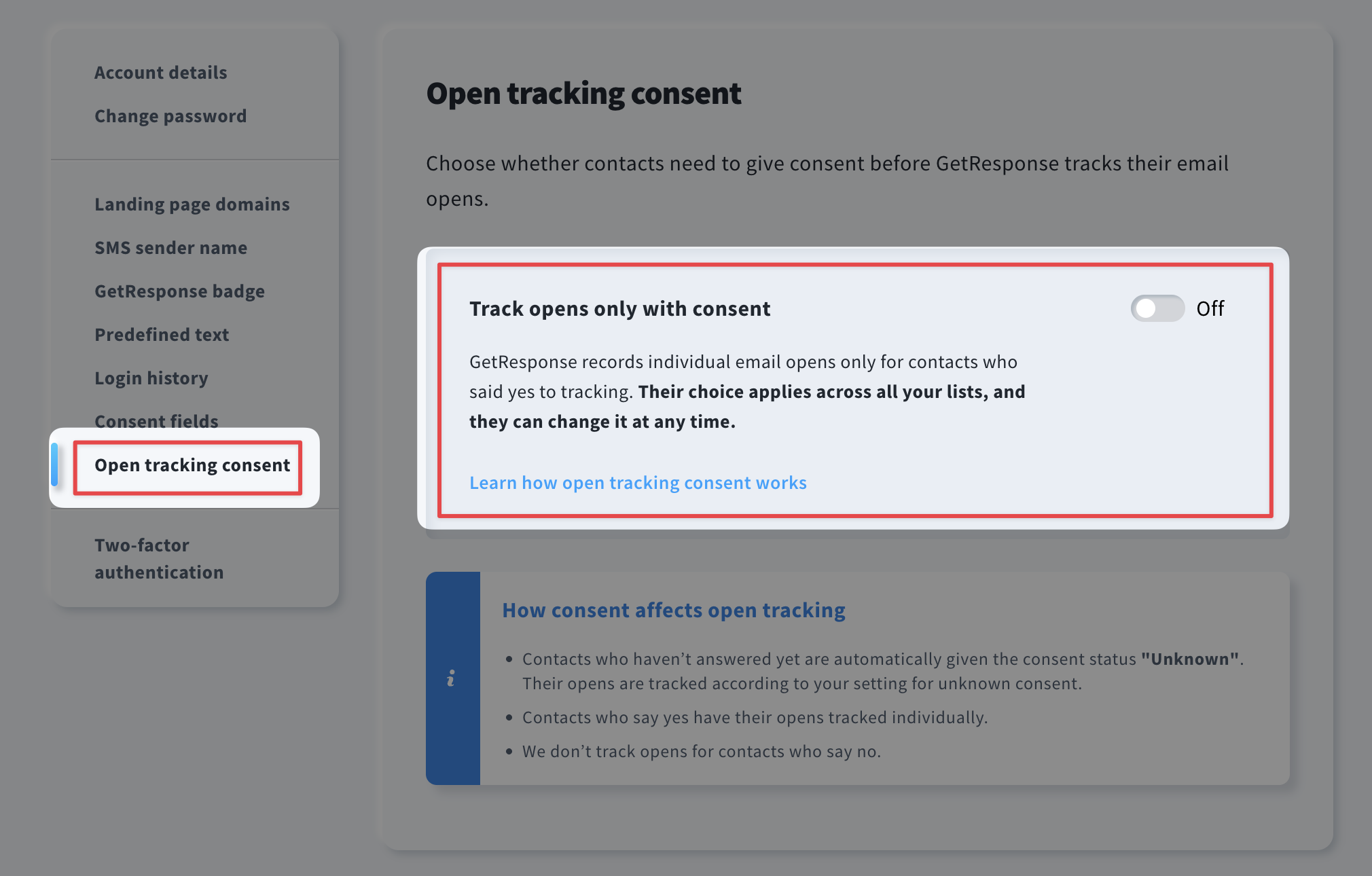
- Go to Profile > Manage account > Open tracking consent.
- Turn on Track opens only with consent.
- Next, choose how GetResponse should handle contacts with an Unknown status: Track anonymously, Don’t track opens, or Keep tracking.
The choice applies across all your lists. If the same person is on more than one of your lists, they do not need to answer separately for each list. Their latest answer applies across those lists.
How to collect or update a contact’s answer
You have several ways to manage open tracking consent:
- At signup: Add the open tracking consent checkbox to the forms you choose. Turning on the account setting makes the checkbox available in the editor; it does not add it to existing or new forms automatically. Review the suggested consent text and edit it in the form editor if needed. Click here to learn more.
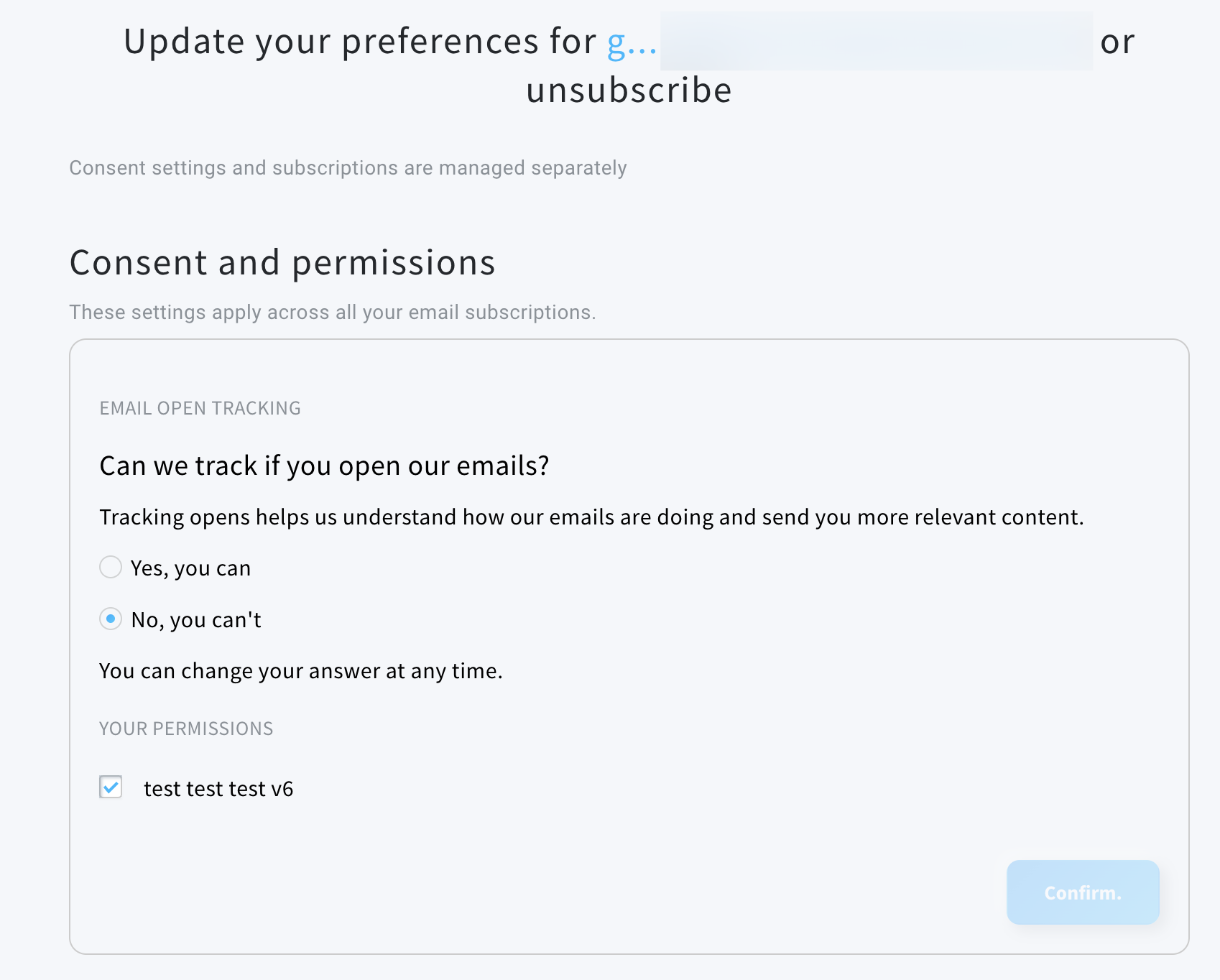
- For existing contacts: They can give or change their answer in the Consent and permissions section reached through an unsubscribe link in your emails. They can change their tracking preference without necessarily unsubscribing.
- In the contact record: You can update a contact’s open tracking consent status manually in the contact card or import it from a file.


