How to align content in GetResponse with my brand style?
Brand kit is a feature that allows users to set their brand colors and fonts for consistent use across GetResponse editors. Instead of setting styles from scratch every time, you can apply them instantly, which saves time.
Brand kit helps maintain a polished, consistent look across all your assets – emails, landing pages, and websites – strengthening brand recognition and building trust with your audience while making your team more efficient.
It includes the following functionalities:
- set up brand colors,
- set up brand typography,
- apply brand styles to your page design directly in website/landing page editors,
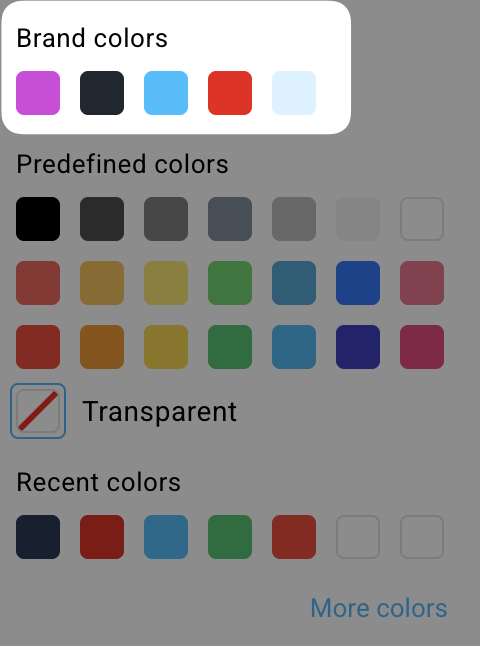
- see and use brand colors from colour pickers area in website/landing page editors,
- see and use brand fonts from fonts pickers area in website/landing page editors,
- see and use brand colors from colour pickers area in email editors,
- see and use brand fonts from fonts pickers area in email editors.
To set your brand details, go to Profile > Brand Kit.
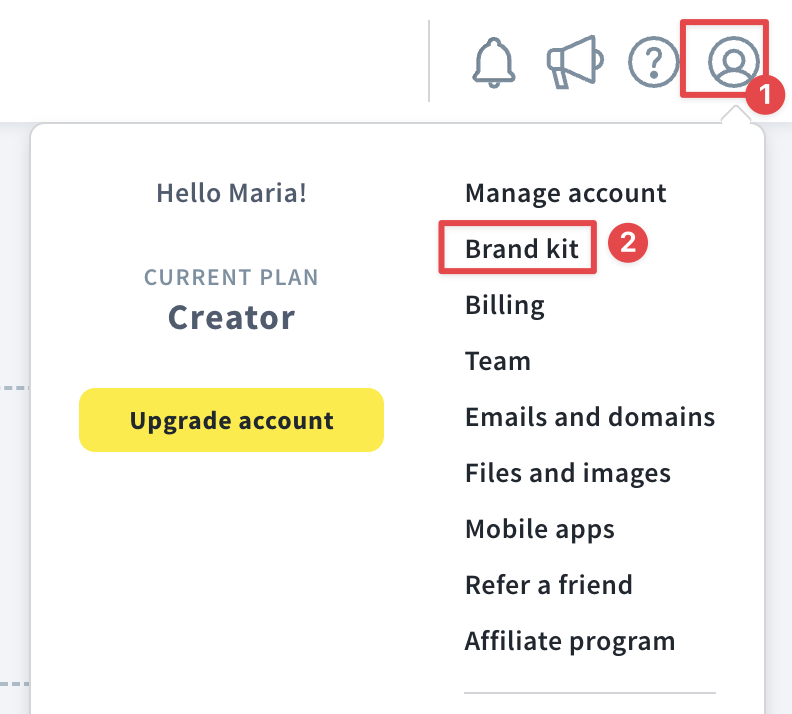
Brand colors
In the Brand colors tab, you can set your default company colors for:
- backgrounds,
- text,
- buttons,
- two accent colors (depending on the template used, accent colors are applied to various elements to create impact and add visual interest to your design because they’re brighter, darker, or bolder than the base colors),
- and up to 10 additional colors (these will appear in your color palette when creating a page or email).
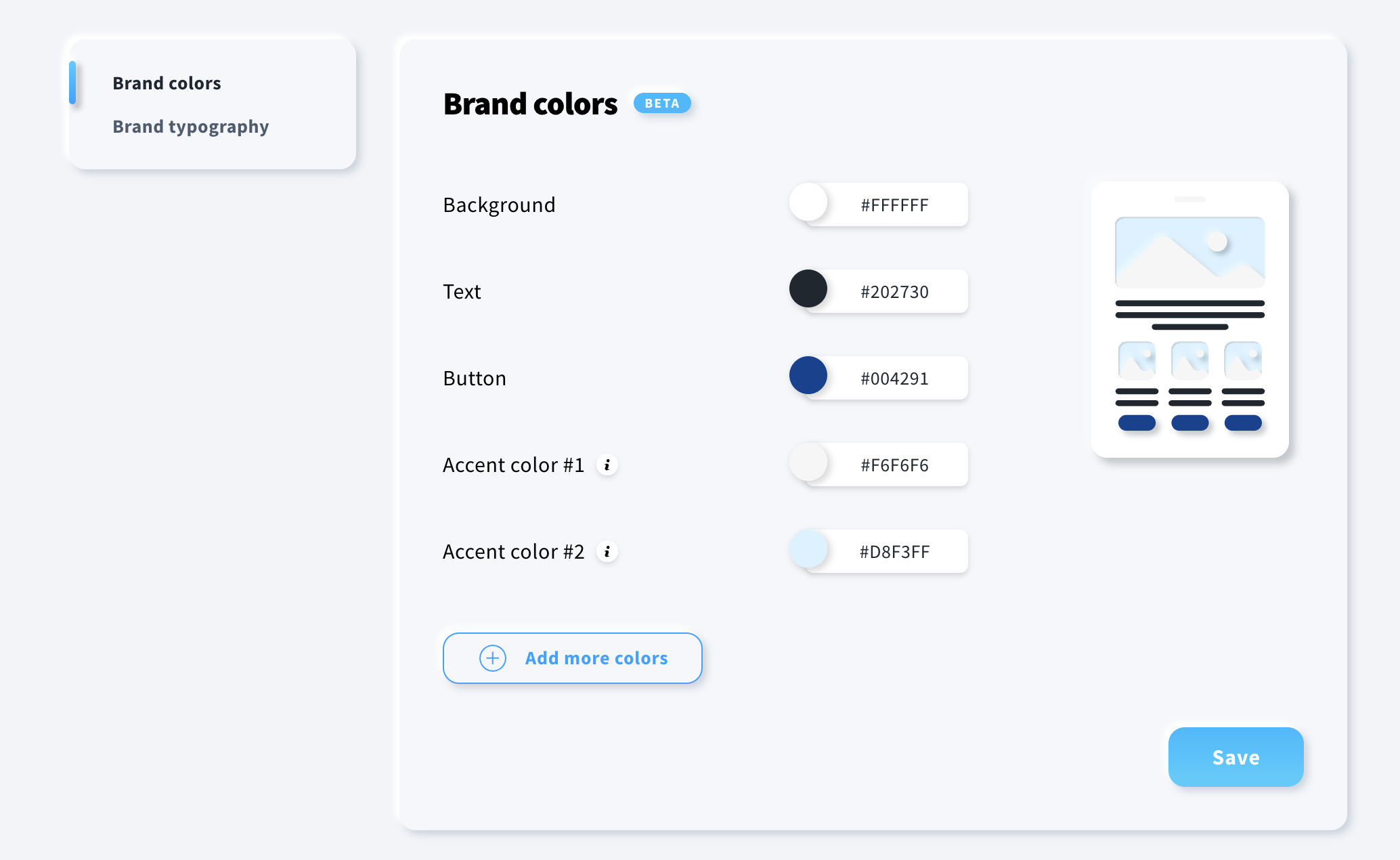
You can adjust each color by selecting a shade from the color picker or entering the color code manually.
Once you’re ready, click Save.
Brand typography
In the Brand typography tab, you can set your default fonts for both web pages and emails. You can choose separate fonts for headings and body text, and their sizes will be automatically adjusted to fit your email and web templates.
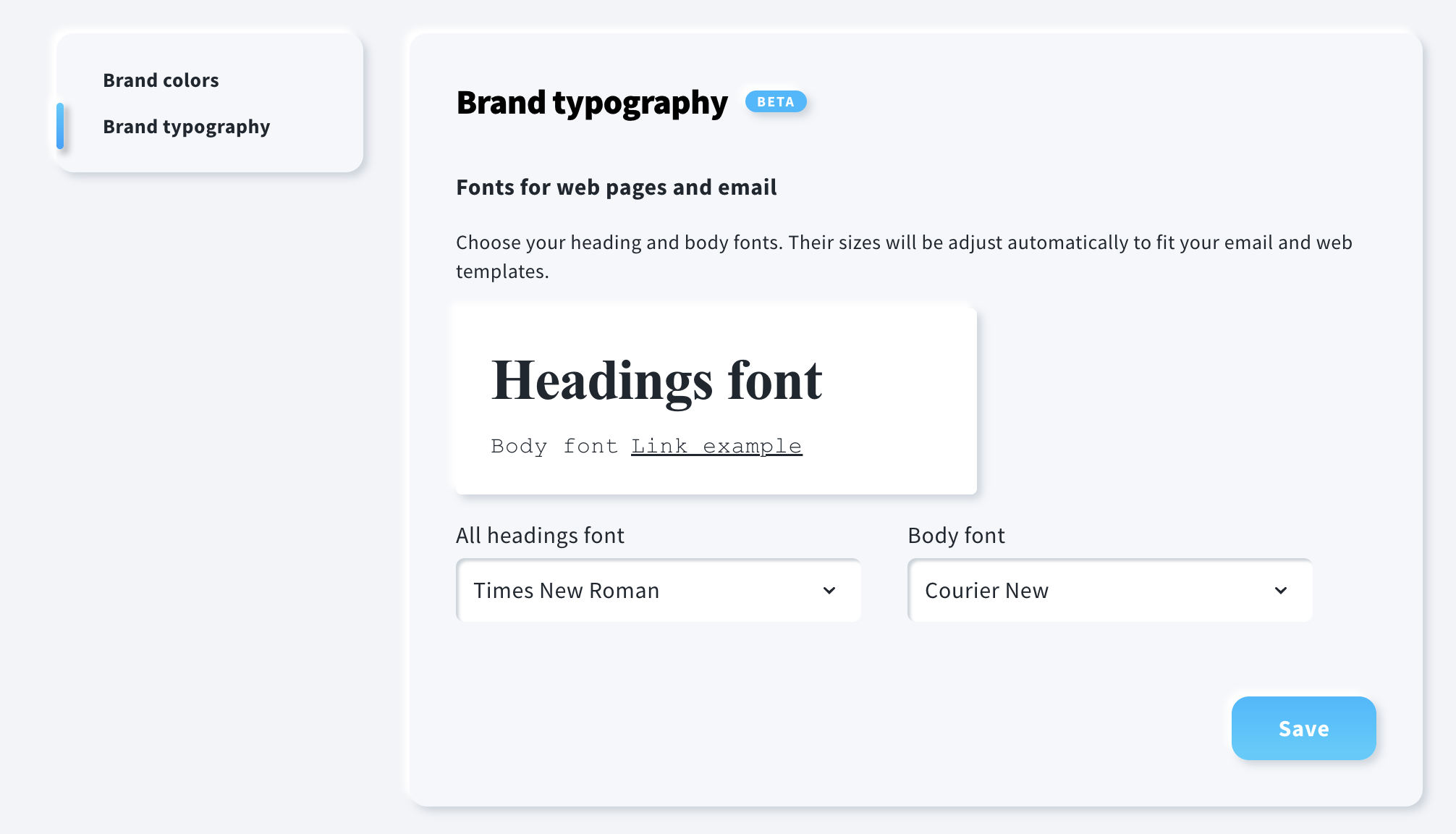
You can select from basic fonts as well as web fonts.
If you want to set a web font as your default brand font, you will also need to choose a fallback font in case the selected Google font is not supported by a specific email client or browser.
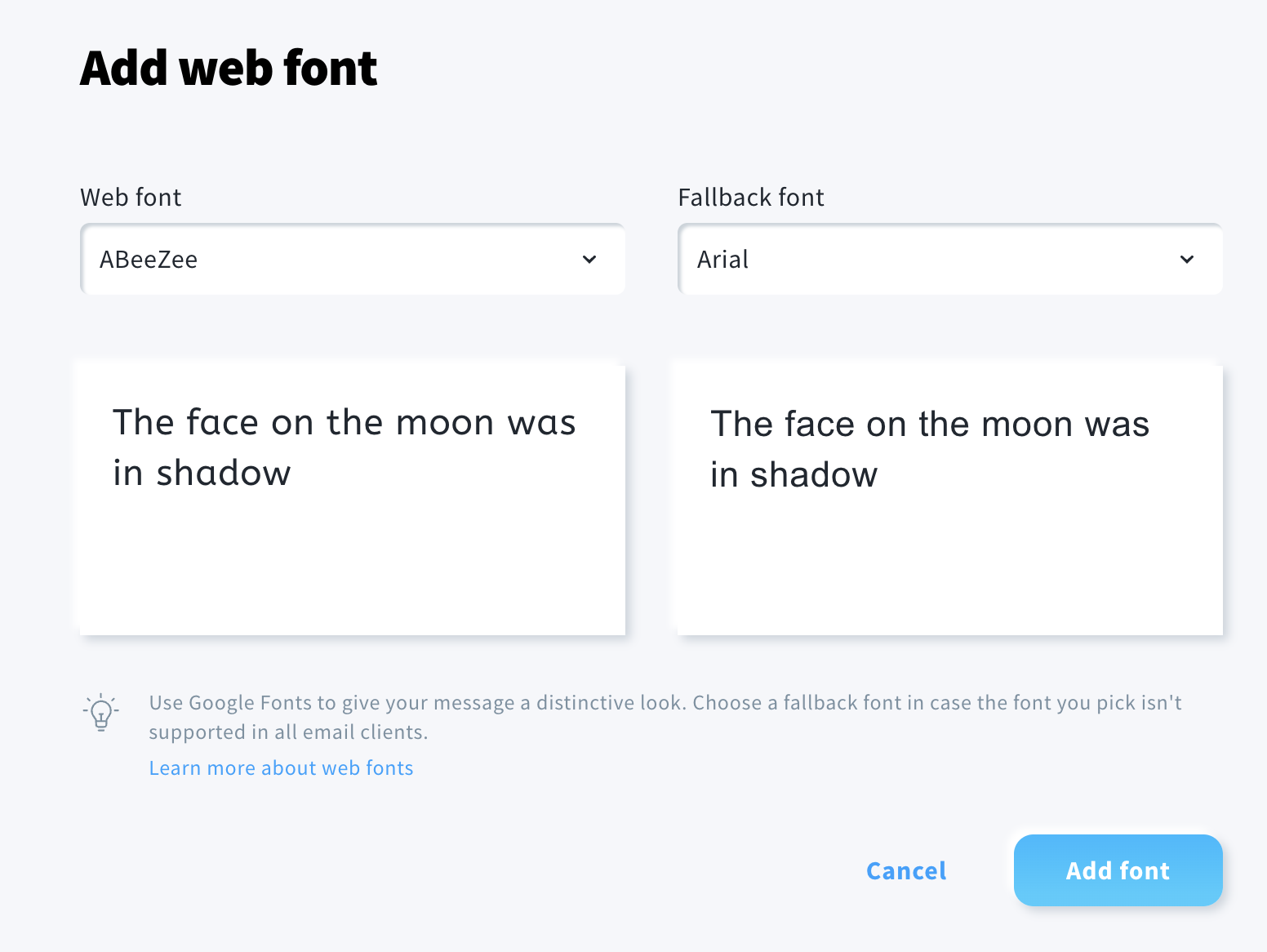
Once you’re ready, click Save.
How to apply brand styles to websites and landing pages
To apply your default brand colors and typography to a website or landing page created in GetResponse:
- Go to the page editor.
- Go to Global design.
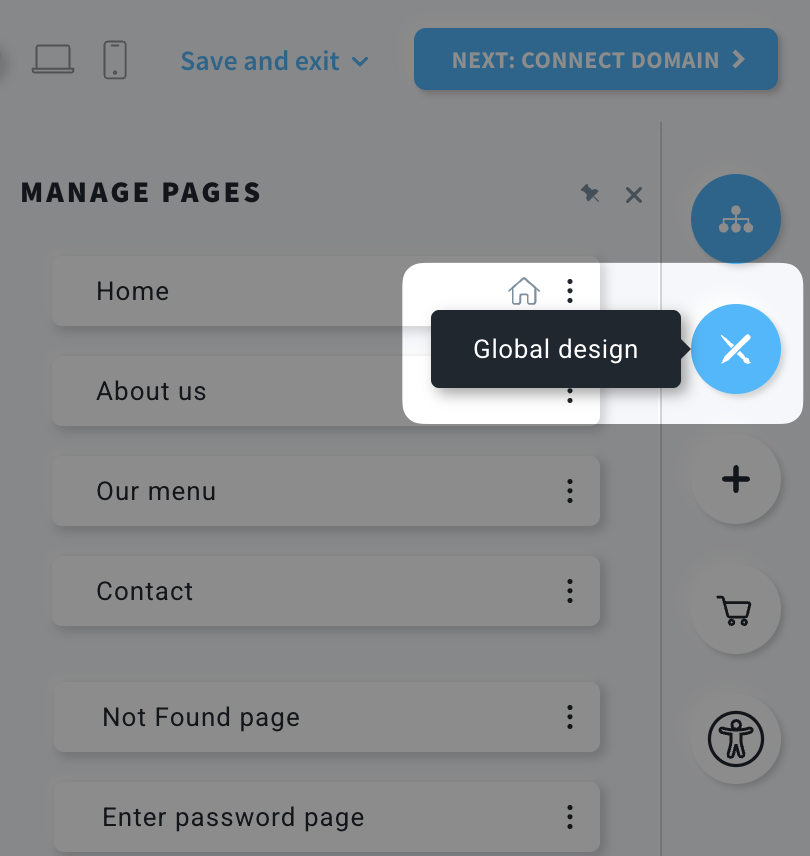
- Scroll down to the Brand kit section and click Apply brand kit.
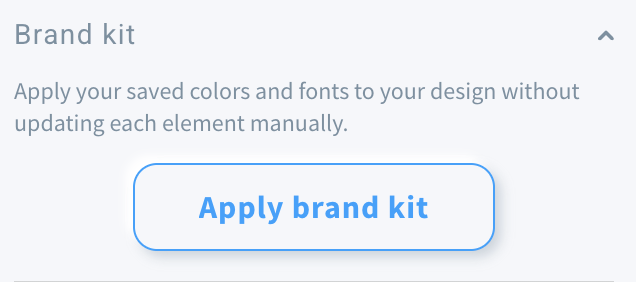
- You should notice that the template’s colors and fonts update automatically. The default color palette will also be updated for any future changes.
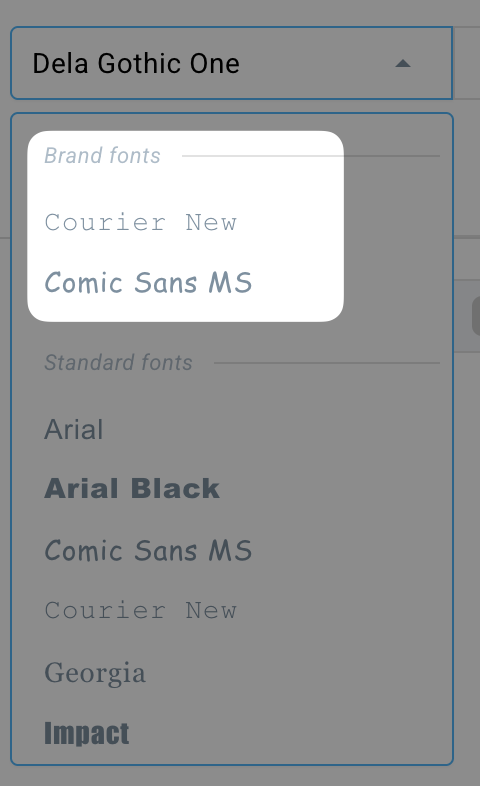
Your selected brand colors and brand typography will also be available in every picker where you choose fonts or colors.
How to apply brand styles to emails
While editing your message content, your selected brand colors and brand typography will be available in every picker where you choose fonts or colors.
- Brand fonts:
- Brand colors: