
How to use the calendar view for autoresponders?
The Manage autoresponders page displays your autoresponder messages in a list view. If you’d like to switch to a calendar view, click the Calendar icon.
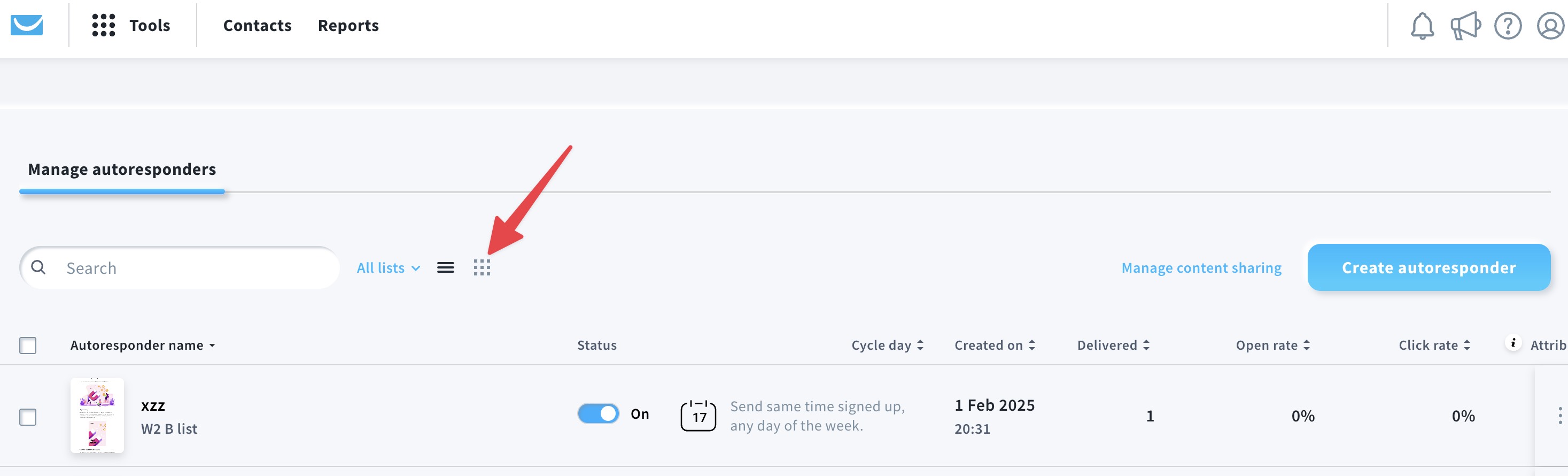
The calendar in Tools > Autoresponders displays all the autoresponders you’ve created in all the lists. To limit the calendar to a specific list or lists, click on All lists and choose which list you want to see the results for.
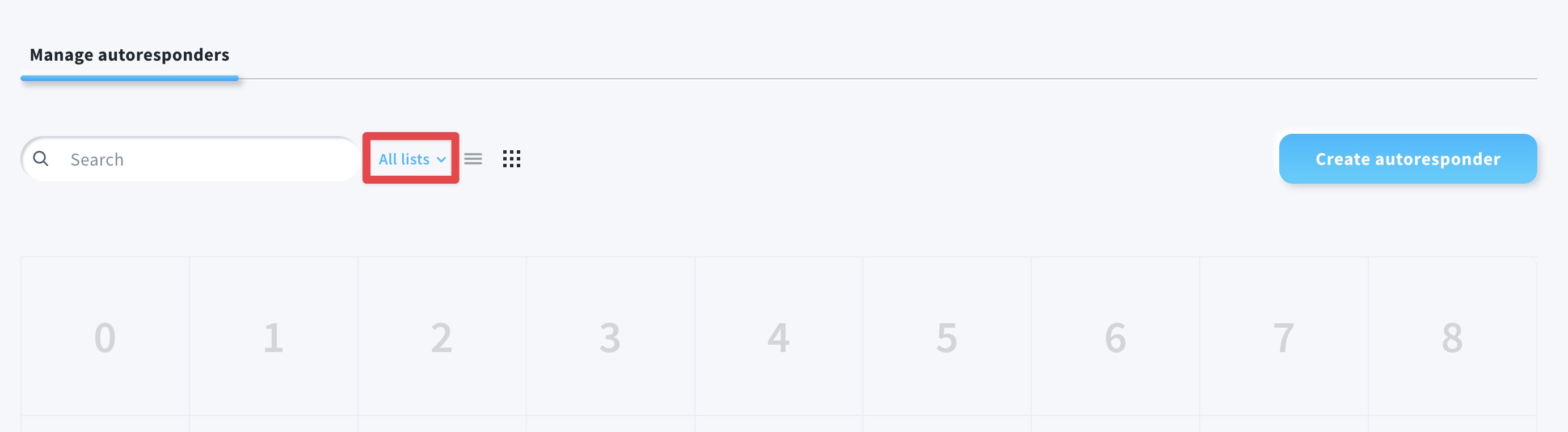
Click an empty day on the calendar to open the autoresponder creation window.
For existing autoresponders, hover over a message to display its details. You can see:
- The message title.
- The list the message is linked to.
- A thumbnail of the message.
- A toggle to turn the message on or off.
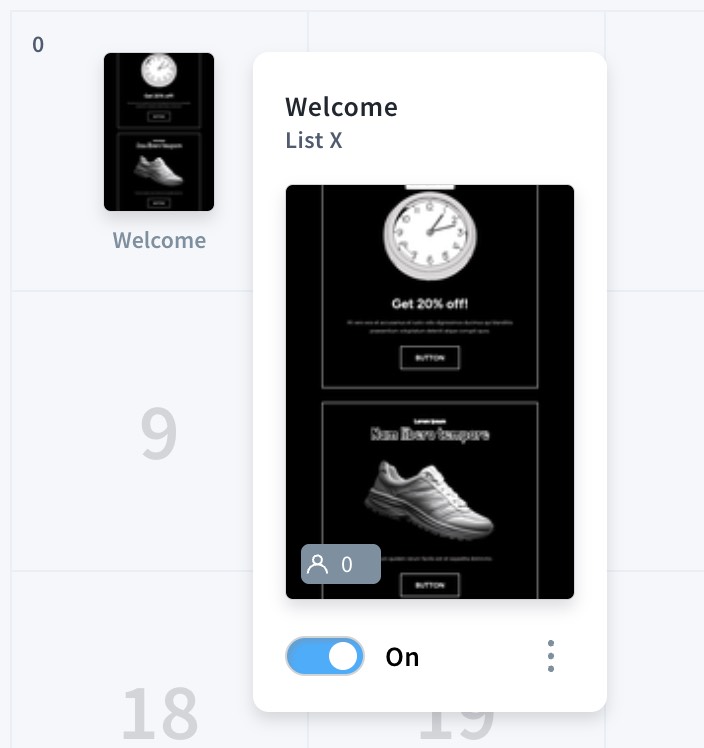
Click the three-dot menu to access additional actions. The menu gives you the option to:
- Edit the message.
- Duplicate the message.
- Send a test message.
- Preview the message.
- Copy the message to another list.
- View statistics.
- Delete the message.
- Share the message.
You can also drag and drop an autoresponder to another day on the calendar to change its interval.


