
Vibe coding is a way to build software by telling AI what you want instead of writing every line of code yourself. You describe the outcome, then guide the AI through revisions until the result is close enough to test, refine, or use.
The main shift is that you no longer have to start with syntax, frameworks, or a blank code editor. You can start with the idea: a landing page widget, a product quiz, a simple app, a custom email block, or a prototype you want to explore. That makes vibe coding useful for users who want to move faster, and for marketers, founders, designers, and nontechnical users who want to turn ideas into working first versions without waiting for a full engineering cycle.
How Vibe Coding works in practice
The easy part of Vibe Coding is getting the first version. The harder part is turning that output into something usable: a live page, an embedded widget, a working app, or a piece of code that fits safely inside your existing tools.
That is where many beginners get stuck. An AI tool might generate a polished calculator, quiz, or app interface, but you still need to know whether it should be pasted into a landing page builder, deployed on a platform like Vercel, connected to a database, or handed off to a developer for review.
That is also where different vibe coding tools start to matter. Some tools, like v0 by Vercel, help with the path from prompt to preview to deployment, including Vercel hosting and custom domain options.
Others, like Cursor or Claude Code, are better when you are working inside an existing codebase and need terminal commands, file edits, package installs, or debugging support. Tools like ChatGPT or Gemini are useful for generating and explaining code, but you may still need another platform to publish, host, or embed what they create.
There is also a newer layer of tools emerging around AI coding agents themselves. For example, Ponytail is an open-source project designed to make coding agents write less code by pushing them toward simpler solutions.

That matters because vibe coding can easily produce bloated output if you keep asking AI to add features without stepping back and asking whether the extra code is necessary.
So the practical workflow is not just “prompt AI and copy the code.” It is: decide what you are building, choose the right tool, test the output, then decide where the code should live. A small HTML or JavaScript widget can often be embedded into platforms like GetResponse, WordPress, Webflow, Wix, or Shopify. A full app with user accounts, saved data, payments, or API integrations usually needs hosting, environment variables, a database, and proper QA. We will cover both paths in this article: the tools that help you build, and the platforms where you can actually use what you build.
Best Vibe Coding tools to try
The best vibe coding tool depends on what you are trying to build and where the final output needs to live.
Some tools are great for turning prompts into polished interfaces. Others are better for editing an existing codebase, running terminal commands, or debugging a broken project. Some are useful for quick HTML, CSS, or JavaScript snippets, while others help you move closer to a deployed app.
So instead of asking “What is the best AI coding tool?” ask, “What do I need this tool to help me do after it generates the code?”
Do you need a preview? Hosting? A Figma import? Terminal access? Help with npm errors? A clean snippet you can paste into a landing page builder? That is the practical difference between these tools.
TL;DR – The best Vibe Coding tools
Here’s a table that summarizes some of the most popular options.
(Jump to full list)
| Tool | Best for | Beginner-friendly? | Starts at | Publishing / deployment path |
|---|---|---|---|---|
| v0 by Vercel | Visual app building | Yes | Free plan available; Team from $30/user/month | Built-in path to Vercel previews, deployments, custom domains, and integrations. |
| Cursor | Real codebases | Somewhat | Free plan available; Pro from $20/month | Not hosting; works inside your development and deployment workflow. |
| Claude Code | Terminal coding | No | Claude Free available; Pro from $20/month | Not hosting; best for files, commands, tests, Git workflows, and developer handoff. |
| ChatGPT | Flexible snippets | Yes | Free plan available; paid plans available | No built-in hosting for generated code; best for snippets, debugging, explanations, and adaptation. |
| Gemini | Google workflows | Yes | Free plan available; business coding plans available via Gemini Code Assist | No single hosting flow; strongest with Google AI Studio, Gemini Code Assist, Firebase, or Google Cloud. |
v0.app by Vercel
v0.app is Vercel’s AI builder for creating web apps, interfaces, and full-stack prototypes from prompts. You describe what you want to build, and v0 generates a working project that you can preview, edit, refine, and deploy through the Vercel ecosystem.
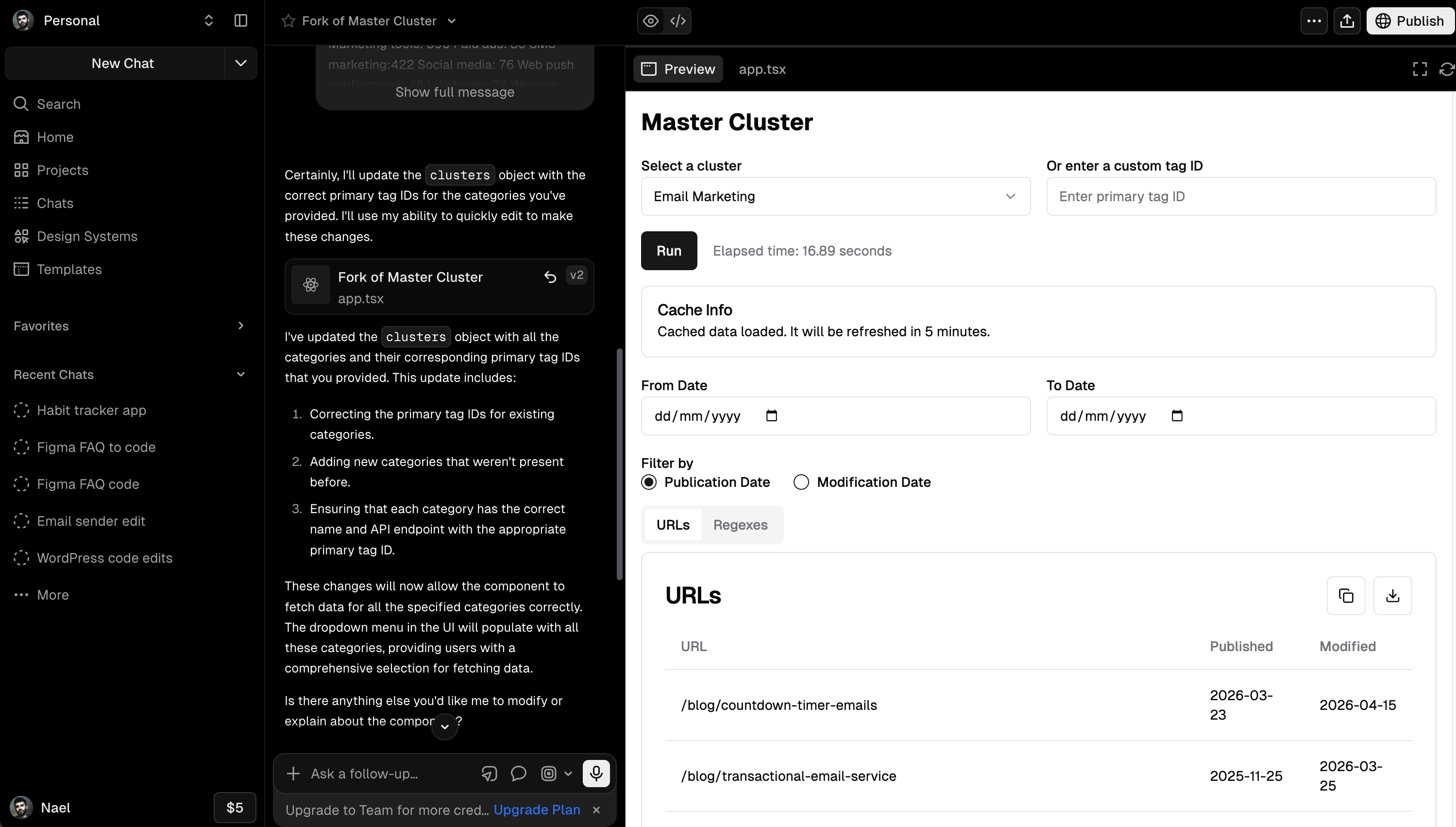
That makes v0 different from a general AI chatbot. It is not just giving you code in a chat window. It gives you a more complete build environment: generated files, previews, a browser-based editor, deployment options, and integrations that help move an idea closer to something usable.
Key features
v0 is especially strong when you want to move from an idea or design to a working web experience quickly.
It can generate interfaces from prompts, help turn Figma designs into UI, preview the result, and let you keep refining the output in the browser. It also supports one-click deployment to Vercel, so you can publish a project without setting up hosting from scratch. If you want a branded URL, you can add a custom domain through the v0 and Vercel workflow.
v0 is also no longer just a frontend mockup tool. Its docs describe support for full-stack apps, including features that require API calls, backend logic, and data persistence. It can connect to databases and backend services such as Supabase, Neon, Upstash, and Vercel Blob, and it supports environment variables for things like API keys and database connection strings.
Practical limitations
v0 can build much more than static interfaces. It supports full-stack app workflows, including backend logic, API calls, data persistence, database integrations, environment variables, Vercel deployment, and custom domains. So the limitation is not “v0 can’t build real apps.” The limitation is that an AI-generated app still needs human review before it becomes production-ready. You still need to test edge cases, protect API keys, check authentication flows, review database permissions, and make sure the app is maintainable before using it for anything business-critical.
The other limitation is cost control. v0 uses a credit-based pricing model, and its docs explain that context such as chat history, source files, and Vercel-specific knowledge can count as input. That means long chats, repeated retries, large projects, or context-heavy generations can consume credits faster than expected. This does not make v0 less useful, but it does mean teams should treat it like a powerful prototyping and development tool, not an unlimited sandbox.
How it compares to other tools
Compared with ChatGPT or Gemini, v0 is much stronger when you need a visual preview, generated project files, deployment to Vercel, and a path to a live app. Compared with Cursor or Claude Code, it is more guided and more visual, but less ideal if you want full control inside your own local development environment.
Use v0 when you want to go from prompt or Figma design to a working web experience quickly, especially if you want the build, preview, hosting, database integrations, and custom domain workflow to stay close to the Vercel ecosystem.
Cursor
Cursor is an AI code editor built for people who want to work inside a real project, not just generate isolated snippets. It is closer to a developer workspace than a visual builder. You open your codebase, ask Cursor to make changes, and it can read files, suggest edits, work across multiple parts of the project, and help you debug issues without constantly copying code back and forth.
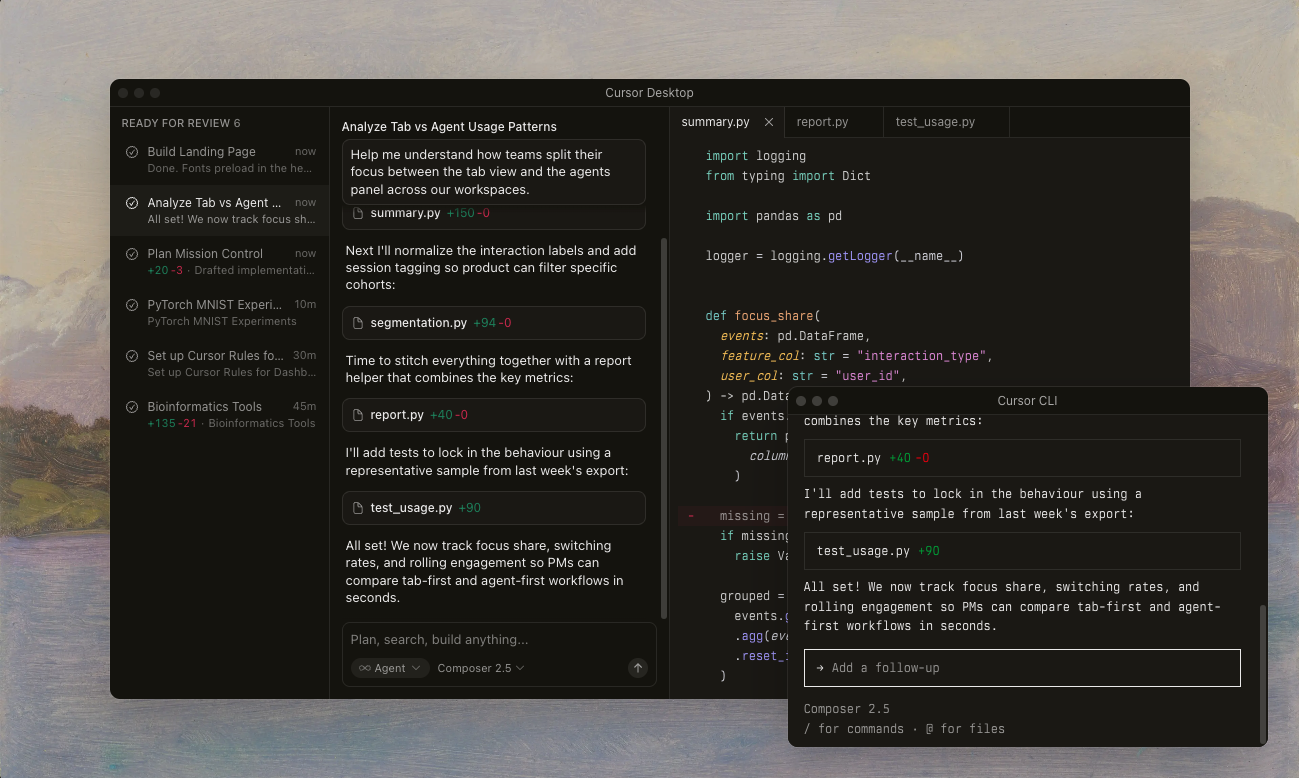
That makes Cursor useful when your project already has structure: folders, components, dependencies, environment variables, package files, tests, and deployment steps. Instead of asking AI for “some code,” you can ask it to change how a feature works inside the actual app.
Key features
Cursor’s biggest strength is context. Its agent mode can work across a codebase, edit multiple files, run terminal commands with approval, and help complete multi-step development tasks. This is especially useful when the problem is not a single snippet, but something connected: “fix this signup flow,” “add a new pricing page,” “connect this form to the API,” or “refactor this component without breaking the rest of the app.”
Cursor also supports terminal and command-line workflows. Its Cursor CLI is built for running agents from the terminal, GitHub Actions, and automation workflows, which makes it more relevant for developers who already use local environments, npm commands, branches, pull requests, and CI/CD pipelines.
For design-to-code work, Cursor can also connect to Figma through the Figma MCP server. That gives Cursor structured access to Figma files, including components, variables, layout data, and selected frames. It is not the same as v0’s more visual Figma-to-interface flow, but it can help developers implement designs more accurately inside an existing codebase.
Practical limitations
Cursor is powerful because it works close to the code. That is also what makes it more demanding than visual-first tools. It can edit files, run commands, use a browser to test changes, and work through agentic tasks, but it still assumes you are dealing with a real development environment: project folders, dependencies, terminal output, branches, package installs, environment variables, and deployment steps. If those concepts are unfamiliar, Cursor can help explain and fix issues, but it will not remove the learning curve completely.
Cost and usage control also matter. Cursor’s plans include different usage limits, and heavier workflows can consume usage faster, especially when agents work across large codebases, run longer tasks, or need repeated retries. For business-critical work, there is also the same production-readiness issue as with other AI coding tools: you still need to review the code, test edge cases, check security-sensitive changes, and make sure the output is safe to ship.
How it compares to other tools
Compared with v0, Cursor is less focused on generating a polished interface from scratch, but it is far more capable inside an existing codebase. v0 feels more like a prompt-to-app builder with visual generation, previews, hosting, and deployment close together. Cursor feels more like an AI development environment for building, testing, and changing real projects.
Compared with ChatGPT or Gemini, Cursor reduces copy-paste work because the AI is already inside the editor and can work with your actual files. Compared with Claude Code, Cursor gives you a more familiar IDE experience, while Claude Code is more terminal-first. Use Cursor when you want AI coding help inside a real project, especially for multi-file edits, debugging, refactoring, feature implementation, and testing changes in context.
Claude Code
Claude Code is Anthropic’s agentic coding tool for working directly with a project from the terminal, IDE, desktop app, browser, or GitHub. It can read your codebase, edit files, run commands, help with Git workflows, and work through development tasks from natural-language instructions.
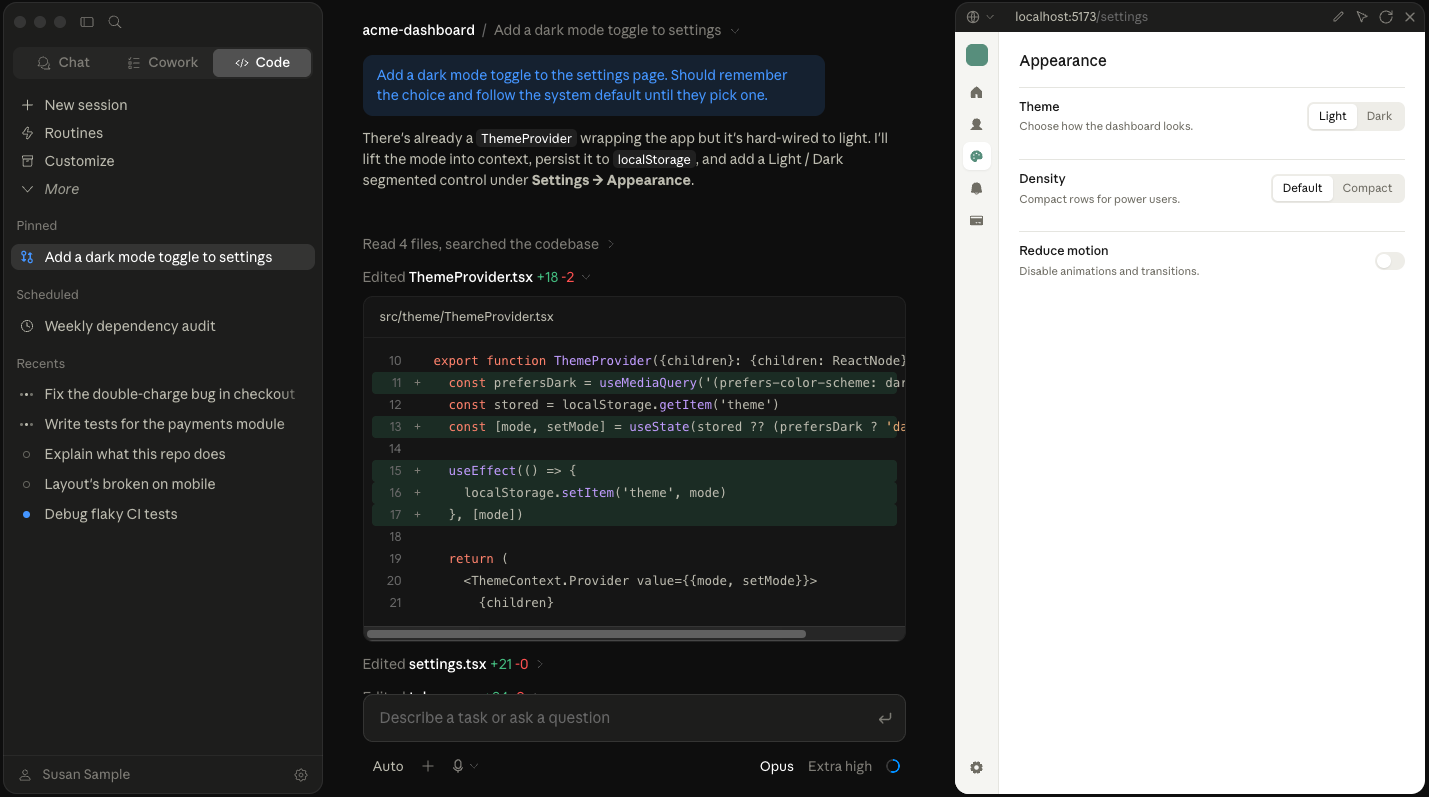
That makes it different from tools that mainly generate snippets or interfaces. Claude Code is closer to having an AI pair programmer inside your development environment. You can ask it to investigate a bug, modify several files, run tests, explain a confusing part of the codebase, or implement a feature while following the project’s existing structure.
Key features
Claude Code’s main strength is its command-line and project-level workflow. Anthropic’s docs describe it as a CLI that can edit files, run commands, and manage an entire project from the terminal. That makes it useful when the work involves more than one file or when the AI needs to inspect the project before deciding what to change.
It also fits into GitHub workflows. With Claude Code GitHub Actions, teams can mention Claude in issues or pull requests and ask it to analyze code, implement changes, and create pull requests, or help with bug fixes. That makes it more useful for engineering teams that want AI assistance inside their existing review and collaboration process.
Claude Code also supports more advanced workflows through commands, project instructions, permissions, hooks, plugins, and MCP-style integrations. In practical terms, that means it can be shaped around the way a team already works, instead of being limited to one chat window or one-off code generation.
Practical limitations
Claude Code is powerful, but it is not the friendliest starting point for nontechnical users. It assumes you are comfortable with a development environment: terminal commands, file changes, Git, package installs, test runs, permissions, and deployment steps. It can explain what it is doing, but if you do not know how to judge the result, you can still end up accepting changes you do not fully understand.
The other limitation is safety and control. A terminal-based agent can be extremely useful because it can run commands and make changes directly, but that also means permissions matter. Anthropic’s documentation includes permission controls, and independent research on AI coding agents has also highlighted why command execution and automated file changes need careful oversight. For business-critical projects, Claude Code should be treated as a serious development assistant, not an autopilot.
How it compares to other tools
Compared with v0, Claude Code is less visual and less focused on generating a polished interface from scratch. v0 is stronger when you want to prompt, preview, deploy, and iterate on a web experience inside a Vercel-native workflow. Claude Code is stronger when you already have a project and need the AI to work through files, commands, tests, Git workflows, and debugging tasks.
Compared with Cursor, Claude Code is more terminal-first, while Cursor gives you a more familiar editor-based experience. Compared with ChatGPT or Gemini, Claude Code is much closer to the actual project because it can inspect files and execute commands instead of only generating code in a conversation. Use Claude Code when you want an AI coding agent to work inside a real development workflow, especially for debugging, refactoring, test runs, issue handling, and multi-file implementation work.
ChatGPT
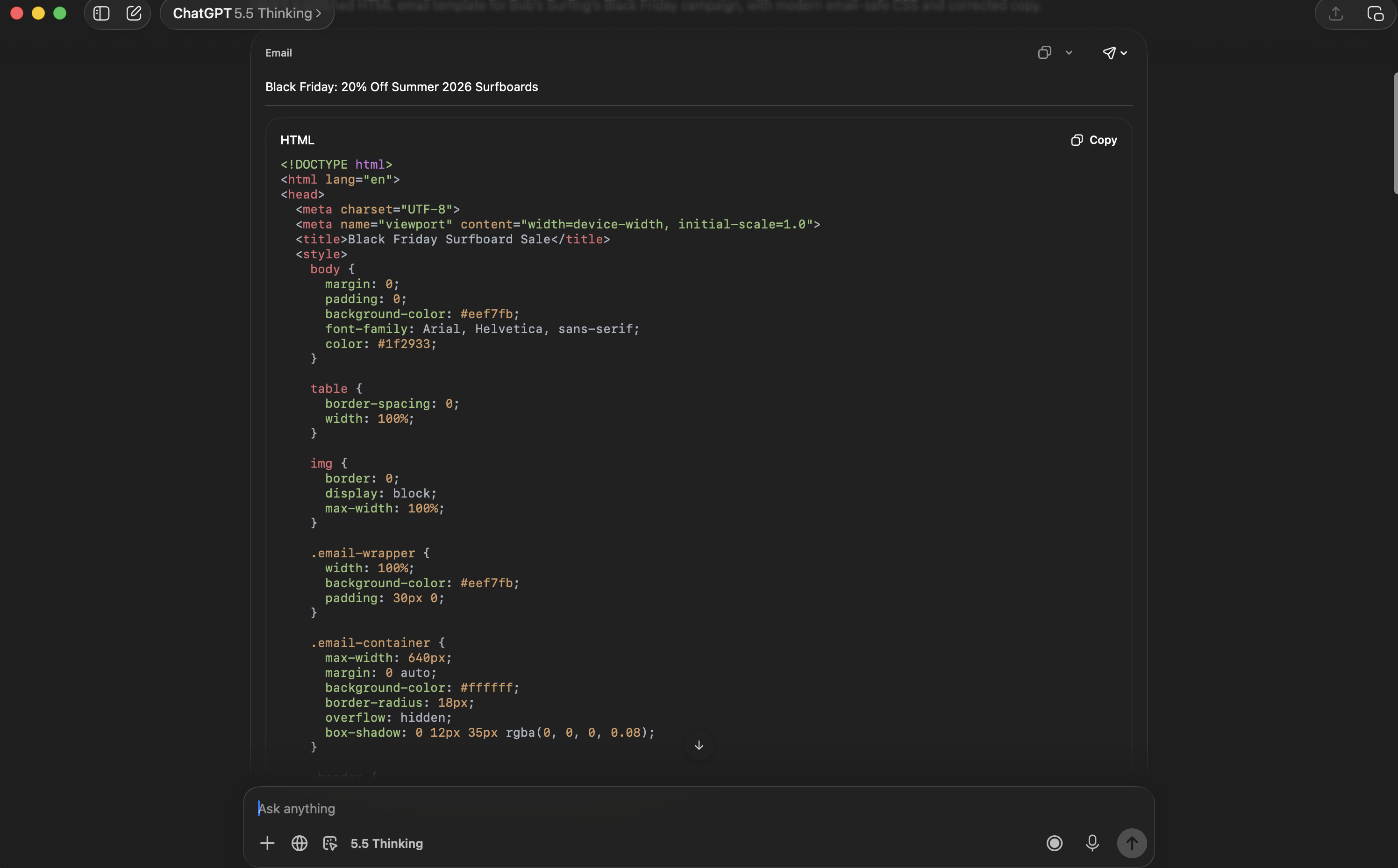
ChatGPT is the most flexible tool in this list because it is not limited to one coding workflow. You can use it to generate code, explain errors, rewrite messy snippets, plan app logic, debug JavaScript, create HTML email blocks, or ask basic technical questions in plain language.
That makes it especially useful when you are still figuring out what you need. You can ask ChatGPT to compare implementation options, simplify a technical concept, generate a first version of a component, or translate a vague idea into a more precise prompt for another tool.
Key features
ChatGPT works well for small and medium coding tasks: HTML, CSS, JavaScript, React components, Python scripts, SQL queries, API examples, regex, structured data, and email-safe HTML. It is also useful when you do not just need code, but an explanation of what the code does and how to adapt it.
OpenAI also supports more coding-specific workflows. ChatGPT can work with editable code blocks, and Projects can help keep files, instructions, and context together for longer-running work. For more technical users, Codex CLI can run locally from the terminal, read and change code in a selected directory, and execute commands on your machine. OpenAI also describes Codex as a coding agent for planning, building features, refactoring, reviewing, and releasing code.
Practical limitations
ChatGPT is often the easiest place to start, but it is not automatically connected to where your code will run. If it generates a landing page widget, email block, or JavaScript snippet, you still need to paste it into the right platform, test it, and make sure the code is compatible with that environment. If it generates a full app, you still need to decide how it will be hosted, how data will be stored, and how deployment will work.
The other limitation is context. ChatGPT can explain and generate code well, but unless you connect it to the right files, project context, or development tools, it may not understand the full structure of your app. That is why it is excellent for snippets, debugging, planning, and learning, but tools like Cursor, Claude Code, or Codex CLI may be stronger when the task requires direct access to a codebase, terminal commands, and multi-file changes.
How it compares to other tools
Compared with v0, ChatGPT is less visual and less deployment-focused, but more flexible. v0 is better when you want to generate, preview, and deploy a web interface in one workflow. ChatGPT is better when you need code, explanation, strategy, debugging help, or platform-specific guidance.
Compared with Cursor or Claude Code, ChatGPT is easier for nontechnical users, but less connected to the actual project unless you use coding-specific workflows like Codex CLI. Use ChatGPT when you want a broad AI assistant that can help you think through what to build, generate the first version, explain how it works, and adapt it for tools like GetResponse, WordPress, Webflow, Shopify, or a developer handoff.
Gemini
Gemini is Google’s AI tool, and it can be useful for coding when you need help generating, explaining, debugging, or planning software ideas. It is similar to ChatGPT in that it works well as a general-purpose assistant, but it becomes more interesting if you already use Google’s developer ecosystem.
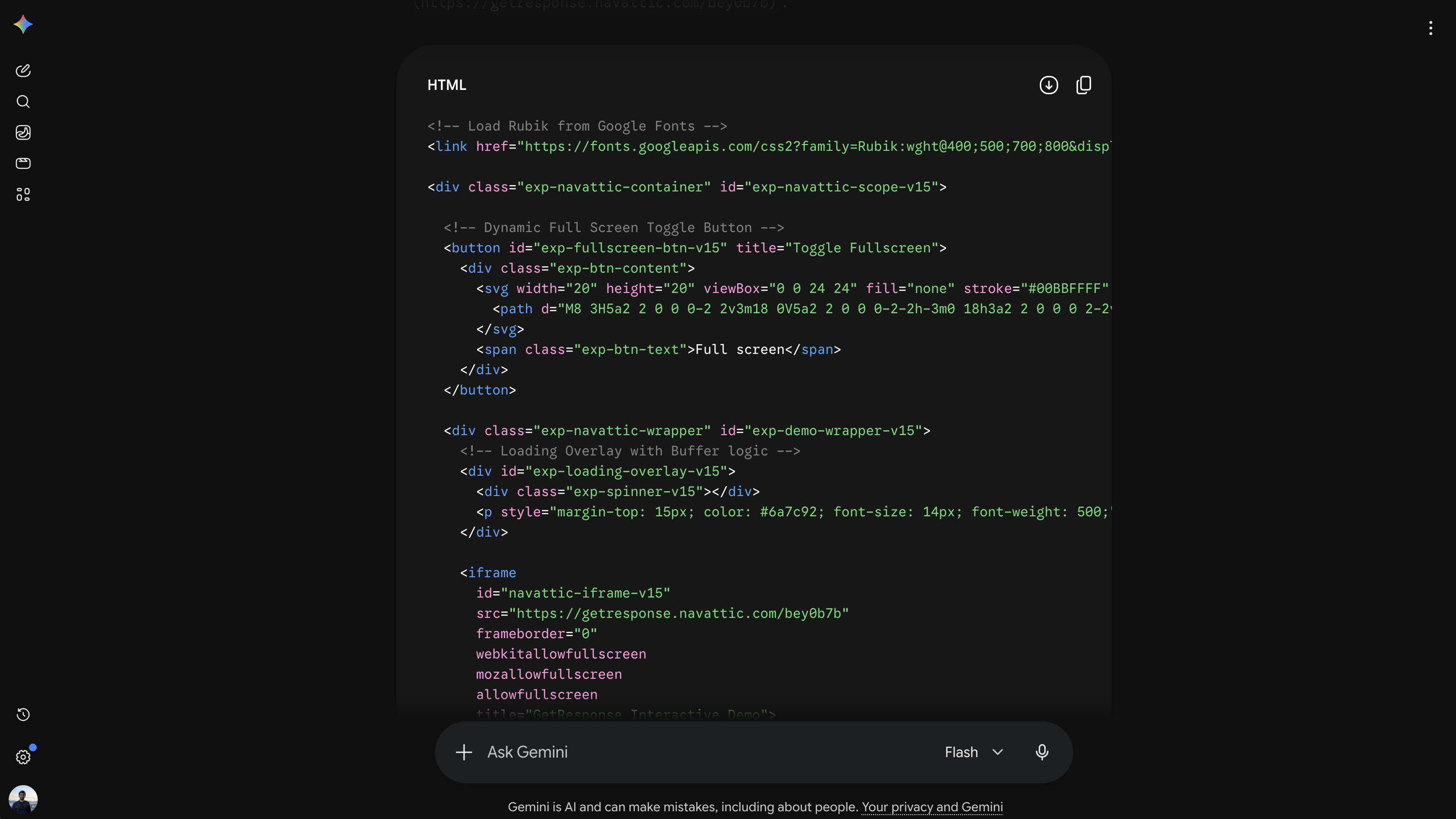
For basic use cases, Gemini can help you write HTML, CSS, JavaScript, Python, SQL, API requests, or small scripts. You can ask it to explain errors, simplify technical concepts, rewrite code, or help turn a rough idea into a more structured implementation plan. That makes it useful for people who need coding help but are not ready to work inside a full IDE or terminal-first agent.
Key features
Gemini’s main advantage is that it sits close to Google’s broader AI and cloud ecosystem. The Gemini API gives developers a way to build Gemini-powered features into their own apps, while Google AI Studio gives users a browser-based place to test prompts, experiment with models, and get an API key.
For more serious development work, Gemini Code Assist brings AI coding help into IDEs. It can generate code, provide inline suggestions, explain existing code, and help with development tasks. Google also offers agent mode, which can work from design documents, issues, and TODO comments, while letting users review and approve plans and tool use during execution.
Gemini also has command-line support through Gemini CLI, including tools such as file read/write, terminal usage, web search, web fetch, memory, stats, and MCP servers. This makes Gemini more capable than a simple chatbot when it is used inside a developer workflow.
Practical limitations
Gemini is broad, but that also means the experience depends heavily on which Gemini product you are using. Gemini in the web app, Gemini API, Google AI Studio, Gemini Code Assist, and Gemini CLI are related, but they are not the same workflow. A marketer using Gemini in the browser to generate an HTML snippet will have a very different experience from a developer using Gemini Code Assist inside VS Code or IntelliJ.
It is also not the most focused tool for visual app generation. If you want to turn a Figma design into a working interface, v0 is likely more direct. If you want AI deeply embedded in your current codebase, Cursor or Claude Code may feel more natural. Gemini is strongest when you want flexible coding help, strong Google ecosystem integration, or AI assistance inside Google Cloud and supported development environments.
How it compares to other tools
Compared with v0, Gemini is less focused on prompt-to-interface generation and deployment. Compared with Cursor or Claude Code, it is less centered on one specific development environment, but it has a wider set of entry points: browser chat, API, AI Studio, IDE support, Google Cloud, and CLI workflows.
Compared with ChatGPT, Gemini plays a similar general-assistant role, but may be a better fit for users already working with Google products, Google Cloud, Android development, or the Gemini API. Use Gemini when you want flexible coding help and your workflow already touches Google’s tools, APIs, or cloud infrastructure.
Which AI coding tool should you use?
The easiest way to choose a tool is to start with the job, not the brand.
If you want to turn a prompt or Figma design into a visual web experience, v0 is one of the strongest options. It gives you a preview, project files, Vercel deployment, database integrations, and custom domain options in one workflow. That makes it useful for landing pages, prototypes, internal tools, and small apps where you want to move quickly from idea to live URL.
If you already have a codebase, Cursor is usually a better fit. It can work across files, run commands, use browser-based testing, and help with real implementation work inside an editor. This is where it becomes more useful than a general chatbot: it can understand the project around the feature, not just generate a standalone snippet.
If you prefer a terminal-first workflow, Claude Code is built for that. It is strong for debugging, refactoring, running tests, managing files, and working through engineering tasks from the command line or connected development environments. It is less beginner-friendly than v0, but powerful when you want an agent to operate inside a real project.
If you need flexible coding help, ChatGPT and Gemini are often the easiest places to start. They are useful for generating snippets, explaining errors, writing HTML or JavaScript, planning app logic, and adapting code for platforms like GetResponse, WordPress, Webflow, Wix, or Shopify. The tradeoff is that they usually do not give you the same built-in path to preview, deploy, or manage a full project unless you connect them to a coding workflow.
A practical rule of thumb: use v0 when the interface and deployment path matter, Cursor or Claude Code when the project already exists, and ChatGPT or Gemini when you need flexible help generating, understanding, or adapting code.
How to vibe code with your existing CMS, page builders, and marketing platforms
The most practical way to use AI-generated code is not always to build a full app from scratch. Often, the better move is to create a small component and add it to a platform you already use: a landing page builder, CMS, website builder, ecommerce store, or email marketing tool.
That is where vibe coding becomes useful for marketers. You are not trying to replace your whole stack. You are using AI to create the missing piece: a calculator, quiz, comparison block, custom CTA, interactive FAQ, product finder, countdown timer, or custom HTML email section.
The key question is simple: where will this code live? If it is a small HTML, CSS, or JavaScript element, you can often embed it directly. If it needs accounts, saved data, payments, backend logic, or API connections, it may need proper hosting, database setup, and developer review.
GetResponse
GetResponse is a good example of where vibe coding can become practical fast. Instead of building and hosting a full website just to test one interactive idea, you can use AI to create a small component and add it to an existing landing page, website, or email workflow.
For landing pages, GetResponse lets you add your own HTML, CSS, and JavaScript through the Custom code element. That means you could use a tool like ChatGPT, Gemini, Claude, v0, or Cursor to create a custom calculator, quiz, FAQ block, pricing explainer, event countdown timer, or product comparison section, then add it to a GetResponse landing page without rebuilding the whole page from scratch.
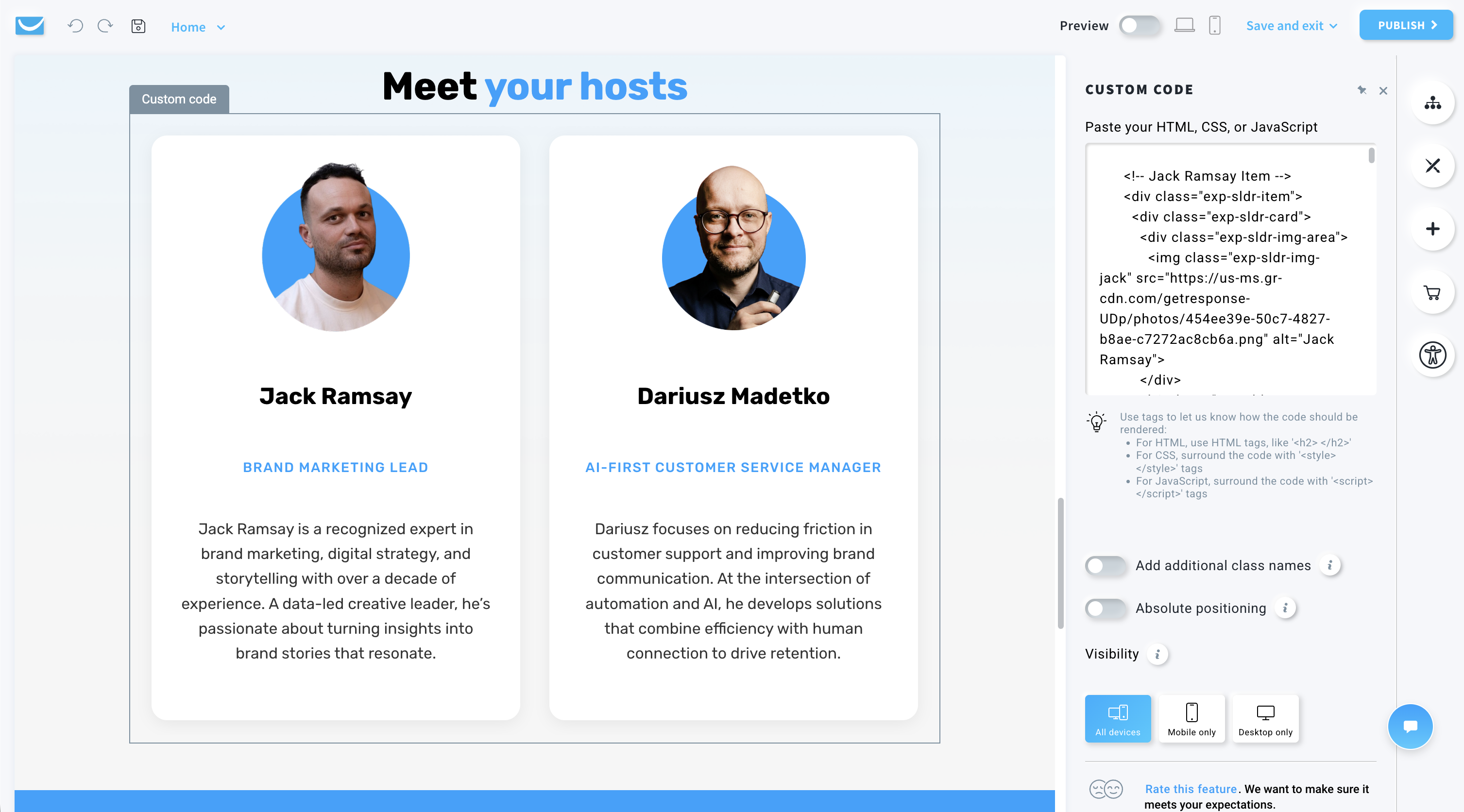
The important limitation is scope. GetResponse’s own help docs say the Custom code block should not be used to embed complete external pages into the landing page editor. It is better for adding elements or styling that are not available through native options. In other words, use it for focused components, not for forcing an entire vibe-coded app into a landing page block.
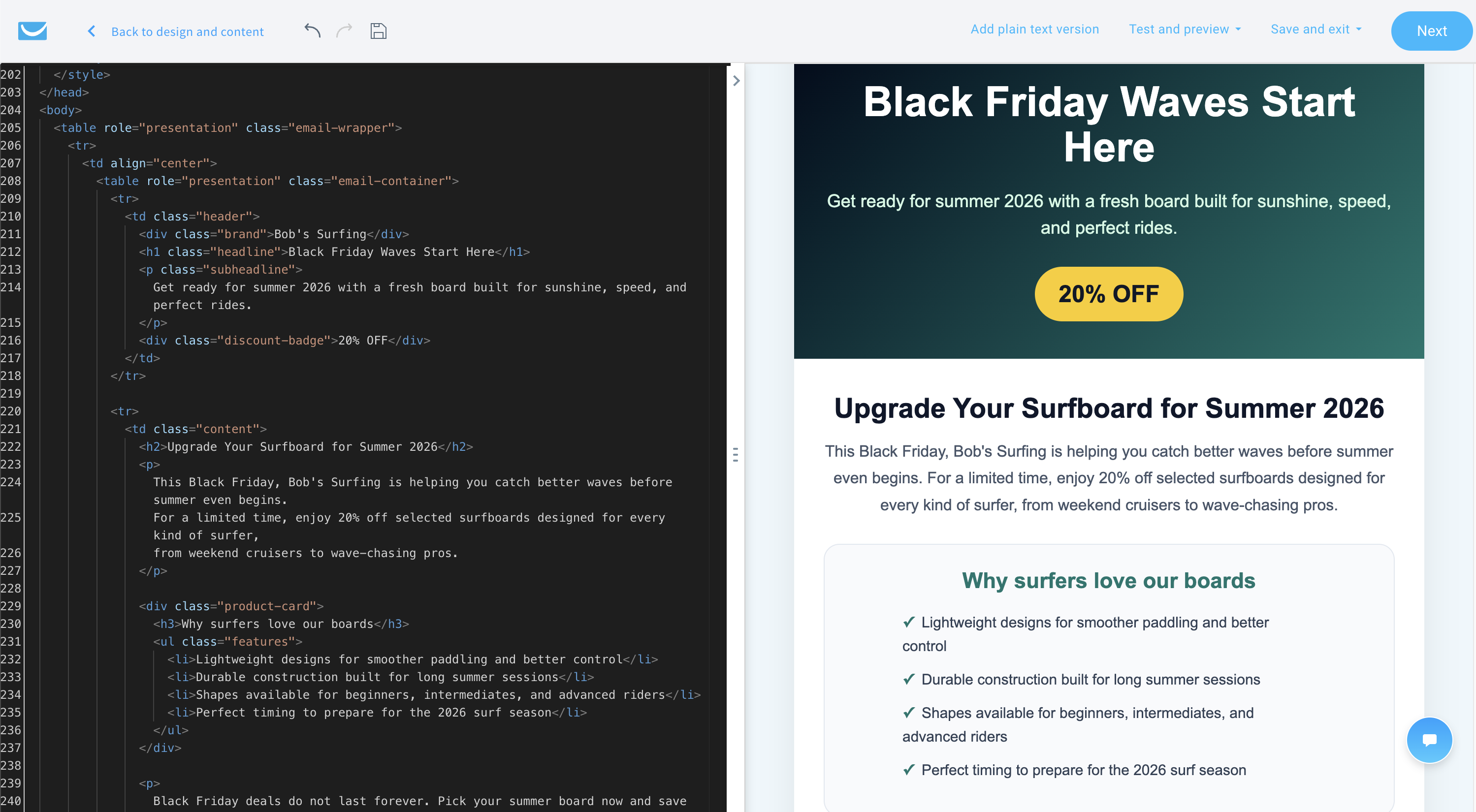
GetResponse also supports custom code in email. The Custom HTML block lets you add HTML and CSS to a message, and GetResponse also lets you upload your own HTML message template. This is useful for custom email sections, styled CTAs, tables, timers, or reusable branded blocks. The catch is that email code is stricter than web code. JavaScript generally will not work reliably in inboxes, so AI-generated email elements should stay simple, email-safe, and tested before sending.
WordPress
WordPress is one of the easiest places to use small AI-generated snippets. The official Custom HTML block lets you add HTML directly inside a page or post, which can work well for simple embeds, styled sections, forms, tables, or lightweight widgets.
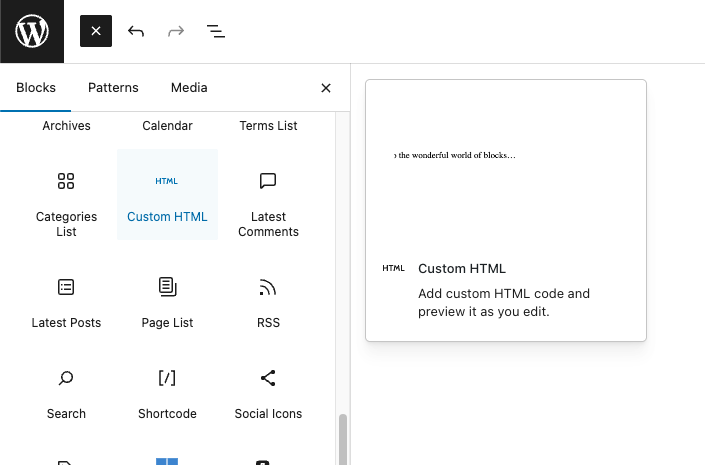
For anything more advanced, like a plugin, or a theme, WordPress usually needs a more careful setup. Some users did succeed in creating simple WordPress plugins or making adjustments to their themes with ChatGPT, however, so it’s possible, but not beginner friendly.
Webflow
Webflow is strong for visual websites, and its Code Embed element lets you add custom HTML, CSS, and JavaScript inside a page. That makes it a natural fit for AI-generated widgets, interactive sections, custom forms, calculators, third-party embeds, and CMS-powered dynamic elements.
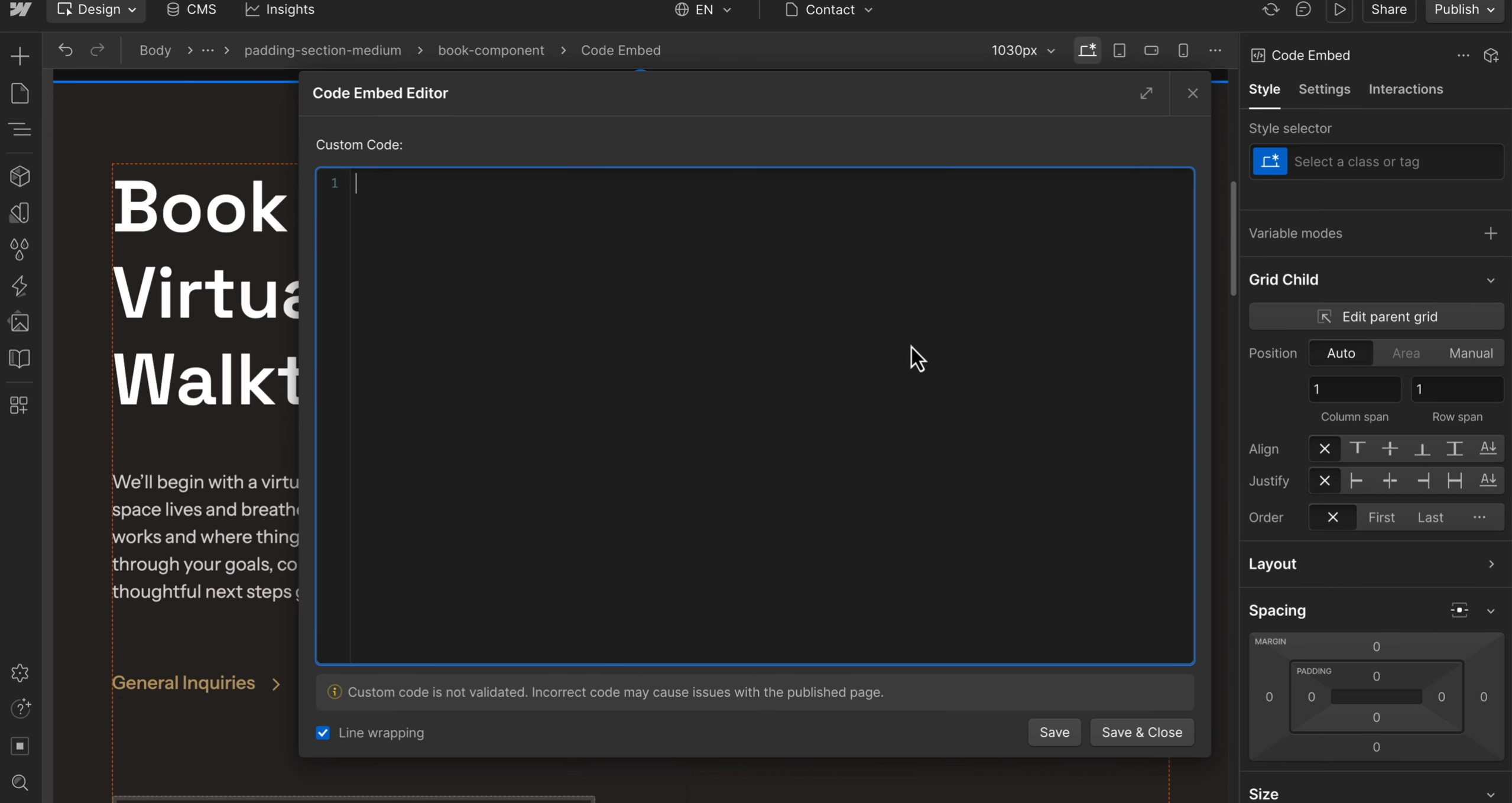
The limitation is compatibility. Webflow notes that custom code is an advanced modification and may conflict with its underlying functionality. So if you add AI-generated code, you still need to test how it behaves across breakpoints, CMS pages, animations, forms, and published pages.
Wix
Wix supports custom code snippets through its dashboard, especially for adding scripts to the head or body of specific pages. Wix’s docs describe this as useful for external services, site behavior, and functionality that is not available through the editor’s built-in tools.
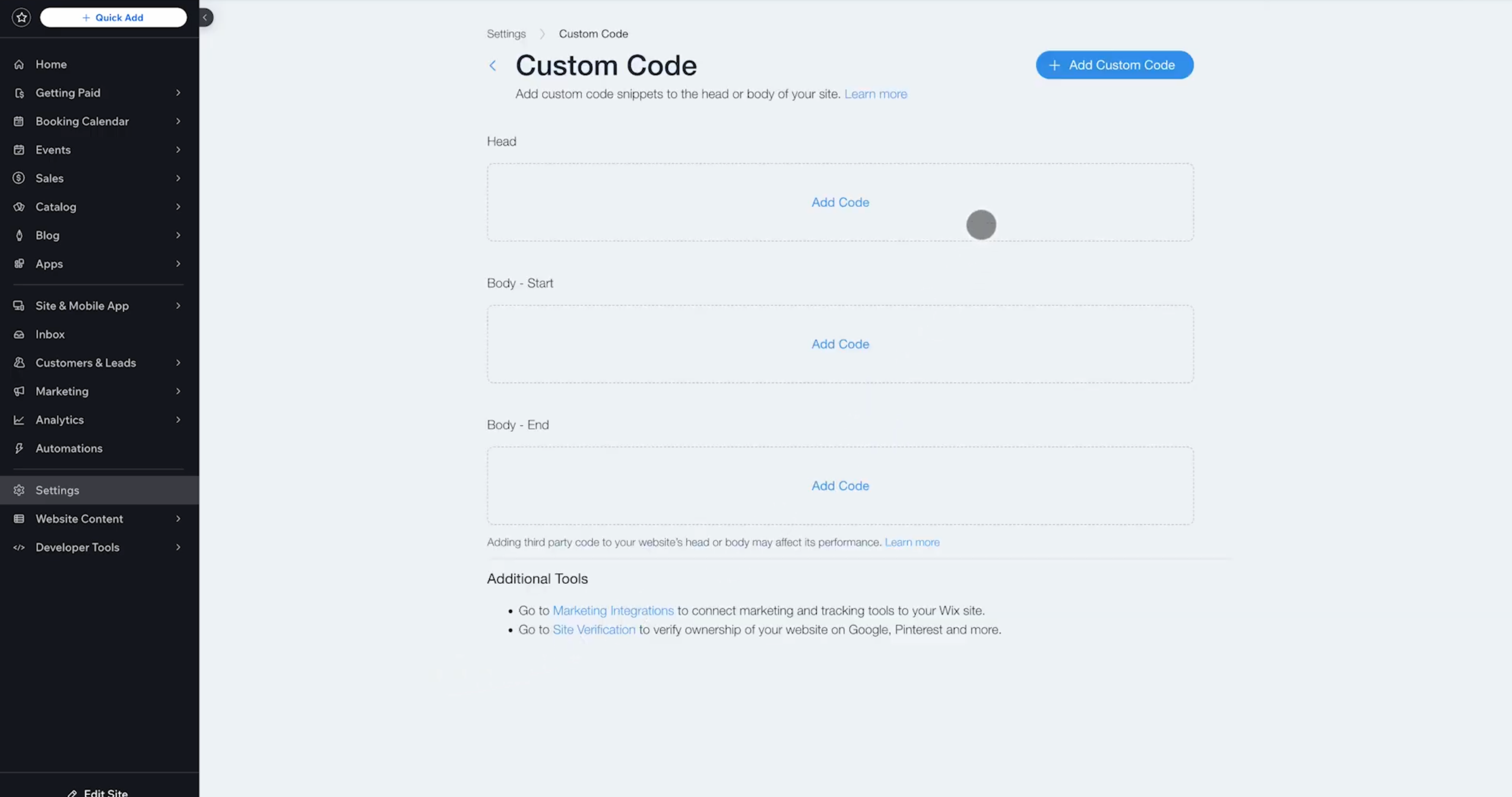
For more advanced projects, Velo by Wix is the better path. Velo gives you a JavaScript-based development environment for custom frontend and backend functionality. That means AI-generated code can be useful, but the implementation depends on whether you are adding a simple embed or building something that needs Wix APIs, data, and backend logic.
Shopify
Shopify is more sensitive because custom code can affect product pages, theme behavior, tracking, checkout-adjacent flows, and revenue-critical parts of the store. AI-generated code can still be useful, but it should be handled carefully.
For theme-level work, Shopify uses Liquid, its templating language. Shopify’s developer docs also describe theme blocks and newer AI-assisted block generation through Sidekick for eligible merchants. That makes Shopify interesting for vibe coding, but also higher risk. A small product comparison block or size guide is one thing. Editing cart behavior, checkout flows, analytics, or product logic without review is another.
For Shopify, the safest rule is: use AI-generated code for low-risk frontend enhancements first, then involve a developer before touching anything that affects purchases, tracking, customer data, or store performance.
Final Takeaway: Vibe Coding Works Best When You Start Small
Vibe coding is powerful because it helps you move from idea to first version much faster. You can generate a landing page widget, custom email block, calculator, quiz, prototype, or internal tool without starting from a blank code editor. But the real skill is not just getting AI to write the code. It is knowing what kind of code you are creating and where it should live.
If it is a small, self-contained component, you can often add it to a platform you already use, such as GetResponse, WordPress, Webflow, Wix, or Shopify. A custom HTML block, simple calculator, FAQ section, product comparison widget, or email snippet is usually easier to test, adapt, and publish than a full app.
If the project needs user accounts, saved data, payments, private API calls, database connections, or server-side logic, treat it like real software. That means thinking about hosting, environment variables, security, permissions, QA, and developer review. A demo that works in an AI tool is not automatically production-ready.
The safest approach is to start smaller than your idea. Build one useful component first. Ask the AI to explain what the code does, where it should be added, what could break, and what needs to be tested before publishing. Then test it in the actual place where it will live, not just in the preview window.
That is where vibe coding becomes genuinely useful. It is not a shortcut around judgment. It is a faster way to get to something worth judging.
FAQ
What is vibe coding?
Vibe coding is a way to create software, websites, apps, or code snippets by describing what you want in plain language and letting AI generate the first version. Instead of starting with syntax, you start with the outcome, then test, refine, and decide where the code should live.
What are the best vibe coding tools?
Some of the most popular tools are v0, Cursor, Claude Code, ChatGPT, and Gemini. v0 is strong for visual app generation and deployment, Cursor and Claude Code are better for working inside real codebases, and ChatGPT or Gemini are useful for flexible code generation, debugging, and explanations.
Is vibe coding only for developers?
No. Developers can use it to move faster, but marketers, founders, designers, and nontechnical users can also use it to create prototypes, landing page widgets, custom HTML sections, calculators, quizzes, and internal tools. The more complex the project becomes, the more technical review it needs.
Can I use vibe coding with GetResponse?
Yes. You can use AI tools to generate custom HTML, CSS, or JavaScript components, then add them to GetResponse landing pages using the Custom code element, or to GetResponse websites using the Custom code element there too. You can also use AI-generated HTML and CSS for custom email sections, but email code should stay simple and inbox-safe.
Can AI-generated code be used in emails?
Yes, but with limits. HTML and CSS can be used for custom email sections, layouts, buttons, and reusable blocks. JavaScript generally does not work reliably in email clients, so AI-generated email code should be tested carefully before sending.
Does vibe coding require hosting?
Not always. A small HTML block, calculator, FAQ section, or email snippet can often live inside an existing platform like GetResponse, WordPress, Webflow, Wix, or Shopify. A full app with user accounts, saved data, payments, private APIs, or dashboards usually needs hosting, a backend, a database, and proper QA.
What is the difference between v0 and Cursor?
v0 is better when you want to generate, preview, and deploy a visual web experience quickly, especially inside the Vercel ecosystem. Cursor is better when you already have a codebase and want AI to help edit files, run commands, debug issues, and implement features inside a real project.
Is vibe coding safe for business websites?
It can be, but only if the code is reviewed and tested before publishing. AI-generated code should be checked for mobile responsiveness, accessibility, performance, tracking issues, exposed API keys, database permissions, and security risks, especially if it touches customer data or business-critical workflows.
