
Using AI for email marketing just got easier for GetResponse users who work in Claude or ChatGPT.
You can ask your assistant to use a previous newsletter as a reference for a new draft, without pasting the content into the chat. Or ask it to analyze newsletter performance, without taking dashboard screenshots or exporting data first.
GetResponse MCP connects your AI assistant to selected information and tools in your GetResponse account. Once connected, you can check newsletter results, find contacts, and create drafts using everyday language, without leaving the conversation.
You can also create three campaign assets together from one prompt: a landing page, an invitation newsletter, and a welcome email, saved as drafts for you to review.
Here’s what that looks like in the marketing work you already do.
What is MCP for email marketing?
MCP stands for Model Context Protocol, a standard that connects AI assistants to external tools and data.
For email marketers, that connection lets an assistant work with information from your email marketing account. It can retrieve the newsletter results relevant to your question or create a draft inside the platform, using the capabilities that platform makes available. Learn how GetResponse MCP works.
With GetResponse MCP, the conversation can draw on your existing newsletters, contact information, and engagement data. That gives you useful context for deciding what to create next.
GetResponse MCP use cases for your everyday marketing
Check newsletter performance while planning your next email
Before writing another newsletter, you want to understand how recent emails performed.
You can ask your connected AI assistant:
Compare last week’s newsletter performance with the week before. Summarize opens and clicks, and highlight the most significant changes.
GetResponse MCP helps the assistant retrieve newsletter performance information and bring a summary into the conversation. You can then ask follow-up questions about a particular newsletter or date range. You can also view individual newsletter statistics in GetResponse when you want to check a result in more detail.
For a coach publishing weekly advice, that might mean checking which recent newsletter attracted the most clicks before choosing the next topic. For a content marketer, it could mean reviewing the response to an educational email before preparing a follow-up.
The results give you something concrete to begin with. You can use them to identify questions worth investigating and ideas worth testing in your next newsletter.
Prepare a re-engagement email for inactive subscribers
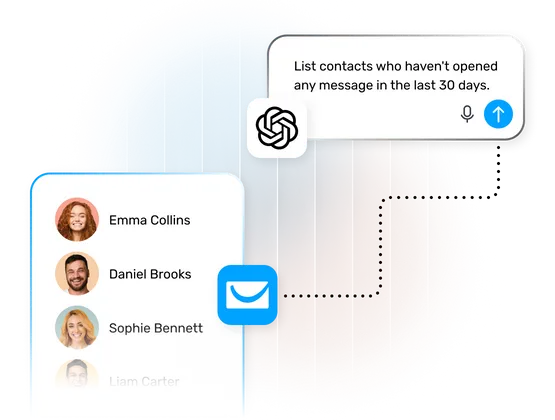
A subscriber who hasn’t interacted with recent emails may need a different message from someone who clicks and engages regularly.
GetResponse MCP helps you find contacts based on email engagement and prepare a newsletter draft for them.
For example:
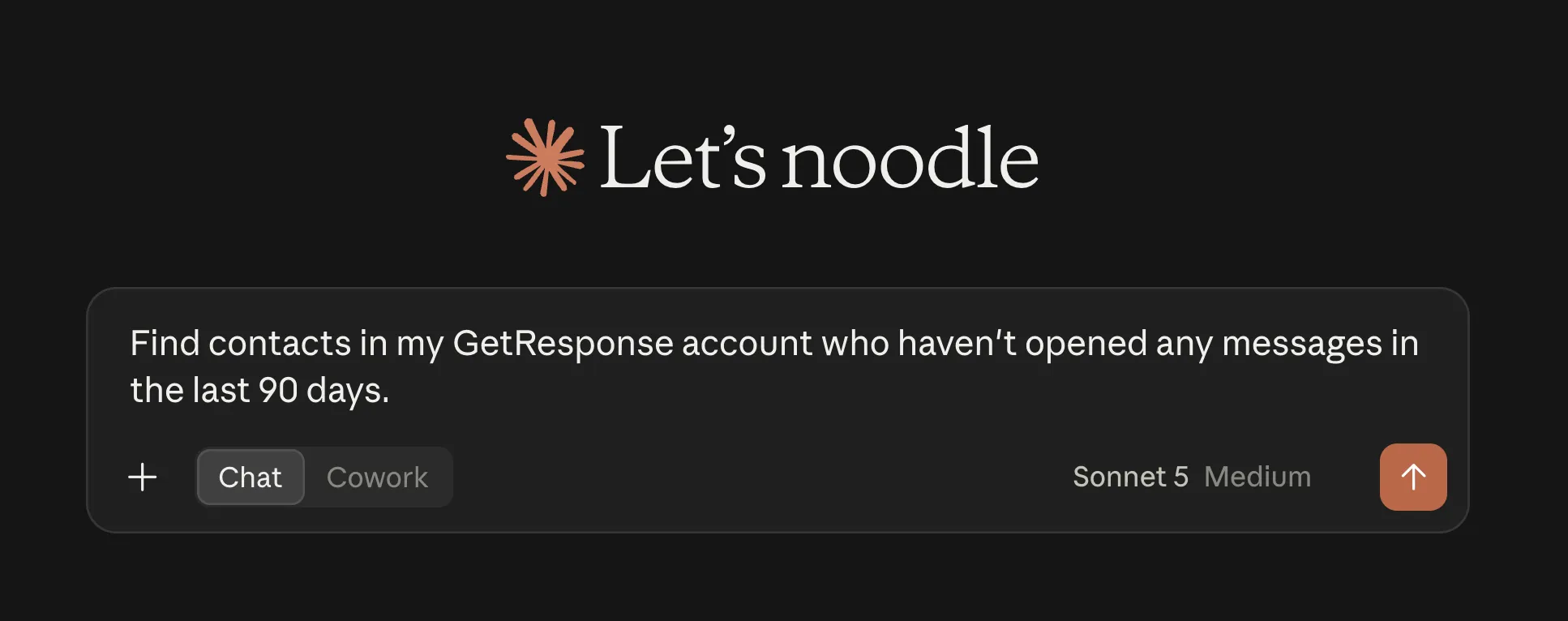
You might ask for a brief reminder of what subscribers can expect from your newsletter, introduce a useful resource, or invite readers to reconnect with your content. For more ideas for the message itself, explore our re-engagement email examples and best practices.
Select an inactivity window that makes sense for your publishing schedule. A weekly newsletter and a monthly newsletter give subscribers different numbers of opportunities to engage.
Review the returned contacts and the draft before deciding on your next step. This use case helps with audience research and message preparation; it doesn’t remove contacts or set up an automated re-engagement sequence.
Draft a newsletter with your previous content as a reference
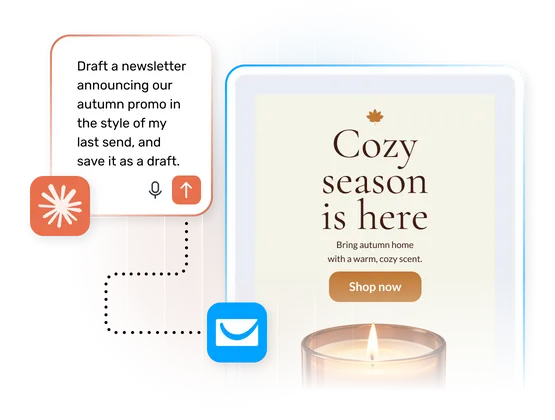
Explaining your writing style from scratch can take several rounds of prompting. An existing newsletter gives your assistant a more specific starting point.
Try:
Read my latest newsletter and create a new draft in a similar tone about [topic].
Claude or ChatGPT can then use the existing newsletter as a reference and create a draft in your GetResponse account.
That can be very useful when you already have an editorial format readers recognize and like. Perhaps your newsletter opens with a personal observation, explains one useful idea, and finishes with an invitation to reply. Referencing that content can help you carry the approach into the next draft. For help refining the format, see our guide to creating an email newsletter.
You can also continue editing your newsletter within the conversation, for example:
Shorten the introduction and make the invitation to reply more specific.
The draft gives you something to work with. You can then refine the language, check the details, and make the final editorial decisions. You can find and review saved newsletter drafts under Email Marketing > Drafts.
Create three campaign assets from one prompt
Suppose you’re preparing a webinar for independent consultants. You need a landing page to introduce the session, a newsletter to invite your audience, and a welcome email.
GetResponse MCP can create those three assets together as drafts.
For example:
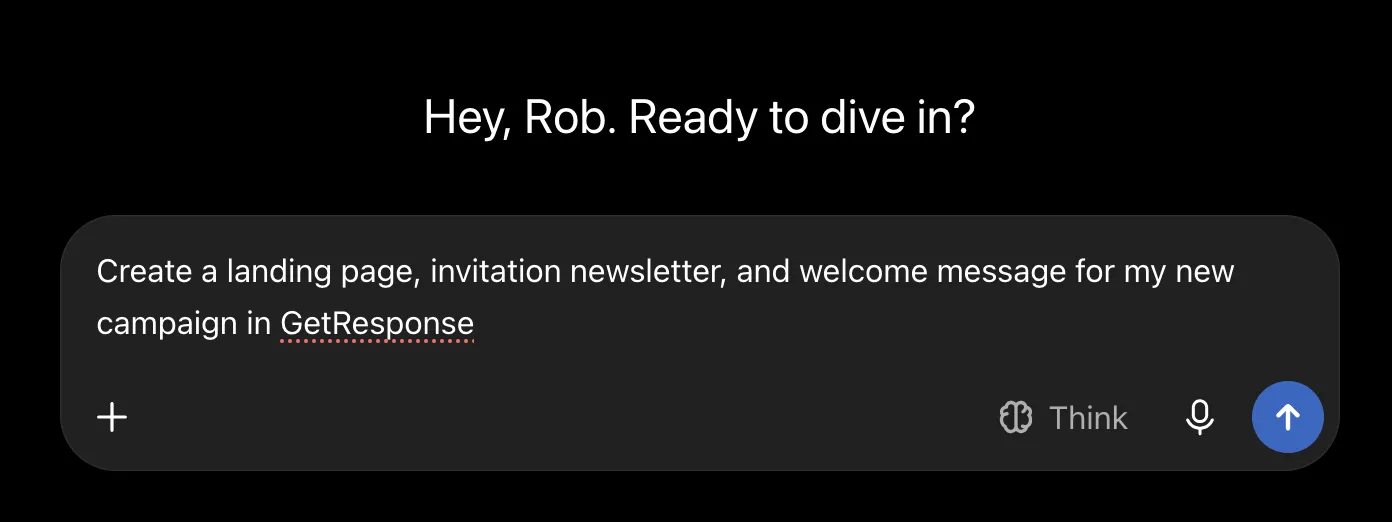
Give your assistant the details you want reflected across the assets, such as the audience, session topic, date, and main benefit of attending.
Creating the drafts together gives you a starting point for reviewing how the message carries across the campaign. You can check whether the landing page explains the session clearly and whether the invitation gives readers a compelling reason to learn more. Our webinar landing page examples can help you assess the draft’s headline, event details, and signup form.
You end up with three draft assets. Publishing the page, sending emails, and setting up any delivery or automation steps remain separate actions in GetResponse.
This can be useful for content projects such as webinars, workshops, and lead-generation campaigns, where several assets need to communicate the same offer.
Prepare a performance summary for an individual client
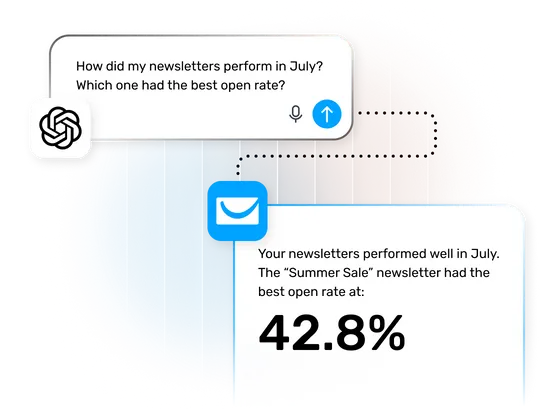
For freelancers and agencies, an email marketing report often starts with reviewing newsletter results and turning the numbers into a clear explanation.
With the relevant client’s GetResponse account connected, you can ask:
Summarize this client’s newsletter performance this month. Highlight the main changes and suggest questions to discuss in our next meeting.
You can use the response as a starting point for your report, then add your knowledge of the client’s goals, content calendar, and recent activity.
A follow-up prompt could ask the assistant to make the summary shorter or explain a particular result in simpler language.
Agency use is scoped to an individual connected account. Consolidated reporting across multiple client accounts isn’t part of this version.
Find contacts using your existing custom fields
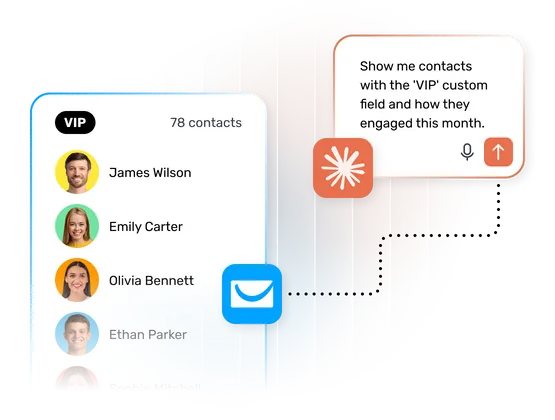
Your account may contain useful audience information beyond opens and clicks.
If you already use custom fields to organize contacts, GetResponse MCP can help you explore those groups through conversation.
For example:
Show me contacts with the “VIP” custom field and summarize their email engagement this month.
For a newsletter publisher, that could mean reviewing engagement among community members you’ve already identified as VIPs before preparing an invitation to an exclusive workshop.
Use the actual custom-field names from your account so your request refers to the information you already collect.
This helps you research an audience for your next message. Creating or managing saved segments, adding tags, and changing contact records sit outside the current MCP capabilities.
How to get started with GetResponse MCP
You’ll need a GetResponse account and an AI application that supports MCP connections. Please note that the current ChatGPT setup requires Developer Mode.
The connection process involves adding GetResponse to your AI application, signing in to your GetResponse account, and authorizing access. Follow the GetResponse MCP connection guide for the instructions for your application.
Once connected, begin with a specific task. Include the newsletter, list, date range, or content reference you want the assistant to use.
For example, “Summarize my newsletters sent last week” gives the assistant a clearer starting point than “How is my marketing doing?”
Check the information it returns and review generated drafts before using them.
Bring your next marketing task into the conversation
GetResponse MCP brings account information and selected creation tools into the AI assistant you already use, helping you move from a marketing question to work you can review.
Frequently asked questions
Is GetResponse MCP free?
GetResponse includes MCP at no additional charge across its plans. Your chosen AI application’s subscription and connection requirements also apply.
Can GetResponse MCP send emails or publish landing pages?
GetResponse MCP creates draft content for review. You handle sending and publishing in GetResponse.
Can GetResponse MCP build marketing automations?
Building or editing marketing automations isn’t included in the current version. Newsletter reporting also doesn’t cover autoresponder or automation performance.
