
Why are there two marketing automation interfaces?
We’ve introduced a new design for the Automation editor to give you a more modern, consistent experience across GetResponse.
While both designs are currently available, the new interface will eventually become the default. We’re also focusing future development on the new editor, which means any upcoming elements and improvements will be introduced there.
How to switch between automation interfaces
The classic design is the default version. To try the new one:
- Open your workflow in the automation editor or create a new one.
- Find the NEW DESIGN toggle in the upper-right corner.
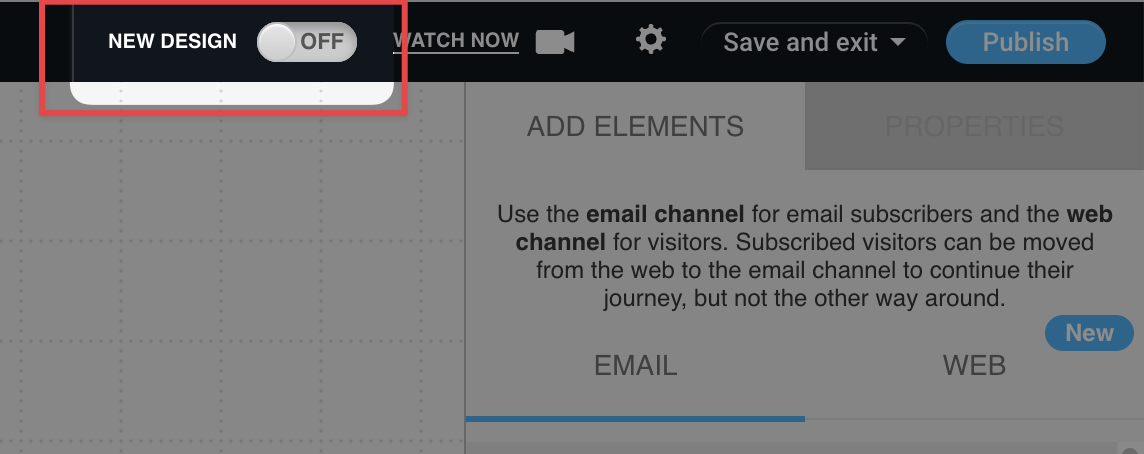
- Switch the toggle ON to use the new design.
- To return to the old interface, simply change the status in the same place.
What happens to your workflows when you switch
Switching between designs only changes how the automation editor looks. Your workflows, settings, and automation processes will continue working exactly as before.
All your saved changes are preserved when switching between designs.
Make sure to save your work before switching. Any unsaved changes will be lost when you switch to the other design.
You can switch between the two designs as often as you like, so feel free to explore the new experience!


