
How to track my Creator’s profile with Facebook Pixel?
Meta Pixel (formerly Facebook Pixel) can be added to your Creator’s profile to better understand how users interact with your content. We provide an easy method to include the tracking code on your profile.
Learn how to track conversions with Meta Pixel.
Before you begin:
- Make sure you have access to a Meta Business Manager account or create one.
- Check that you’re an admin on the Meta Business Manager account you’d like to use.
- Create or find your Meta Pixel. You can find out how to create your first Meta Pixel here, and if you have one already, here you can find out how to get it.
Note: If you use Meta Pixel and target users in the EU, a cookie consent banner is required before the pixel fires. You can enable the cookie consent banner directly in your Creator’s profile settings in GetResponse.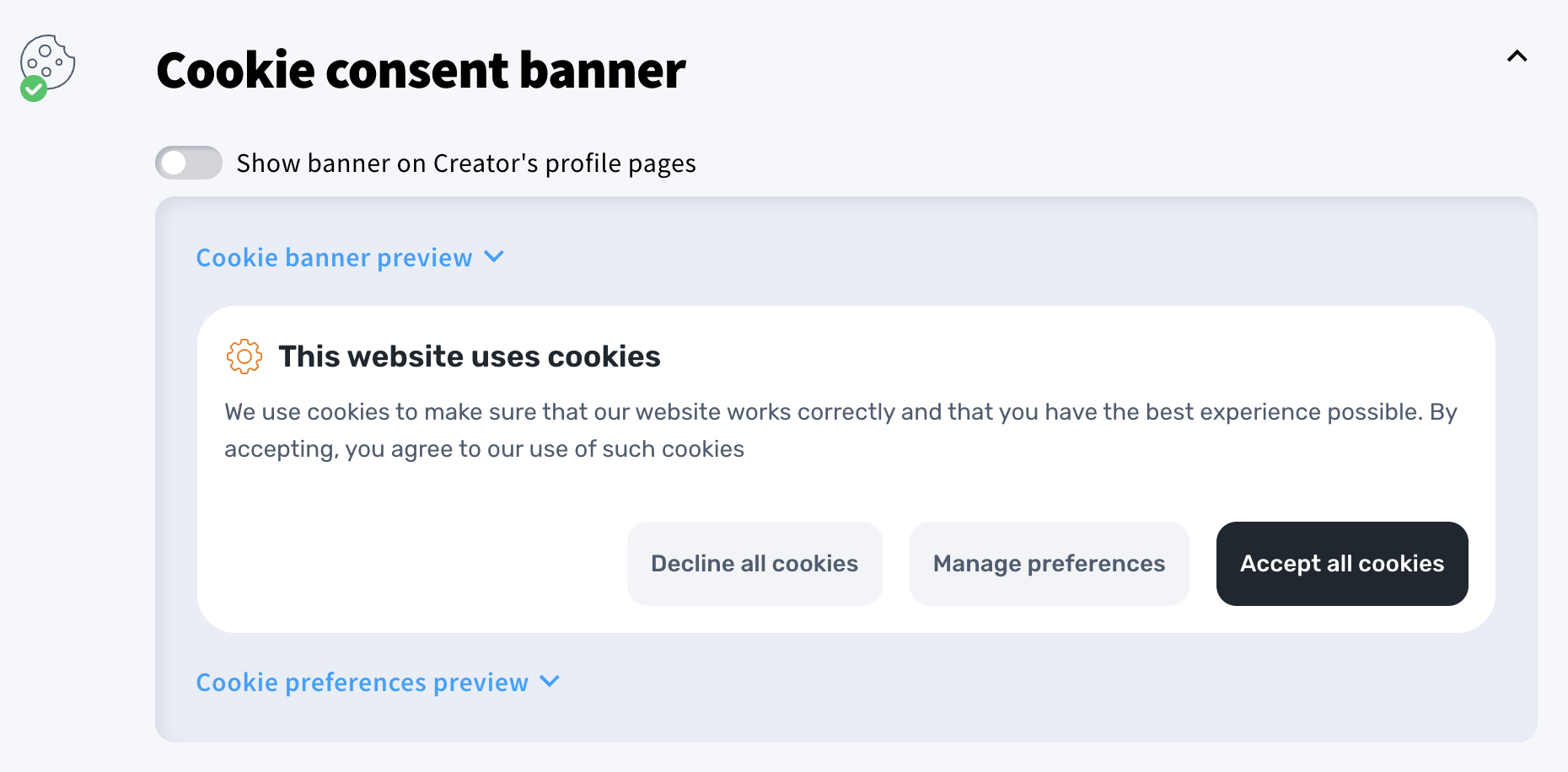
What is Meta Pixel and how can I use it
The Meta Pixel (formerly known as Facebook Pixel) is a small JavaScript code snippet that helps you build, measure, and optimize audiences for your ad campaigns. By using the Meta Pixel, you can track user actions on your Creator’s profile across different devices, enabling you to create more effective Facebook advertising campaigns.
Here are three key ways to use the Meta Pixel:
- Building Custom Audiences for Remarketing
Custom Audiences let you connect with people on Facebook who have visited your Creator’s profile. This powerful tool increases engagement with users who’ve already shown interest in your content.
Learn how to create Custom Audiences with the Meta Pixel. - Optimizing Ads for Conversions
Improve your ad performance by targeting users who are more likely to take specific actions. - Tracking Conversions and Attribution
Measure the success of your ads by tracking conversions and linking them directly to your campaigns.
Not running Facebook Ads yet? Install the Facebook Pixel now to start gathering data. You’ll have it ready when you’re prepared to launch your first ad.
How to enable the Facebook Pixel for the Creator’s profile
- Go to Tools > Creator’s profile.
- Scroll down to the Analytics integrations section and enable Analytics and remarketing.
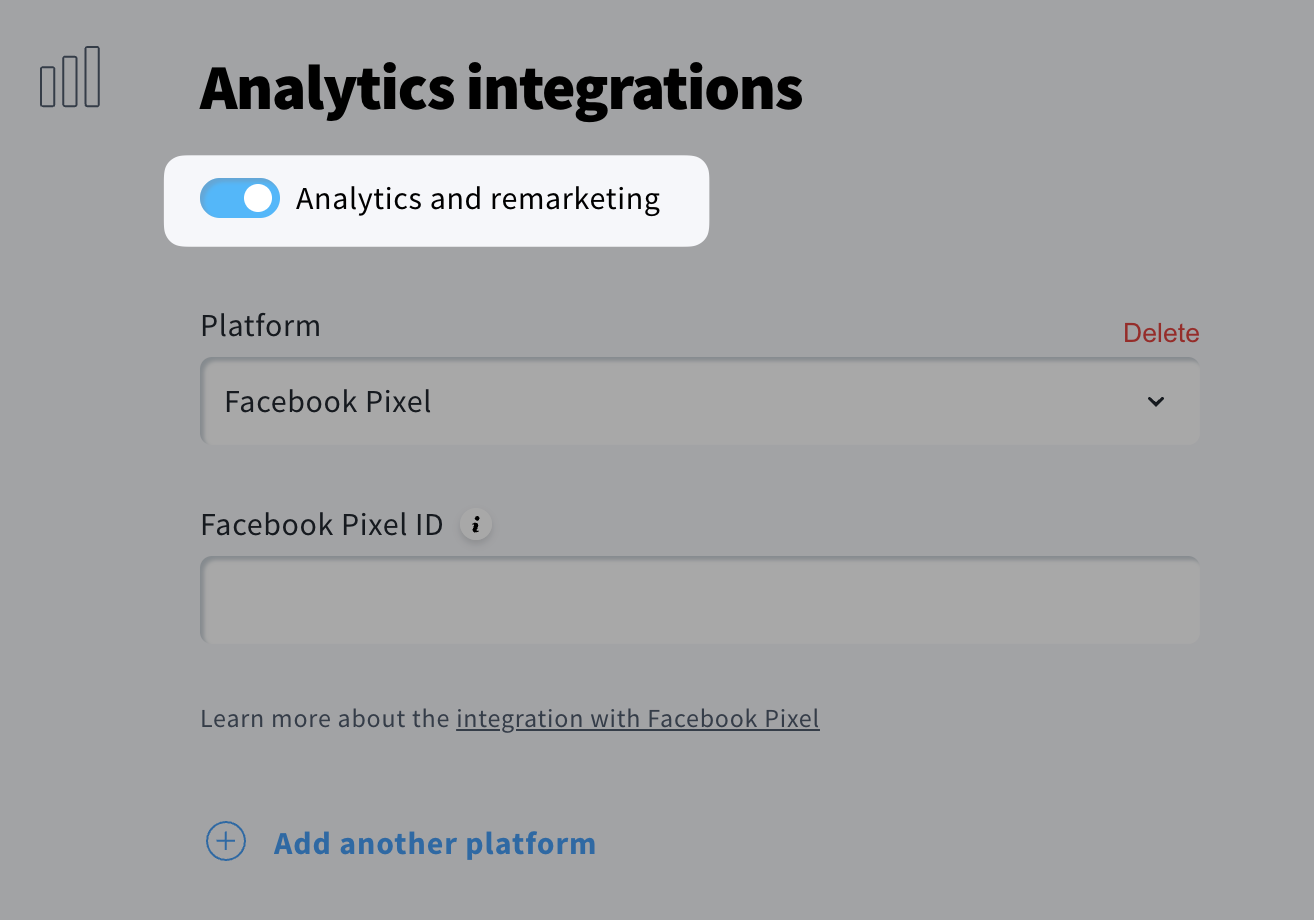
- Select Facebook Pixel from the list and paste your Facebook Pixel ID.

- Scroll to the bottom of the page and click Save.


