How to integrate GetResponse MAX with Make.com? MAX
Integrating GetResponse MAX with Make.com allows you to automate your marketing workflows seamlessly. By connecting these platforms, you can sync contacts, manage campaigns, and streamline repetitive tasks, saving time and ensuring your marketing processes run smoothly. This FAQ will guide you through the key steps and common questions to help you set up the integration efficiently.
Note: Traditional ways of connecting make.com with GetResponse will not work for your GetResponse MAX account. The GetResponse module in make.com is redirecting you to the app.getresponse.com domain, which is specific to our self-service customers. As you have your own login domain for your MAX account, the connection is done differently – through the HTTP module in Make.com.
Before you start, you will need:
How to integrate GetResponse MAX with Make.com
- Log into your Make.com account.
- Start creating a new scenario.
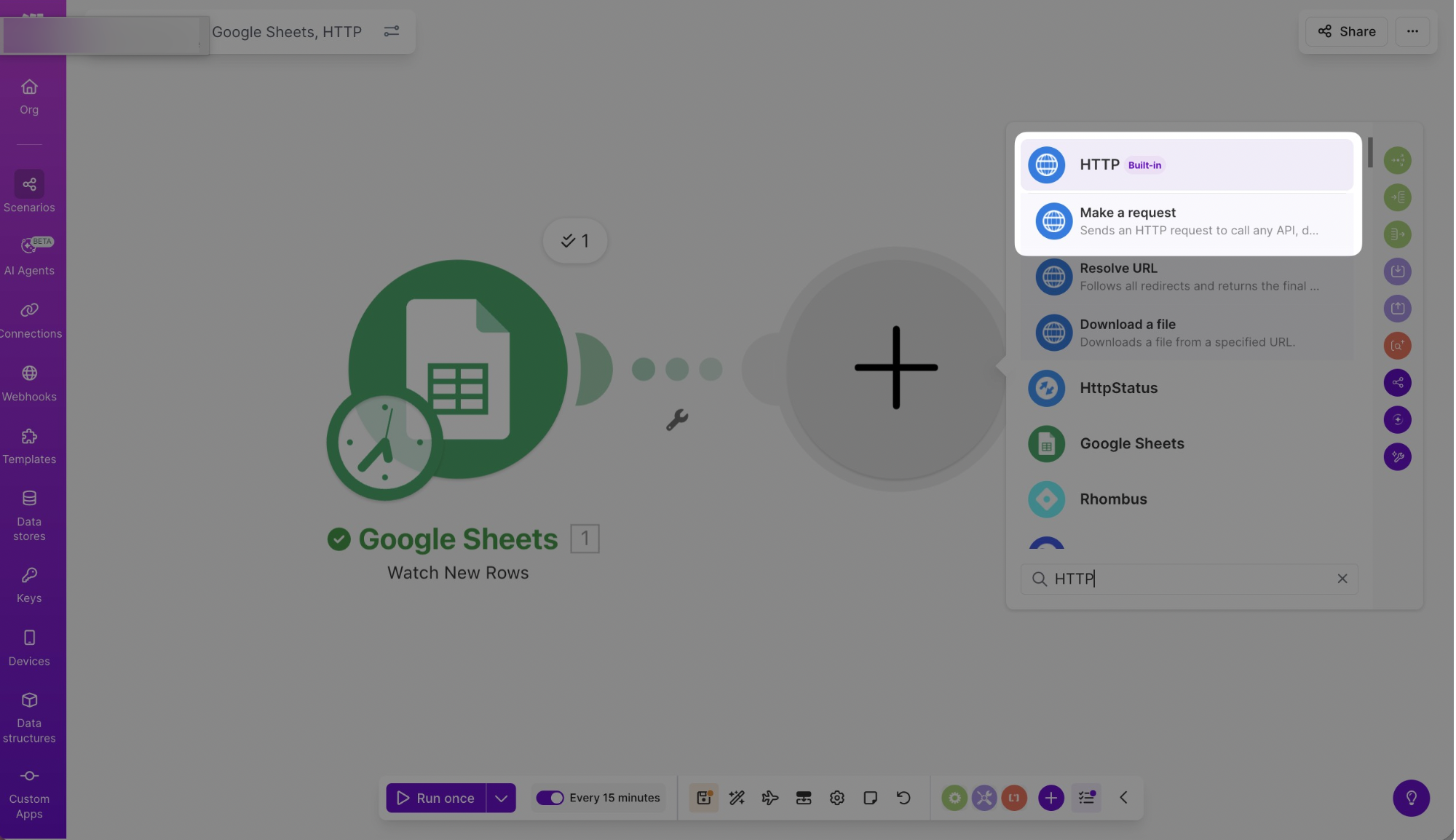
- Choose HTTP – Make a request from the list of modules.
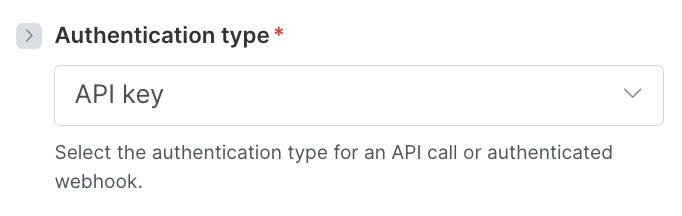
- Choose API Key as your authentication type.
- Click on Add under Credentials and enter your API key following the requirements from our API Docs.
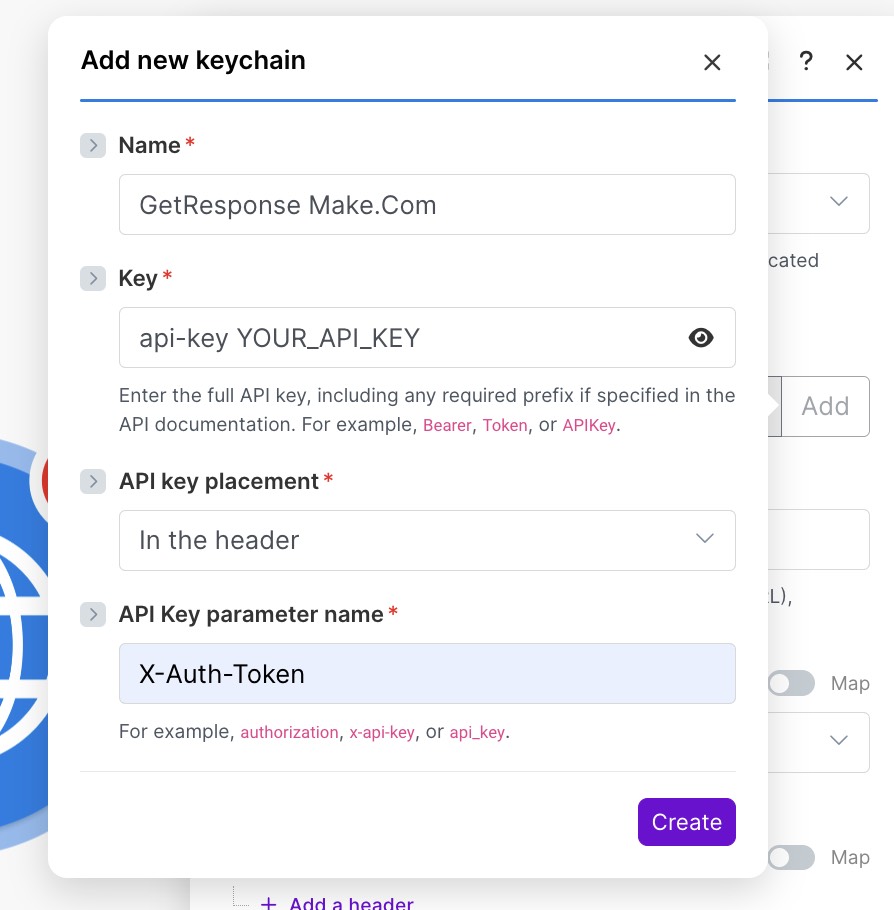
- Click on Add under Credentials and enter your API key following the requirements from our API Docs.
- Enter the correct API endpoint (it has to be the full URL, including the path such as /contacts, /customfields, /newsletters etc.), choose your method (GET, POST, DELETE) and add the necessary headers.
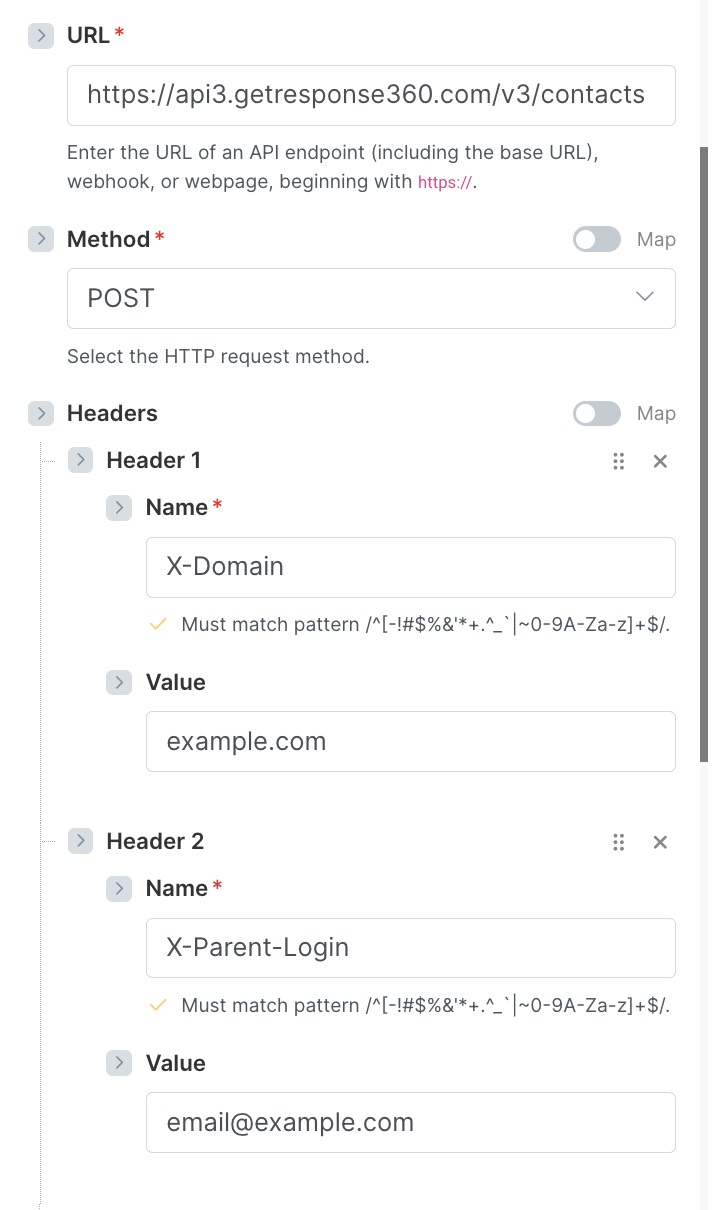
X-Domain is your GetResponse login domain.
X-Parent-Login is your GetResponse account login, which is only necessary if you want to create a (sub)account specific connection to, for example, GET the list of custom fields from a specific subaccount.
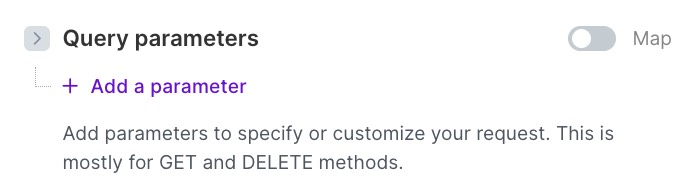
Note: Make sure you are using the correct API Endpoint (PL vs COM). If you are not sure which one to use, contact our Customer Success Team. - In Query parameters, you can add additional parameters to your API call if necessary.
- Set Body content type to application/json, Body input method to JSON string, and enter the desired Payload.
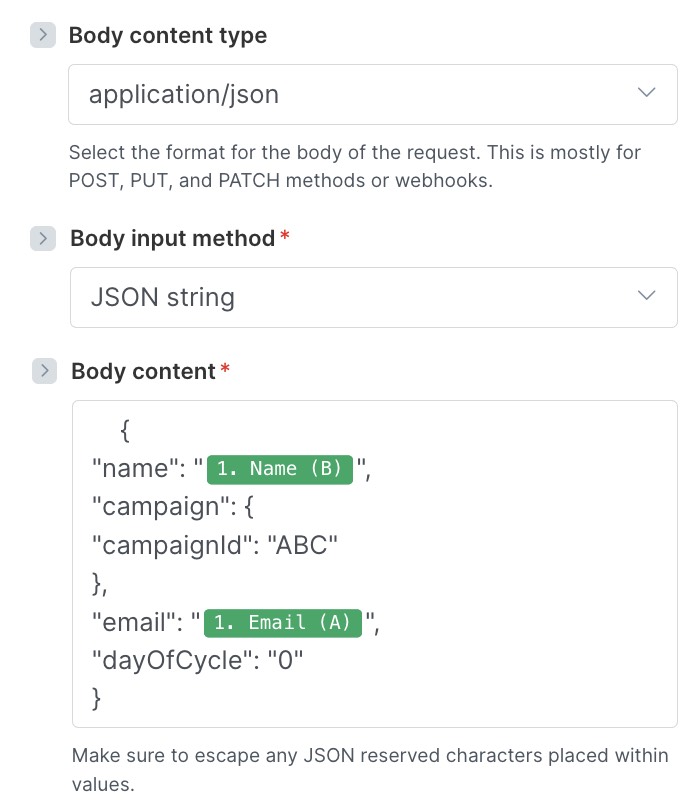
If there are any static values such as Campaign ID or Autoresponder – include them in the body. If there are any placeholders, you will be able to choose them from the list: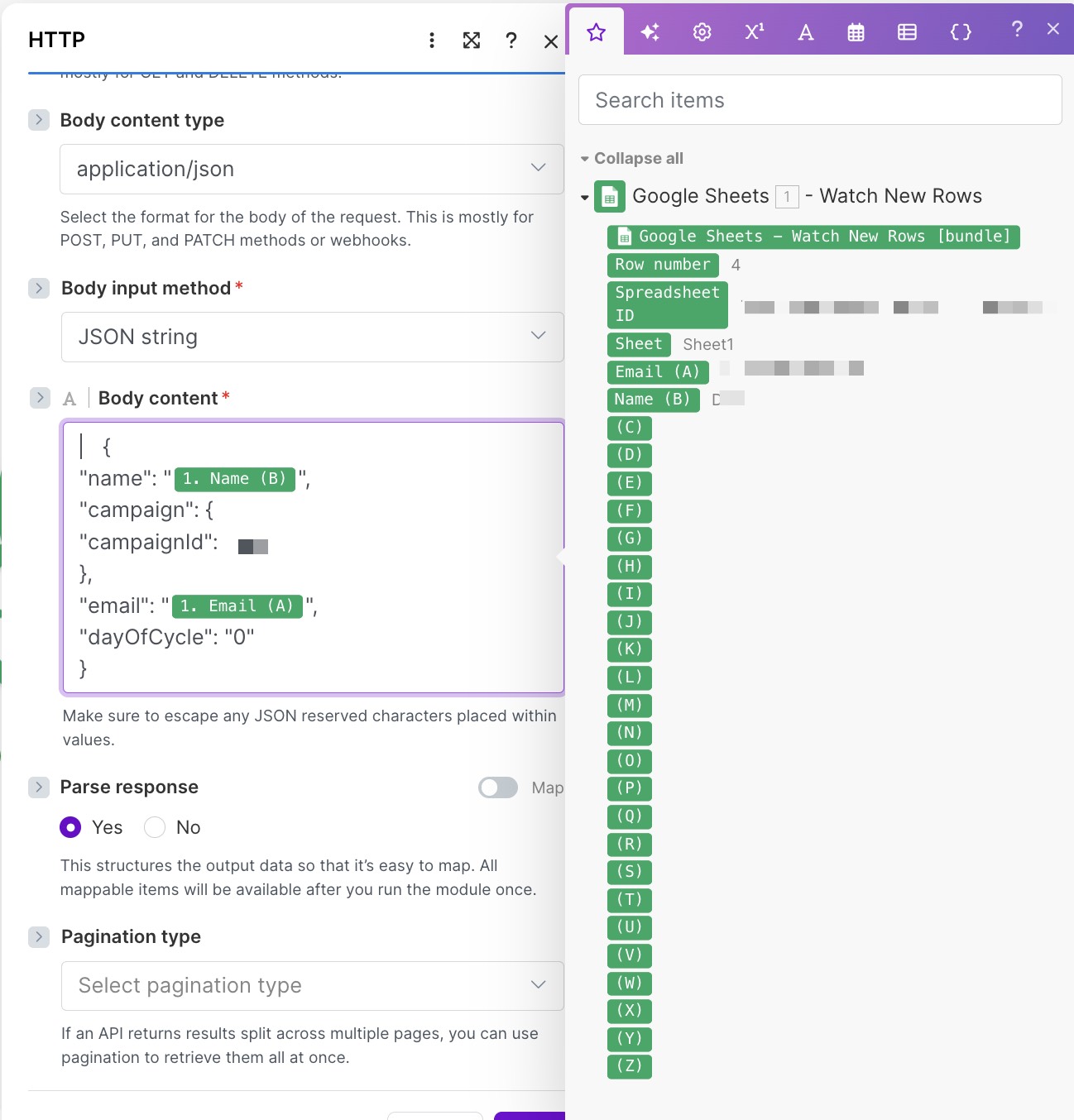
This can differ based on your source module. - Enable your scenario.

- Run a test. Note: To run a test with specific values, input actual data in the body instead of placeholders.

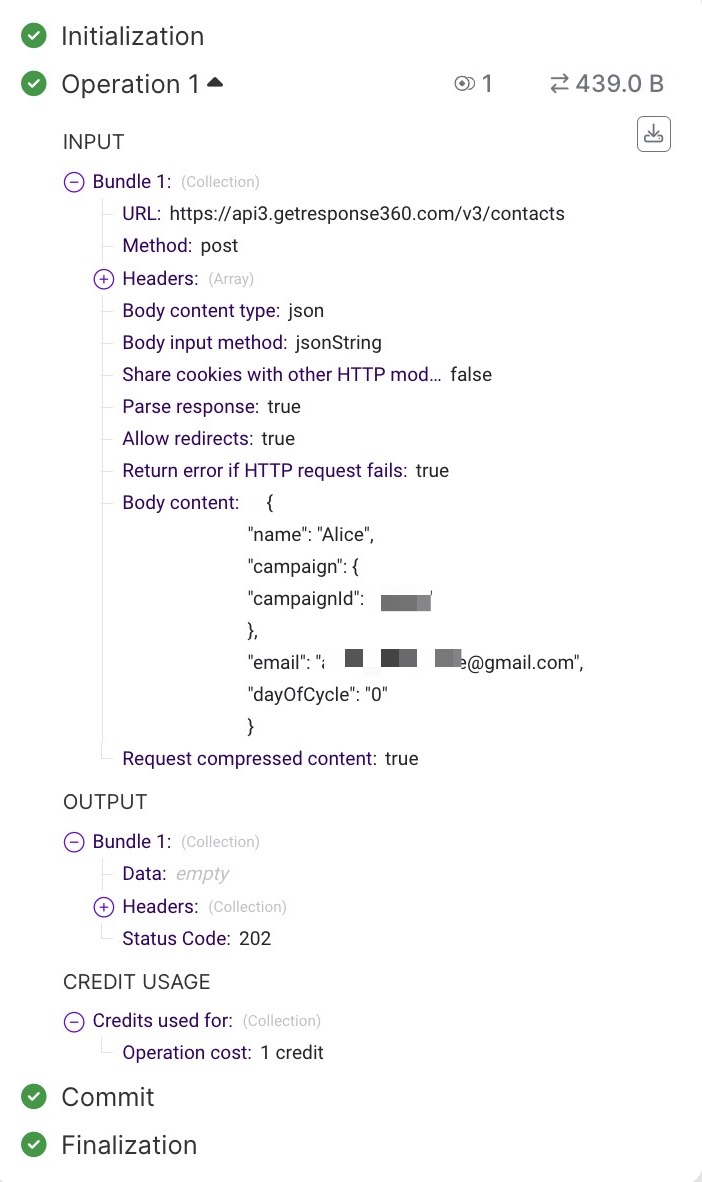
- If the API call was successful, you should see ticks in both modules.
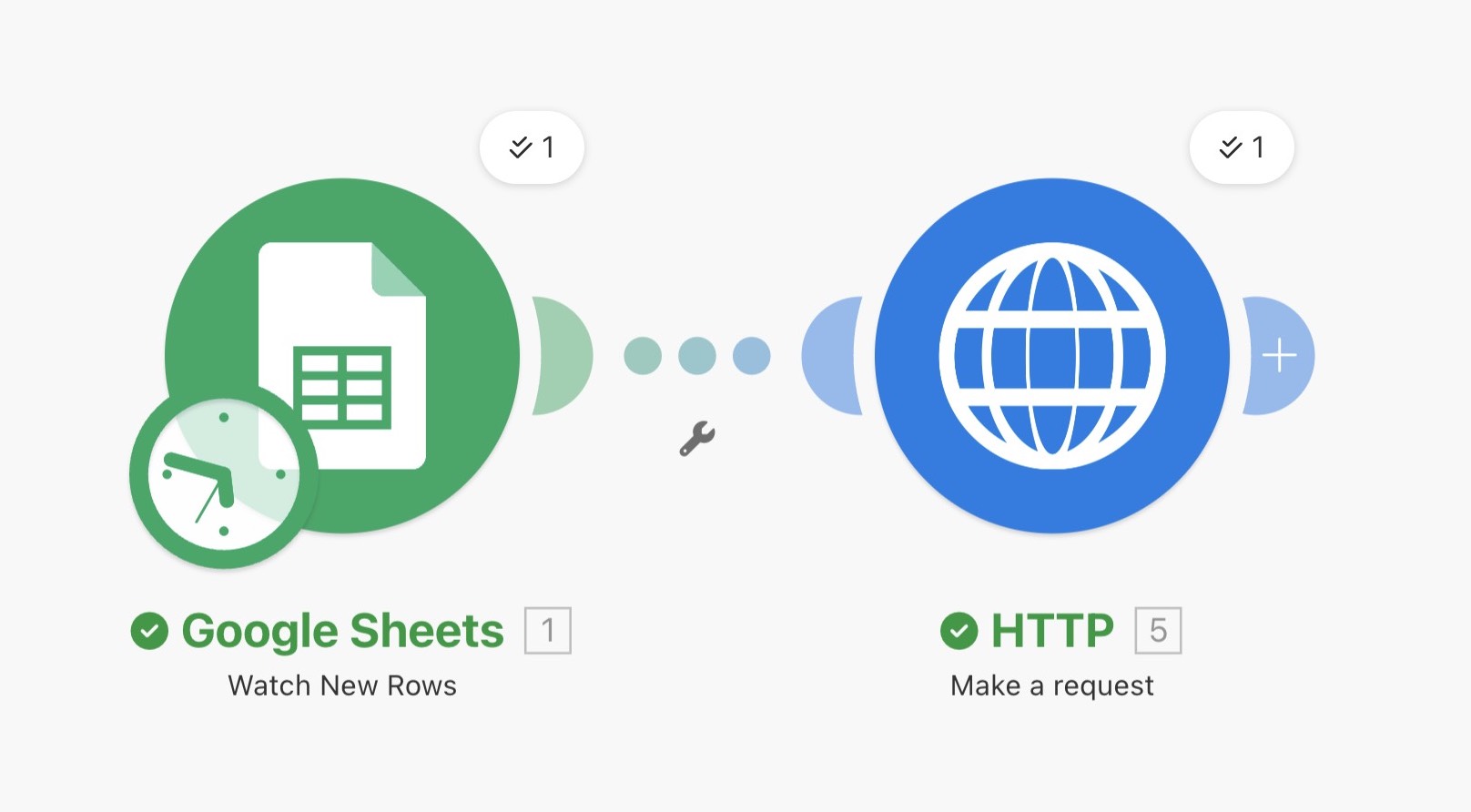
And a response body with your desired values: