# Can I add links to custom fields?
There are two methods of adding links to custom fields. You can create:
* a URL custom field. It’s a validated input field that lets you enter a site address.
* a text field and add an `` tag to link to an external page. This is possible for **checkbox** text fields only.
In this article, we show you how to add a link to a text field. For general instructions on creating custom fields (including URL fields), go to [How do I create and use custom fields](https://www.getresponse.com/help/how-do-i-create-and-use-custom-fields.html). If you need to add consent fields and link to your Privacy policy and collect consent, go to [How do I create and use Consent fields](https://www.getresponse.com/help/how-do-i-create-and-use-consent-fields.html).
Creating a checkbox field
-------------------------
1\. In your GetResponse account, go [**Contacts >>** **Custom fields**](https://app.getresponse.com/custom-fields) in the top menu.
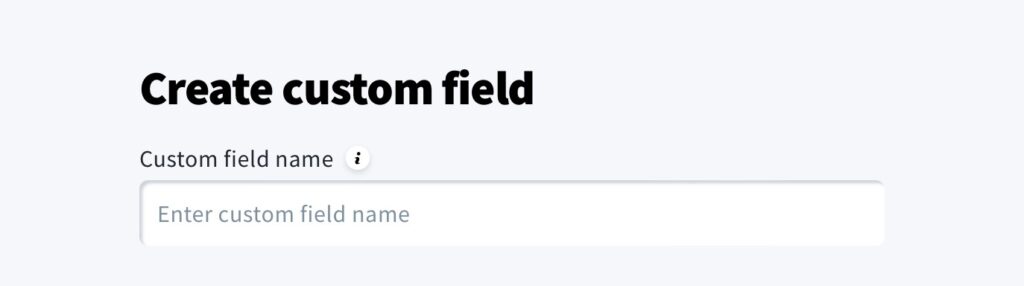
2\. Click the **Create custom field** button.
3\. Enter a name, e.g. “checkbox\_with\_link”.
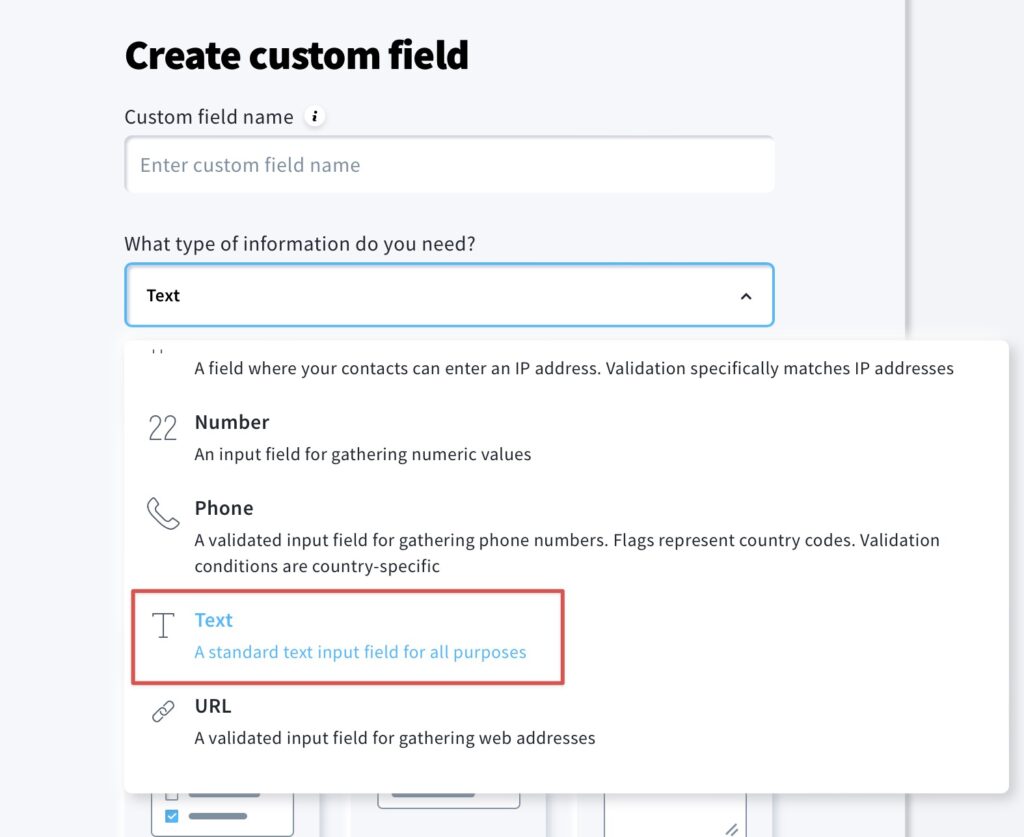
4\. For type, select **Text**.
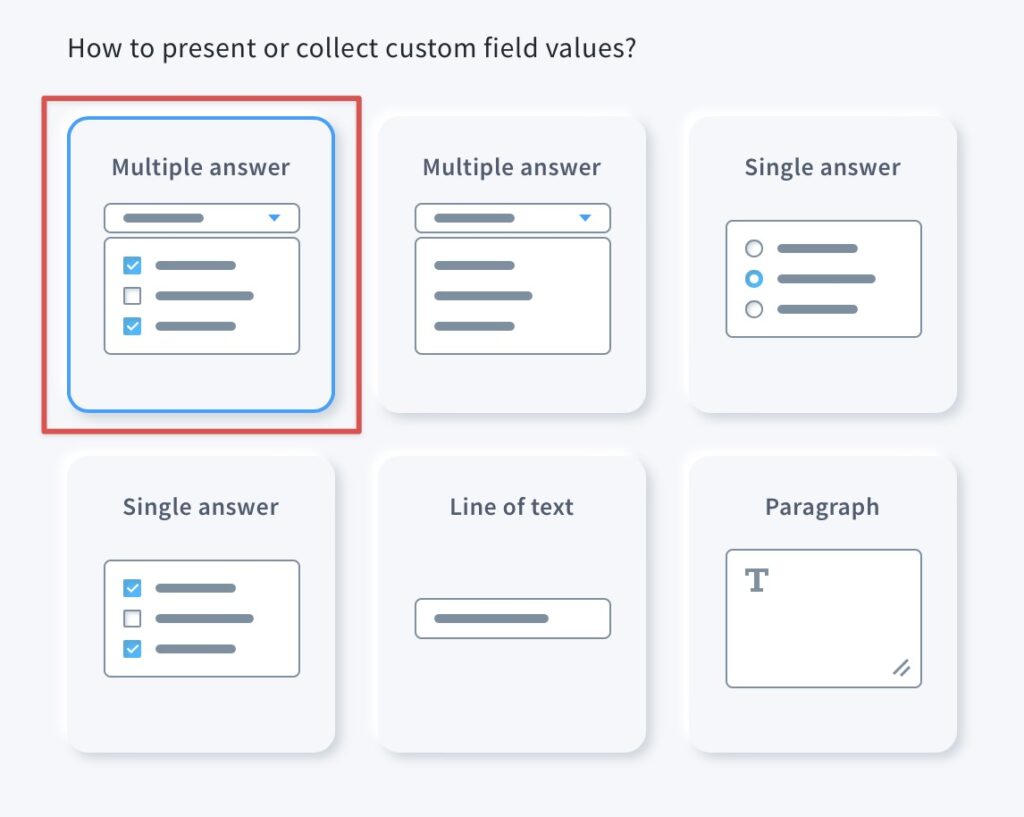
5\. For format, you select the first of the multiple-answer field options.
6\. In the options field, type in the text you want to display to your potential contacts.
To include a link, add the `` HTML tag, for example:

Swap the URL in the example for the link you want to use and modify the text that will be linked. Be sure to include https:// and use single quotes (‘ ‘) in the tag. The linked document will open in a separate window.
7\. Click **Save**.
The custom field you’ve created will appear within your **User-defined** custom fields on the **Manage** page.
Repeat steps 2-7 to create as many checkbox fields as you need.